Juanio Jones
Members
-
Joined
-
Last visited
Everything posted by Juanio Jones
-
-
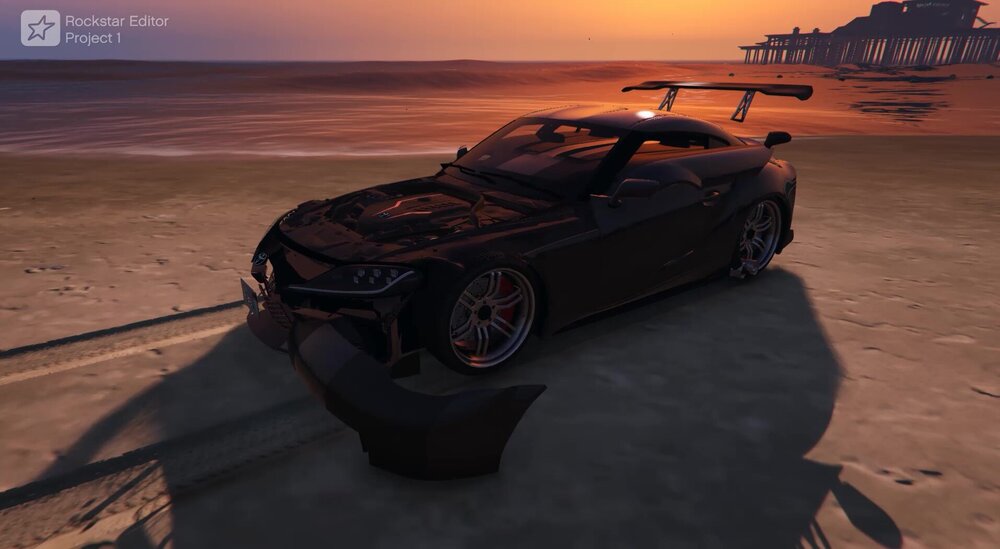
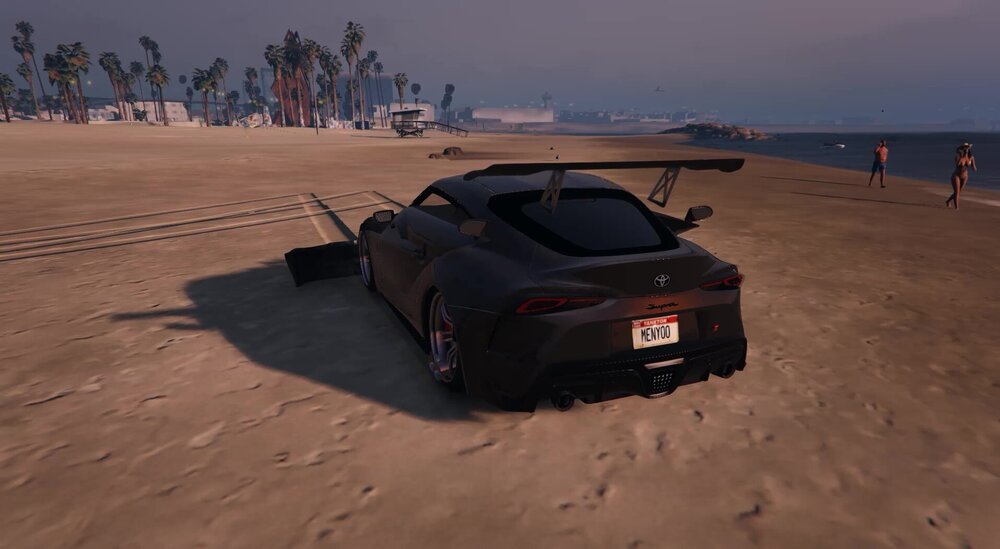
Hello my friends of the GTA 5 community, I am fairly new to the modding scene and decided to replace a car in the game(this is my third one). At first i was gonna use a Porsche 911 Turbo, which replaced "banshee.yft" "banshee.ytd" and "banshee_hi.yft" also with a few mods to the "vehicle.meta" file and the "handling.meta". After loading into the game, the car had no wheels, no hood, and a random spoiler sticker out of the back. I then used my backup files to restore the Vehicle and handling meta files and downloaded another car that replaced the banshee in game. I tried again with a Subaru BRZ mod and it worked and drove but the hood was inside the car and the front bumper was offset to the right. so i tried to replace it again with a supra and the same thing happened(Hood inside of car, floating banshee spoiler and offset front banshee bumper). Can someone PLEASE help. Thx alot for ur time. -Juan (The cars i used just incase your are intrested.) https://www.gta5-mods.com/vehicles/2016-porsche-911-turbo-s-add-on-replace-auto-spoiler-animated-template https://libertycity.net/files/gta-5/102781-subaru-brz-rocket-bunny-v3-add-on.html https://libertycity.net/files/gta-5/131013-2020-toyota-supra-gr-a90-add-on-replace.html