Thoboy110
Members
-
Joined
-
Last visited
-
There is no other keys.ini file. Ok it does work now. I put it in my main directory, when it had to be in my LSPDFR directory. I am so sorry for wasting your time.
-
Hey @A Stranger, Ok, i got the keys.ini file with my own bindings in my directory now. There is another problem. The keys.ini file that I just moved in to there doesn't work. If I go in game, it just takes the default bindings. There is also no other keys.ini file in the directory. Thanks in advance!
-
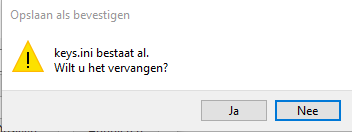
Hey guys, I recently downloaded LSPDFR again. It got me some issues though. I can't change my keybinds in game and I saw on the forums this was normal. You have to go to your .ini file, but this also isn't working for me. It says that I dont have the permission to change the file. These are the steps i am taking. I run on a windows 10 computer. I have vanilla LSPDFR with no mods. I just started again. Step 1: I change the settings . Step 2: I save it, but I get this window for some reason? Not just the "Do you want to replace it?" Step 3: After that I get this window. This means "keys.ini" already exists. Do you want to replace it? But in dutch. Step 4: And than the error :) It basically says that i don't have the power to open the file. I need permission from the owner of the ini file or owner of the system admin. I am the system admin though. Thanks in advance for all your help!