


Wodrom
Members
-
Joined
-
Last visited
Everything posted by Wodrom
-
*claps* Thank you, finally get to see those stupid ambientspawn crash fixed.
-
Hey LSPDFR Community, Has anyone else encounter this problem and know how to fix it? My patrol and range anywhere between 5 min to 30 min before it randomly crashes. In the Ragehook report, its stating "UNHANDLED EXCEPTION DURING GAME FIBER TICK" followed by Origin: Game fiber "AmbientSpawn". I've tried to look around other threads to see how to fix this but so far no luck. RagePluginHook.log More specifically, this part.
-
Yeah... i went back to the file i downloaded, forgot to insert that part. Thank you
-
I've been able to fix all the start up crashes by referring to the common issue post. However, I'm still running into crashing problems after going on duty. Going to the police station, selecting character and vehicle is fine. After roughly 30 seconds to a minute of being on duty, LSPDFR crashes. I've even tried to reload plugin and force duty, but I'm still having problems. RagePluginHook.log
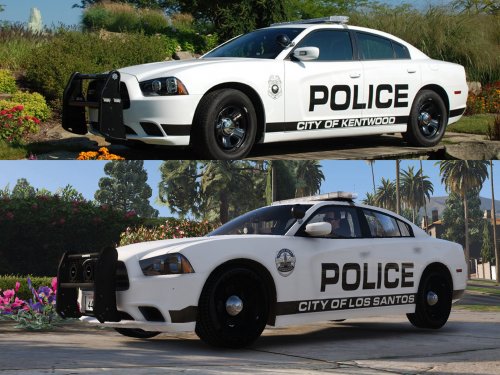 You should also include the fact that you added a Grand Rapids Police Department livery for some of the vehicles too. I was trying to find a GRPD one and was happily surprised when I saw the GRPD included with the Kentwood livery.
- 10 comments
- 4 reviews
-
-

- 1
-
.png.e1f603b8a574acddfe67b0c825536c02.png)
.png.ca44ea7f9ba3aa4f4ca1247c3ebdab94.png)
.png.657a8c6d5282a94132add02d5072d19e.png)
