Bullboy
Members
-
Joined
-
Last visited
Everything posted by Bullboy
-
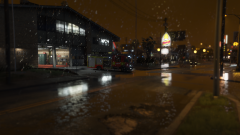
From the album: Bullboy's Screenshots
Appliance by ObsidianGames -
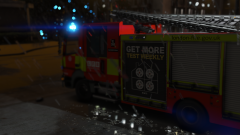
From the album: Bullboy's Screenshots
Appliance by ObsidianGames -
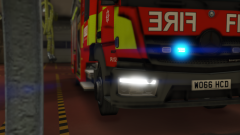
From the album: Bullboy's Screenshots
Appliance by ObsidianGames -
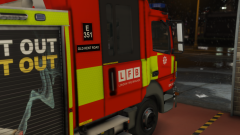
From the album: Bullboy's Screenshots
Appliance by ObsidianGames -
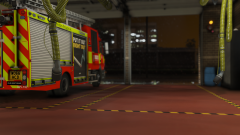
From the album: Bullboy's Screenshots
Appliance by ObsidianGames -
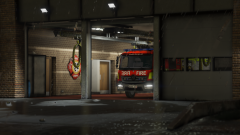
From the album: Bullboy's Screenshots
Appliance by ObsidianGames -
-
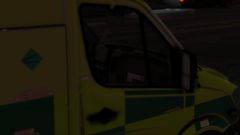
From the album: Bullboy's Screenshots
London Ambulance Service Ambulance by Obsidian Games. -
-
-
-
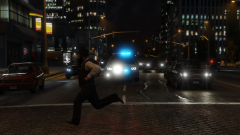
From the album: Bullboy's Screenshots
-
-
-
-
-
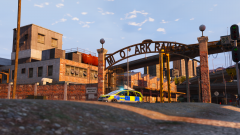
From the album: Bullboy's Screenshots
-
-
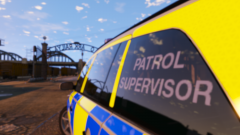
From the album: Bullboy's Screenshots
-
-
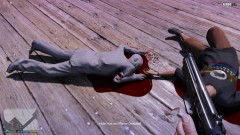
From the album: Bullboy's Screenshots
Not one of my usual images but I enjoyed the fact that even when dead he is a great statue. -
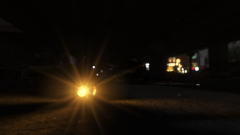
From the album: Bullboy's Screenshots
Ford Focus Unmarked by Bleep999 -
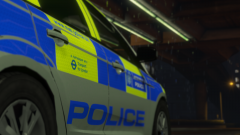
From the album: Bullboy's Screenshots
-
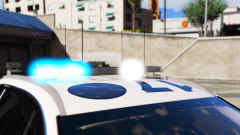
From the album: Bullboy's Screenshots
Bleep999's Durham and Cleveland Police 2016 BMW 330d. -
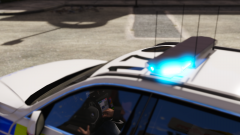
From the album: Bullboy's Screenshots
Bleep999's Durham and Cleveland Police 2016 BMW 330d.