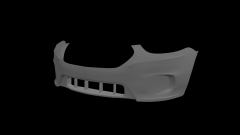
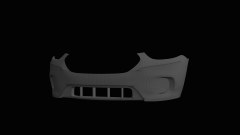
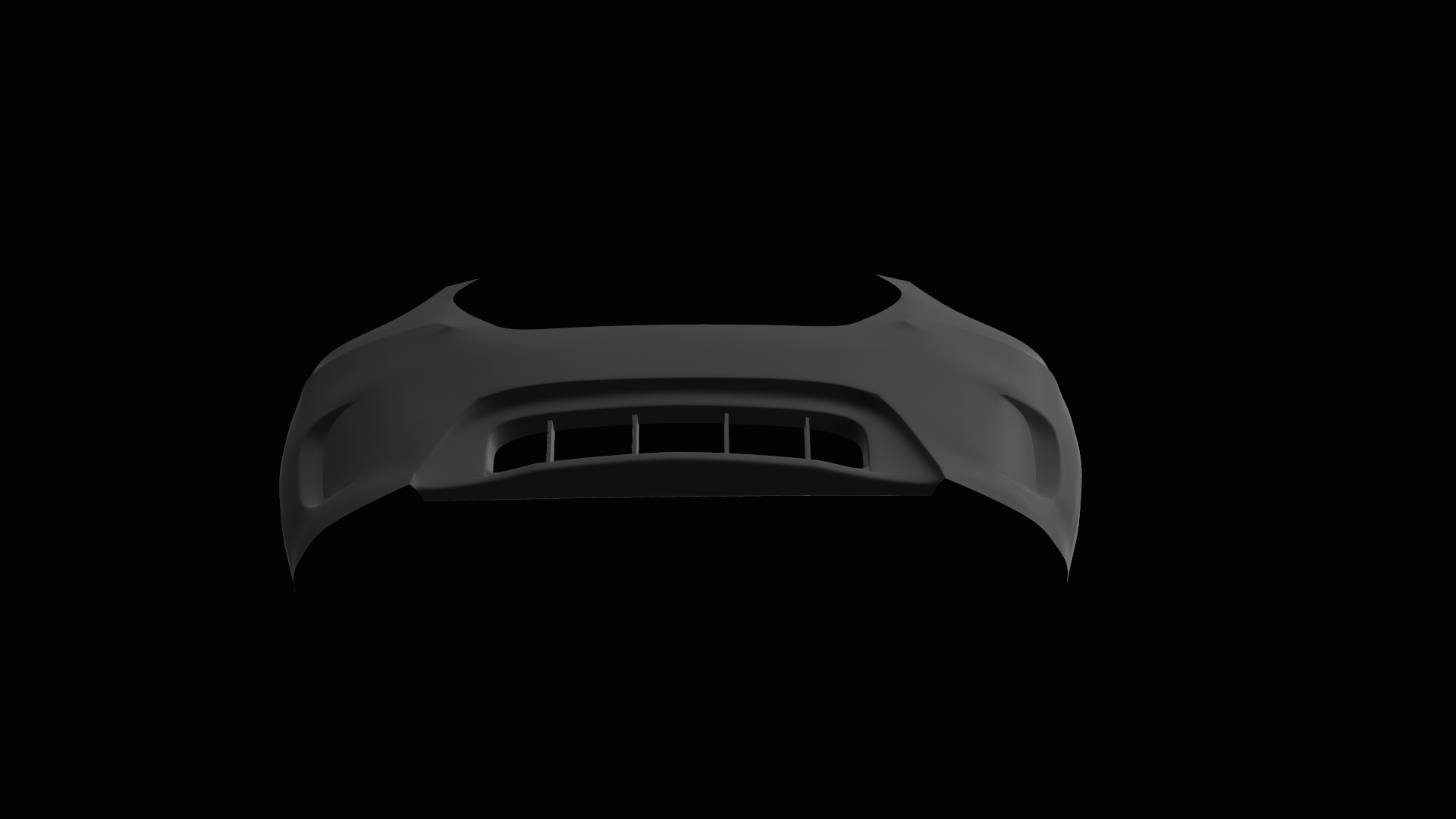
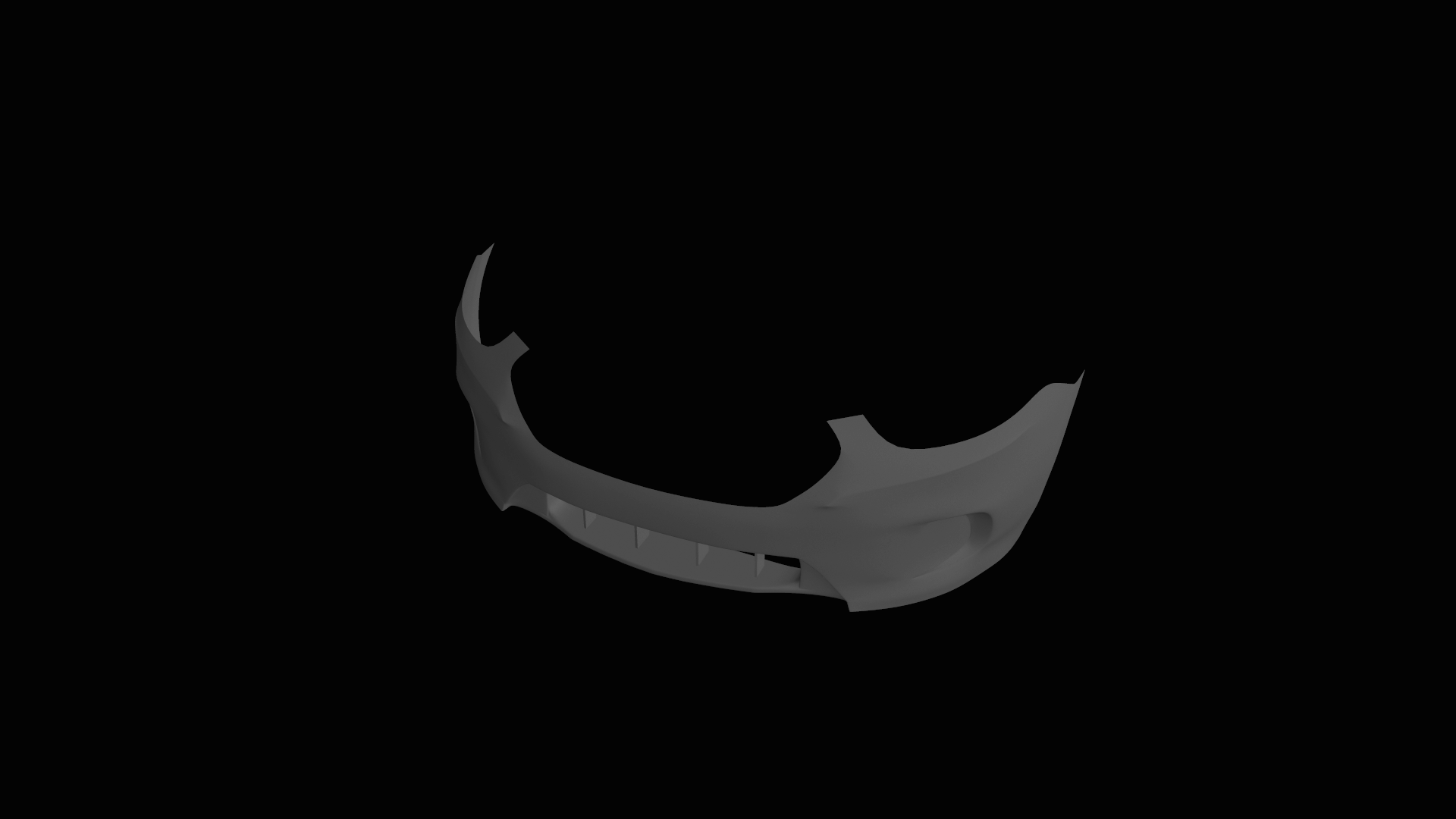
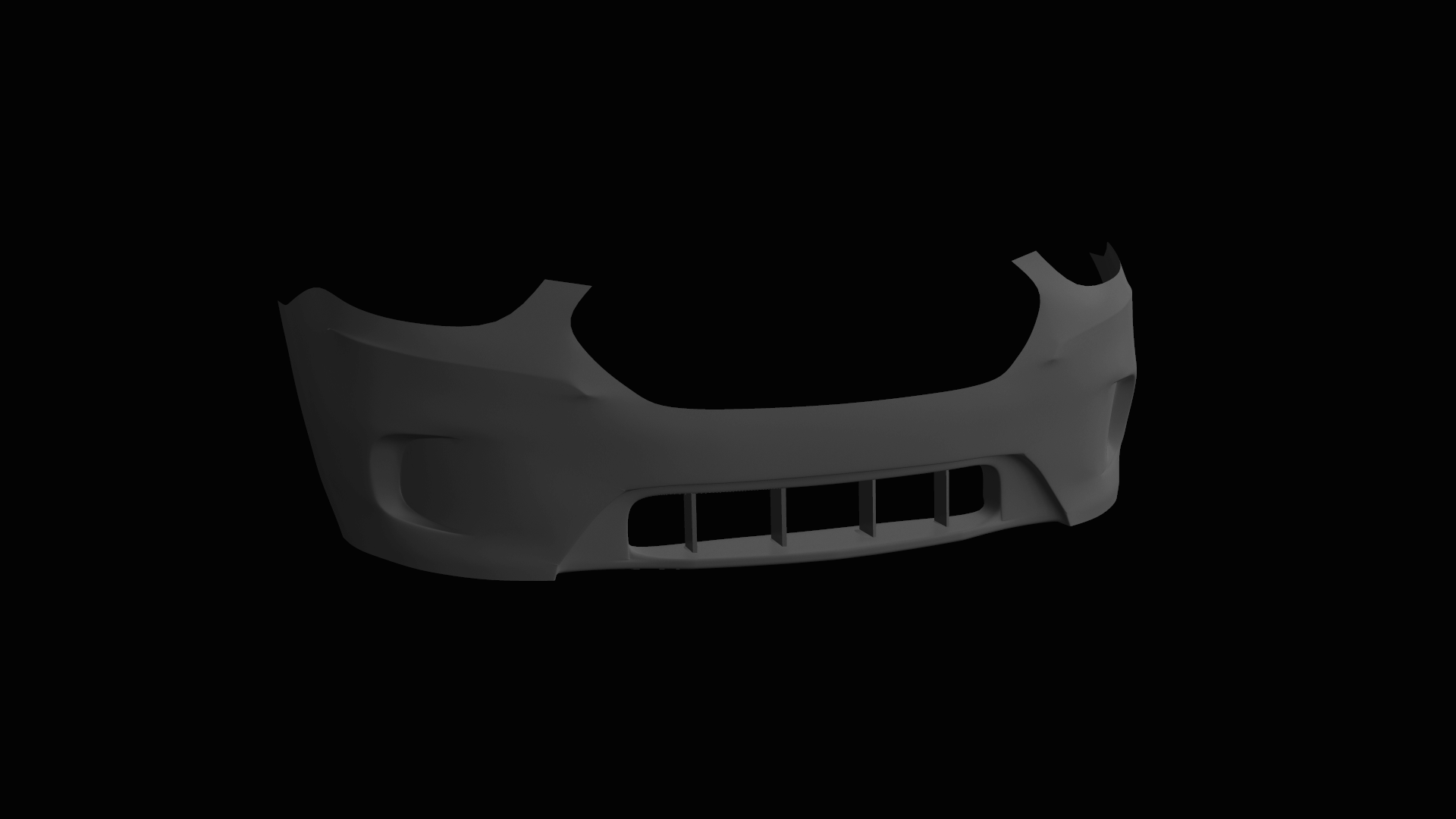
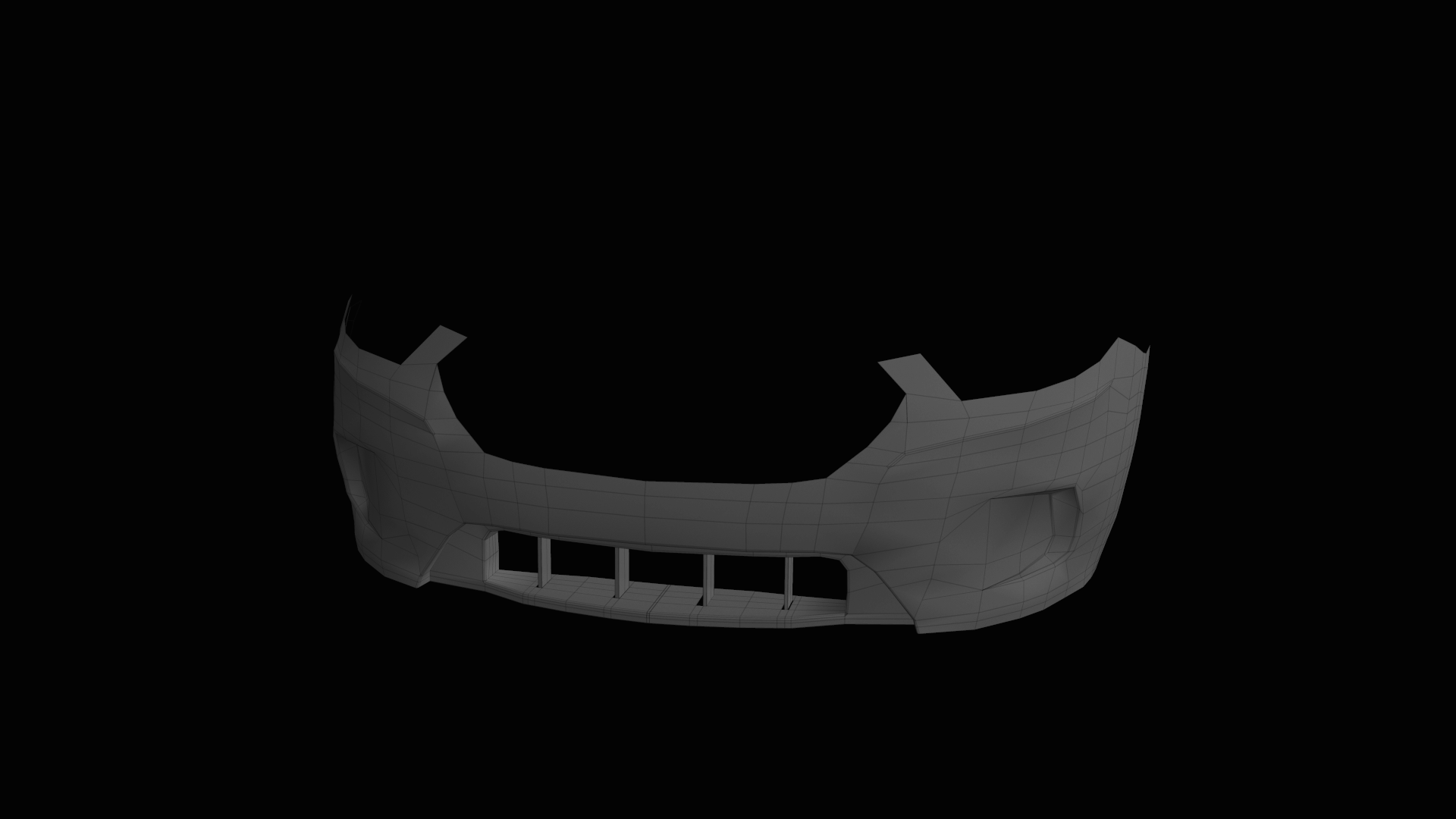
2013- Present Ford Taurus Bumper by Vertex3D Share https://www.lcpdfr.com/gallery/image/41113-2013-present-ford-taurus-bumper-by-vertex3d/ Share on Facebook Share on X {lang="reddit_text" More sharing options... Followers LOW POLY: 778 Polys
Chippy Members October 12, 201411 yr Author stats Looks a bit too rounded. Looks great other than that.
ErinLindsay Members October 12, 201411 yr Author stats Looks a bit too rounded. Looks great other than that. Thanks, I admit, it's not perfect, but I am still learning. :)
EVI Members October 13, 201411 yr Author stats The MeshSmooth modifier smoothes geometry in your scene by means of several different methods. It lets you subdivide the geometry while interpolating the angles of new faces at corners and edges, and apply a single smoothing group to all faces in the object. The effect of MeshSmooth is to round over corners and edges as if they had been filed or planed smooth. Use MeshSmooth parameters to control the size and number of new faces, and how they affect the surface of the object. Modify panel > Make a selection. > Modifier List > Object-Space Modifiers > MeshSmooth Make a selection. > Modifiers menu > Subdivision Surfaces > MeshSmooth To apply MeshSmooth to an object: 1. Select an angular object. 2. Apply the MeshSmooth modifier. 3. Set MeshSmooth parameters. 4. Remove the MeshSmooth modifier and model correctly. Please help us improve the content on this site. Was this article helpful?




![[WIP] Federal Signal Commander LED](http://s3-gallery.int-cdn.lcpdfrusercontent.com/gallery/album_2718/sml_gallery_138650_2718_112611.png)
![[DEV] Whelen Pioneer Slimlines](http://s3-gallery.int-cdn.lcpdfrusercontent.com/gallery/album_2718/sml_gallery_138650_2718_1082952.png)

Recommended Comments
Join the conversation
You can post now and register later. If you have an account, sign in now to post with your account.