




Liberty City Shootout

By ErinLindsay
- 939 views
- View ErinLindsay's images
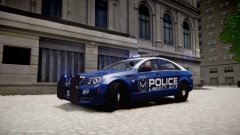
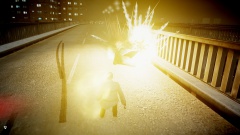
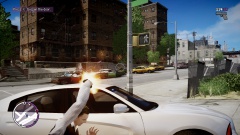
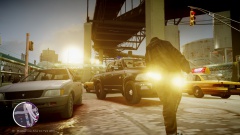
On Jan. 30, 2014, Detective Jones followed up on a routine traffic stop. Behind him, he noticed that a Jamaican black male kept ramming his lowrider against Jones' car. This resulted in Jones pushing the lowrider trying to get the suspect to stop. The suspect appeared violent and wanted to fight Jones. Jones pulled out his semi-auto Glock 17 and aimed it at the suspect, but he had a piece of his own, a micro smg. Jones then discharged 4-6 rounds into the suspect mortally wounding, if not killing him. !BANG! !BANG! !BANG!, Jones hears shots coming from the distance, unsure of what direction he took cover by his police car. Multiple Jamaican gang members were trying to attack/kill Jones because he shot one of their members. Jones took action and fired blindly at the combatants. He called for backup but they said they were a couple minutes away. When they finally arrived, it allowed Jones to stand up, return fire, and eliminate the suspects. Afterwards Jones put his nitrile gloves on and examined the weapons used by the gang members. There was 1 shotgun, 2 sidearms, and 1 sub machinegun. The police department is still trying to gather evidence as to where they acquired the guns. As a detective in the Intelligence Section, Jones will be working full fledge to solve this case.
Jones' statement, "It... was like a nightmare, I just used what I learned in the academy and 10+ years on the force.
We are working very hard to solve this case. I'm glad I could protect the people of Liberty City."
Recommended Comments
Join the conversation
You can post now and register later. If you have an account, sign in now to post with your account.