


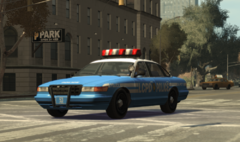
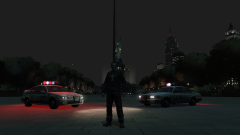
The Fleet Number Conundrum
By Hullian111
- 1,397 views
- View Hullian111's images
EDIT: The conundrum is solved. I'm bumping the fleet numbers back to four characters, NYPD-style.
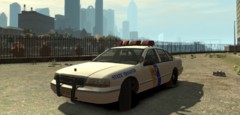
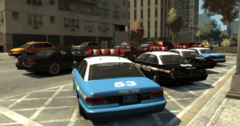
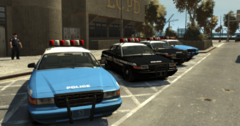
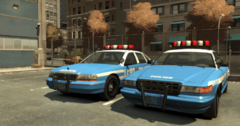
And this is where I call upon your help. In finishing off the livery, I realised that the popular choice of NYPD-style four letter unit numbers isn't quite lore friendly. And when you look back, the police cars in GTA IV were originally meant to come with varied fleet numbers on the trunk, with texture and dispatch radio files to support this. This, of course, didn't make into the game. But what if they did?
http://media.gtanet.com/images/3354_gtaiv_broker_brownstone.jpg
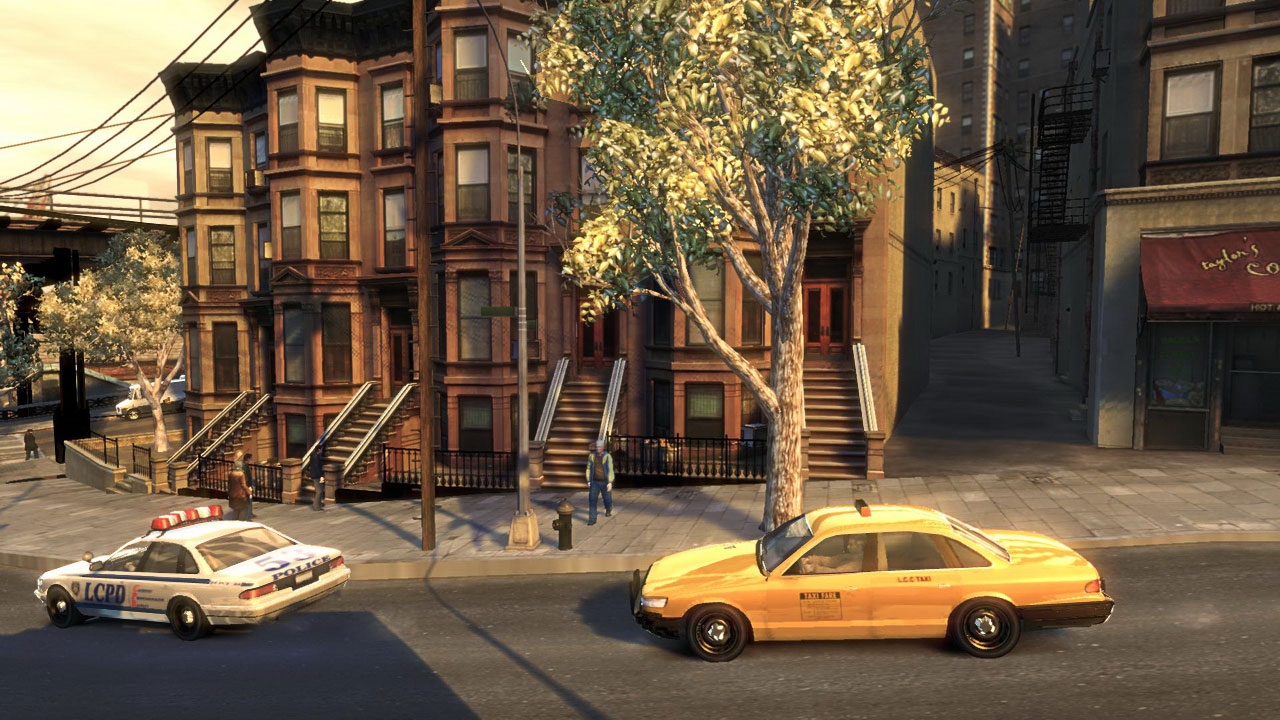
(taken from GTA IV Beta Hunt thread on GTAForums)
That's where this conundrum comes in. Should I go with perhaps only this '24 PCT 53' fleet number, seen on all the vanilla LCPD cars, or should I go for a good variety of two-number liveries? Or should I ignore the lore stuff and use four-character numbers? If anyone bothers to stop by who is interested, please, leave your comments below. There's only so much I can work with, though, as I do know that this game limits cars to four liveries a piece.
Recommended Comments
Join the conversation
You can post now and register later. If you have an account, sign in now to post with your account.