Skip to content
View in the app

A better way to browse. Learn more.

LCPDFR.com

A full-screen app on your home screen with push notifications, badges and more.

To install this app on iOS and iPadOS
  1. Tap the Share icon in Safari
  2. Scroll the menu and tap Add to Home Screen.
  3. Tap Add in the top-right corner.
To install this app on Android
  1. Tap the 3-dot menu (⋮) in the top-right corner of the browser.
  2. Tap Add to Home screen or Install app.
  3. Confirm by tapping Install.
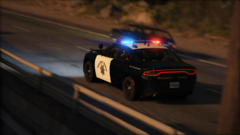
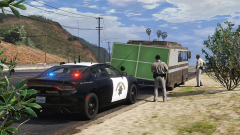
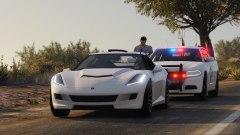
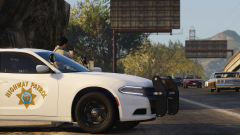
CHP Charger

CHP Charger

Album created by JJ9856 · Updated

Regen Alexander

Members

Beautiful Cars. Spot on other than the "Highway Patrol" markings on the trunk of the PCF Unit which isn't accurate to the real thing.  Who's pack is this?? 

Big Mama JuJu

Members

On 11/16/2020 at 11:54 PM, Regen Alexander said:

Beautiful Cars. Spot on other than the "Highway Patrol" markings on the trunk of the PCF Unit which isn't accurate to the real thing.  Who's pack is this?? 

Actually, there are different variants of the polar bear markings that the CHP use. Some of them do have "HIGHWAY PATROL" on the rear, and some do not. The ones that do also have "Safety, Service, and Security" on the rear quarter panels, the ones without the HP wording on the trunk do not have the CHP's motto on the quarter panels.

Join the conversation

You can post now and register later. If you have an account, sign in now to post with your account.

Guest
Add a comment...

Recently Browsing 0

  • No registered users viewing this page.

Account

Navigation

Search

Search

Configure browser push notifications

Chrome (Android)
  1. Tap the lock icon next to the address bar.
  2. Tap Permissions → Notifications.
  3. Adjust your preference.
Chrome (Desktop)
  1. Click the padlock icon in the address bar.
  2. Select Site settings.
  3. Find Notifications and adjust your preference.