Skip to content
View in the app

A better way to browse. Learn more.

LCPDFR.com

A full-screen app on your home screen with push notifications, badges and more.

To install this app on iOS and iPadOS
  1. Tap the Share icon in Safari
  2. Scroll the menu and tap Add to Home Screen.
  3. Tap Add in the top-right corner.
To install this app on Android
  1. Tap the 3-dot menu (⋮) in the top-right corner of the browser.
  2. Tap Add to Home screen or Install app.
  3. Confirm by tapping Install.
LEO

LEO

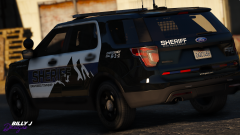
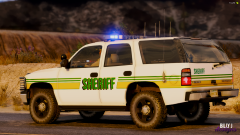
Album created by Billy Johnsson · Updated

This is a small pack with some LEO vehicle skins I've done, feel free to DM me about any questions regarding my skins or if you have any questions regarding skinning. 

Chief1A25

Members

Hey man, I do have a question. I am a aspiring skinner.(?) And I am wondering what program do you use. I use paint.net and it works but has some trouble. Thanks and have a good one!

Billy Johnsson

Members

Hello @Chief1A25 I personally use Photoshop CC 2018 edition and I think it is great since I've worked in Photoshop for about 1 1/2 years, and I do think that Photoshop will be your best choice of program since it allows you to do so much will all the features.  

adobe-photoshop-logo-png.png

JonasDalen

Members

Hello! I'm interested in thees skins, but i need a Discord invite

Join the conversation

You can post now and register later. If you have an account, sign in now to post with your account.

Guest
Add a comment...

Recently Browsing 0

  • No registered users viewing this page.

Account

Navigation

Search

Search

Configure browser push notifications

Chrome (Android)
  1. Tap the lock icon next to the address bar.
  2. Tap Permissions → Notifications.
  3. Adjust your preference.
Chrome (Desktop)
  1. Click the padlock icon in the address bar.
  2. Select Site settings.
  3. Find Notifications and adjust your preference.