Skip to content
View in the app

A better way to browse. Learn more.

LCPDFR.com

A full-screen app on your home screen with push notifications, badges and more.

To install this app on iOS and iPadOS
  1. Tap the Share icon in Safari
  2. Scroll the menu and tap Add to Home Screen.
  3. Tap Add in the top-right corner.
To install this app on Android
  1. Tap the 3-dot menu (⋮) in the top-right corner of the browser.
  2. Tap Add to Home screen or Install app.
  3. Confirm by tapping Install.

Figure out if an item is a light or a rotor.
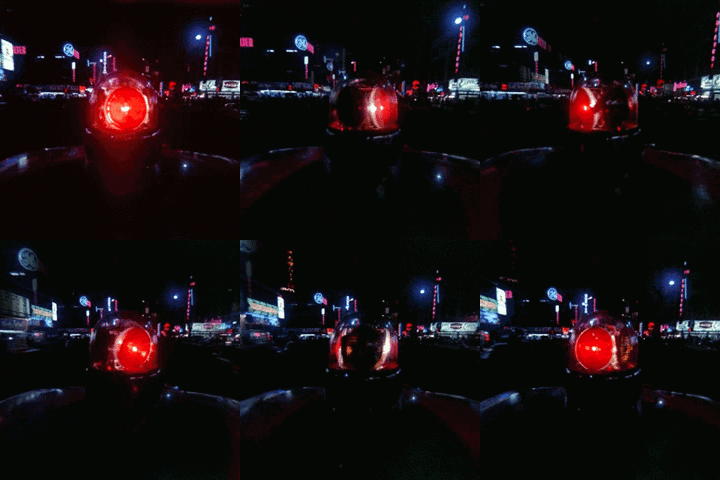
Featured Replies

Hello, so I'm messing with Lundy's carcols.ymt, but I can't figure out if an item is a rotor (no light/corona) or an actual light that produces a corona.

Here an example:

Spoiler

 <sirens>
        <Item>
          <rotation>
            <delta value="-0.01000000"/>
            <start value="0.00000000"/>
            <speed value="0.00000000"/>
            <sequencer value="4294967295"/>
            <multiples value="1"/>
            <direction value="false"/>
            <syncToBpm value="false"/>
          </rotation>
          <flashiness>
            <delta value="3.14159300"/>
            <start value="0.00000000"/>
            <speed value="0.00000000"/>
            <sequencer value="4294967295"/>
            <multiples value="2"/>
            <direction value="true"/>
            <syncToBpm value="true"/>
          </flashiness>
          <corona>
            <intensity value="25.00000000"/>
            <size value="2.00000000"/>
            <pull value="0.20000000"/>
            <faceCamera value="false"/>
          </corona>
          <color value="0xFFFF1405"/>
          <intensity value="1.00000000"/>
          <lightGroup value="1"/>
          <rotate value="true"/>
          <scale value="true"/>
          <scaleFactor value="2"/>
          <flash value="true"/>
          <light value="true"/>
          <spotLight value="true"/>
          <castShadows value="false"/>
        </Item>
        <Item>
          <rotation>
            <delta value="-0.01000000"/>
            <start value="0.00000000"/>
            <speed value="0.00000000"/>
            <sequencer value="4294967295"/>
            <multiples value="1"/>
            <direction value="false"/>
            <syncToBpm value="false"/>
          </rotation>
          <flashiness>
            <delta value="3.14159300"/>
            <start value="1.00000000"/>
            <speed value="0.00000000"/>
            <sequencer value="4294967295"/>
            <multiples value="2"/>
            <direction value="true"/>
            <syncToBpm value="true"/>
          </flashiness>
          <corona>
            <intensity value="25.00000000"/>
            <size value="2.00000000"/>
            <pull value="0.20000000"/>
            <faceCamera value="false"/>
          </corona>
          <color value="0xFFFF1405"/>
          <intensity value="1.00000000"/>
          <lightGroup value="1"/>
          <rotate value="true"/>
          <scale value="true"/>
          <scaleFactor value="2"/>
          <flash value="true"/>
          <light value="true"/>
          <spotLight value="true"/>
          <castShadows value="false"/>
        </Item>

Until 20.

They all have <rotate value="true"/>, if someone wonders.
I need to assign my car siren1, 2, 3... but I don't know which corresponds to a rotator or light.

If you watch this you see the lightbar has rotors and coronas (which are separated items in the carcols.ymt) and thats what I need to figure out so I don't put a rotor id instead of a corona.:

https://www.youtube.com/watch?v=FduB_8uWuZ0
Thanks.

Edited by Insus100
bug

n-560x95_FFFFFF_FFFFFF_000000_000000.png

  • Author

Thanks, in my carcols, al the items have it on true, so I finally decided to make a car with 20 dummys and test them ingame to see how it looks like. Thanks for your help.

n-560x95_FFFFFF_FFFFFF_000000_000000.png

Join the conversation

You can post now and register later. If you have an account, sign in now to post with your account.

Guest
Reply to this topic...

Recently Browsing 0

  • No registered users viewing this page.

Account

Navigation

Search

Search

Configure browser push notifications

Chrome (Android)
  1. Tap the lock icon next to the address bar.
  2. Tap Permissions → Notifications.
  3. Adjust your preference.
Chrome (Desktop)
  1. Click the padlock icon in the address bar.
  2. Select Site settings.
  3. Find Notifications and adjust your preference.