Skip to content
View in the app

A better way to browse. Learn more.

LCPDFR.com

A full-screen app on your home screen with push notifications, badges and more.

To install this app on iOS and iPadOS
  1. Tap the Share icon in Safari
  2. Scroll the menu and tap Add to Home Screen.
  3. Tap Add in the top-right corner.
To install this app on Android
  1. Tap the 3-dot menu (⋮) in the top-right corner of the browser.
  2. Tap Add to Home screen or Install app.
  3. Confirm by tapping Install.

[ELS] [Non-ELS] 2020 Ford Bronco Unmarked 1.0

(2 reviews)

6 Screenshots

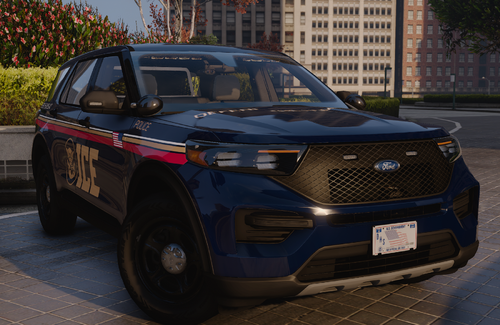
2020 Ford Bronco

Slicktop/Unmakerd Unit

Red/Blue Config

TEMPLATED VERSION SOON!!

NONELS Version is on Discord!

https://discord.gg/dZ7pvZtjap

Game Warden Pack NONELS

https://discord.gg/dZ7pvZtjap


Edited by Raylan Givens


Short Description

Police unmarked unit ready for road

User Feedback

Recommended Comments

Hadyfaik

Members

Good work Raylan


Does the speedometer work for the vehicle?

Raylan Givens

Members Author

On 4/18/2021 at 10:12 PM, Hadyfaik said:

Good work Raylan


Does the speedometer work for the vehicle?

IDK I used the metas that came with the vehicle

WhiteKnight7

Members

Great vehicle, love it, but the game does not see it as a police vehicle, I cannot get to the back to get armor and weapons and I cannot perform traffic stops with this vehicle.

TangoUp

Members

What should a livery be named? Bronco_sign_1? Great model, just trying to make a marked version to match the rest in game. 

StealthHazard

Members

Seems like we’re using the wrong slashes in the dlc text file. Really love this model and the lights nice work! My only issue is that the running lights in the headlights are always on, and are SUPER BRIGHT. this vehicle also does not have law enforcement flags and they need to be added manually if you want to use this with Compulite or even the native police computer.

Create an account or sign in to comment

Account

Navigation

Search

Search

Configure browser push notifications

Chrome (Android)
  1. Tap the lock icon next to the address bar.
  2. Tap Permissions → Notifications.
  3. Adjust your preference.
Chrome (Desktop)
  1. Click the padlock icon in the address bar.
  2. Select Site settings.
  3. Find Notifications and adjust your preference.