


.png.30ffac82c92ec4e0f7430f4e9c1152d6.png)
.png.4b2c04400cd4645bf8c5a6faffdcb855.png)


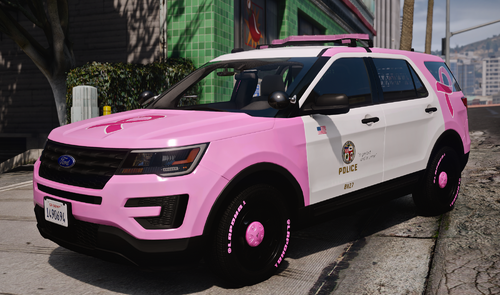
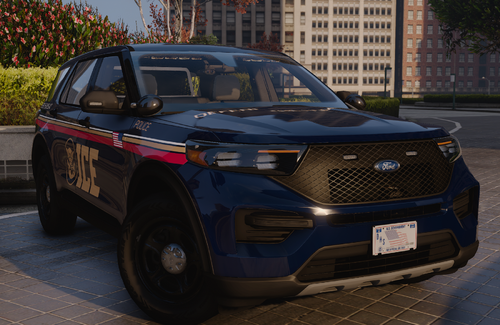
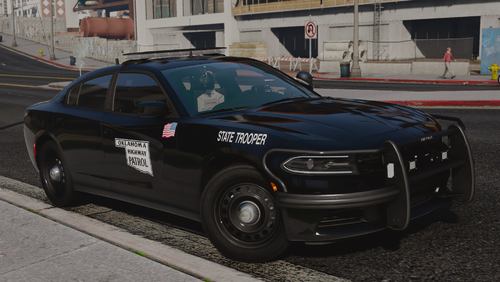
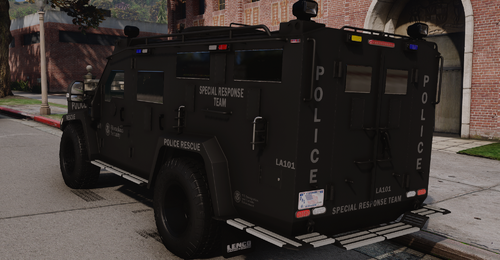
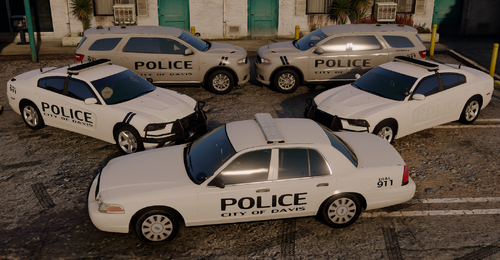
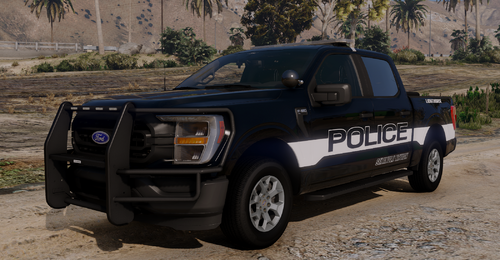
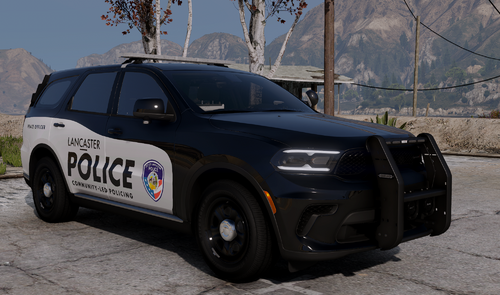
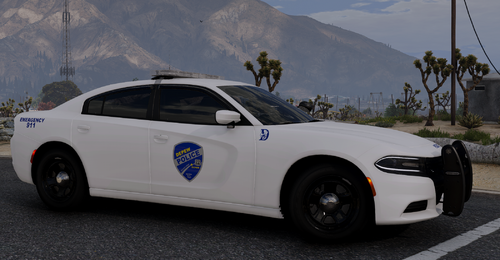
These are my Guilderland NY Police textures for there fleet and uniforms. Wish I could put the screenshots I wanted to use in but not much I can do about the 4mb limit. Never the less, these were created at an 8K resolution and downscaled to 4K to get a crisper look. They were made as accurately as I could do. The skins were made for ripples lspd pack found below, but will work with any vehicle that shares it's templates. Install instructions are in the read me's. Hope you enjoy!
Skins Made:
----2020 FPIU----
Car 2 - Stealth
Car 8
Car 12
Car 20
Car 24
----2016 FPIU----
Car 6
Car 28
----2016 FPIS----
Car 9
Car 11
Car 19
Car 25
They also use an Expedition and Durango for supervisor cars but they were not included in the pack nor could I find the right templates.
To use my EUP textures you must have EUP installed found here
You must also install Jakub's NYSP Uniform pack found here (used for the 3D patch) https://gtapolicemods.com/files/file/1413-new-york-state-police-uniforms/
You must also install Hanko's vest and optionally the earpiece to complete the uniform found here
Belt used (not required)
Holster used (not required)
Siren used by GPD (not required) found here
Edited by littlerocky
Short Description
Hanko - Vest/Holster
Alex - EUP
Marvin - Belt
Me - Creating the textures

.thumb.png.1f4ac8c2c08ebdb5a00de2e58cd20481.png)

.thumb.png.9788e98db196594e6b6e34a34af7a94e.png)
.thumb.png.4d59e30ff8b8385589769cf607a5e1aa.png)
.thumb.png.afea87ee51864d1828b2faee0c0ac7d6.png)
Recommended Comments
Create an account or sign in to comment