


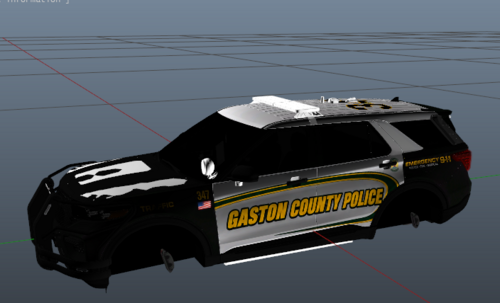
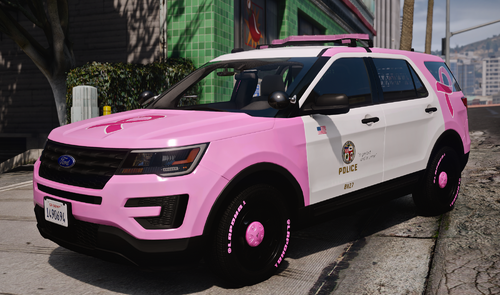
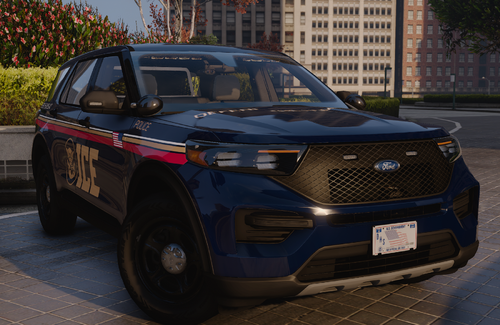
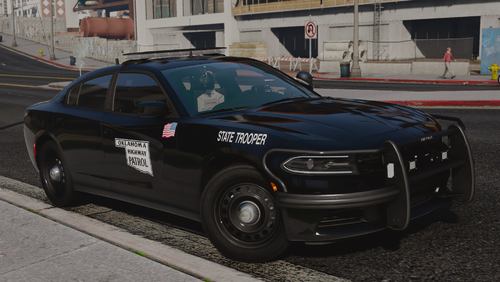
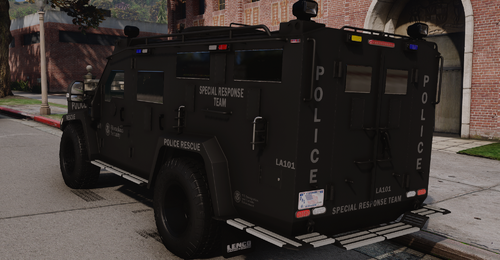
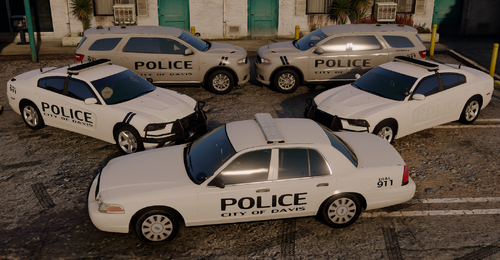
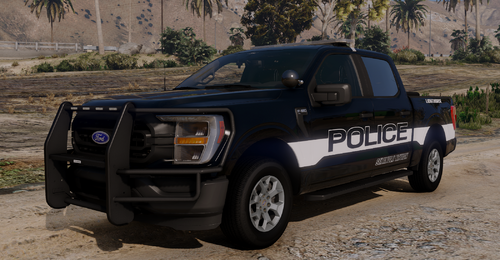
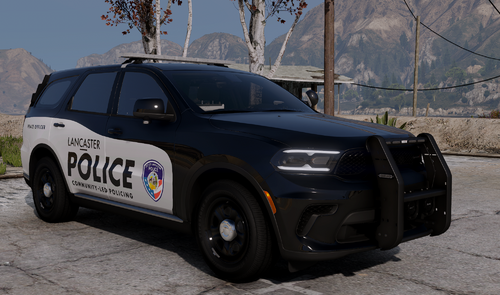
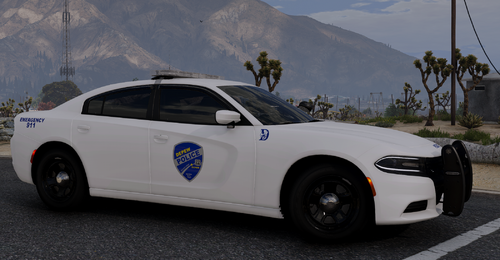
A police Chevrolet based on the LAPD, but not the LAPD.
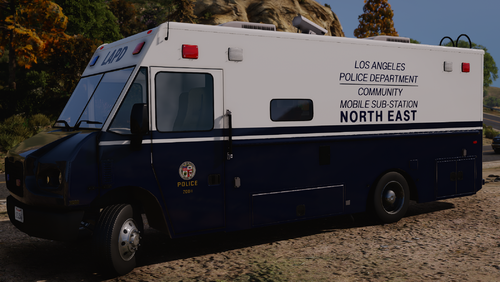
I am also attempting to make the LAPD non-els car pack...
-------------------------------------------------
Car model belongs to Bxbugs123 Development Stuff
Car textures made by me
Lights by; Model is made from scratch by F5544
Textures are made by Lt.Caine.
Go Rhino Pushbar made & converted by Bxbugs123
Main textures made by Bxbugs123
Rockwell Collins Laptop Made & Converted by Bxbugs123
Textures By Bxbugs123 & DoTTGaMMa
What's New in Version 1.1
Released
- As I've seen from the reviews, I have further improved the car.
- - Texture changed
- - Added police computer
- - Replace the lightings
Car model belongs to Bxbugs123 Development Stuff
Car textures made by me (swjs1998)
Light bar; Model is made from scratch by F5544
Textures are made by Lt.Caine.
Go Rhino Pushbar made & converted by Bxbugs123
Main textures made by Bxbugs123
Rockwell Collins Laptop Made & Converted by Bxbugs123
Textures By Bxbugs123 & DoTTGaMMa
Car textures made by me (swjs1998)
Light bar; Model is made from scratch by F5544
Textures are made by Lt.Caine.
Go Rhino Pushbar made & converted by Bxbugs123
Main textures made by Bxbugs123
Rockwell Collins Laptop Made & Converted by Bxbugs123
Textures By Bxbugs123 & DoTTGaMMa
.thumb.png.1f4ac8c2c08ebdb5a00de2e58cd20481.png)

.thumb.png.9788e98db196594e6b6e34a34af7a94e.png)
.thumb.png.4d59e30ff8b8385589769cf607a5e1aa.png)
.thumb.png.afea87ee51864d1828b2faee0c0ac7d6.png)
Recommended Comments