


This is a Toronto Police Intro, it's meant to replace your original RockStar Intro. The video is from Toronto Police and it's called 'Preparing for Duty'. It shows a TPS Crown Victoria being upfitted for police service. The video itself is 3 minutes long so I shortened it. The edited clip can be download from the file download. Also I will be putting the full youtube video in the link. So guys let me know what you think and if you enjoyed using this I'd love to hear what you have to say.
Hey guys I uploaded this file to GTA5Mods.com, I have more just like it. So be sure to check it out! Here's a link: https://www.gta5-mods.com/misc/toronto-police-rockstar-logo-intro
Hey guys I just wanted you to know I'm doing a little project to bring back the Ford Crown Victoria. If you want to help me click the link below to sign my petition from change.org.
Also I made a brochure on how the next gen Crown Vic will be made, be sure to check it out on your spare time.
POLICE AND SPECIAL SERVICE VEHICLES 2017 Brochure.docx

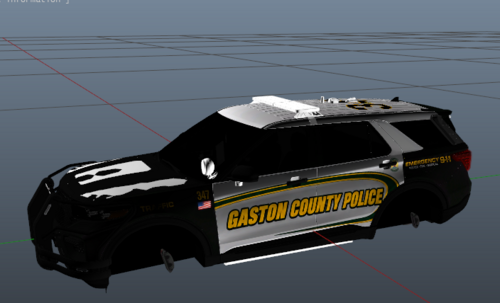
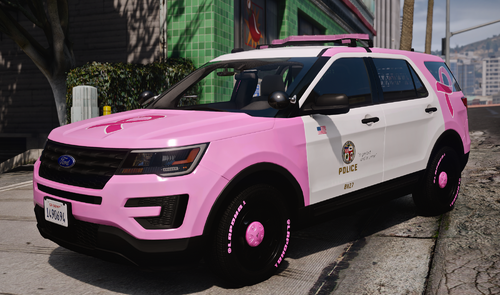
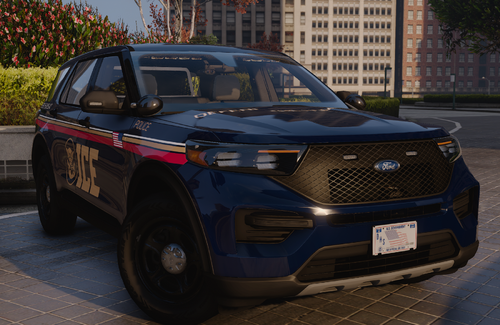
.thumb.png.1f4ac8c2c08ebdb5a00de2e58cd20481.png)
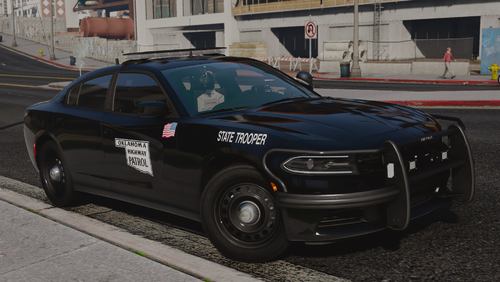

.thumb.png.9788e98db196594e6b6e34a34af7a94e.png)
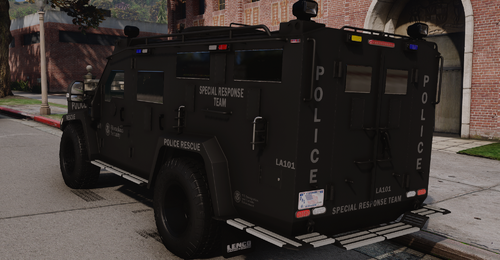
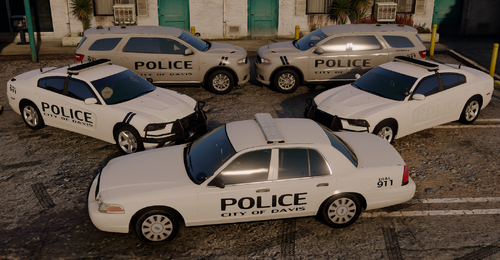
.thumb.png.4d59e30ff8b8385589769cf607a5e1aa.png)
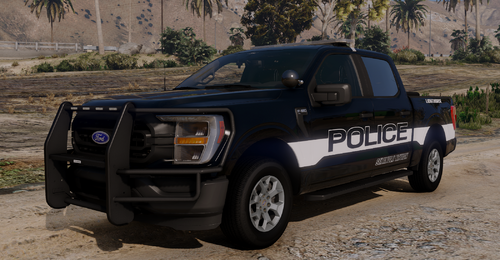
.thumb.png.afea87ee51864d1828b2faee0c0ac7d6.png)
Recommended Comments
Create an account or sign in to comment