


🔥 Blaine County Emergency Response Suite V1.0 - Early Release
Bringing Fire & EMS Roleplay to Single Player GTA V
While law enforcement plugins dominate the LSPDFR community, Blaine County Fire Tones was created to give Fire and EMS players the immersion and scene management tools they deserve.
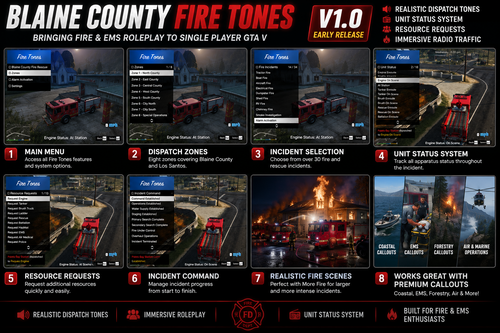
Blaine County Fire Tones adds realistic dispatch tones, apparatus status updates, resource requests, and incident management features designed specifically for Fire, EMS, Rescue, and Special Operations roleplay.
Whether you're responding to a structure fire, brush fire, vehicle accident, marine emergency, or medical call, this plugin helps bring your department to life.
install path, blainecountyfiretones folder and the dll file needs to be in the plugins, paste and copy dll and the blainecountyfiretones into the plugin folder nothing further than that. FUTURE UPDATE COMING VERY SOON, CHANGES IN V1.1 JUST MORE THAN FIRE TONES
Current Features
🔔 Realistic Dispatch Tones
Includes multiple dispatch tones and incident types:
Fire Response
EMS Response
Working Fire
Major Alarm
Automatic Alarm
Entrapment
Wildland Forestry
Farm Operations
Utilities
Fire Marshal
Special Operations
🌎 Eight Dispatch Zones
Covering Blaine County and Los Santos:
North County
East County
Central County
West County
South County
City North
City South
Special Operations
🚒 Over 30 Incident Types
Including:
Structure Fires
Vehicle Fires
Boat Fires
Aircraft Fires
Electrical Fires
Dumpster Fires
RV Fires
Shed Fires
Chimney Fires
Smoke Investigations
Alarm Activations
…and many more.
📻 Unit Status System
Track apparatus throughout the incident:
Enroute
On Scene
At Station
Available for:
Engines
Tankers
Brush Trucks
Ladder Companies
Rescue Units
Battalion Chiefs
HazMat
EMS
Air Medical
Police
🚨 Resource Request System
Request additional resources on demand:
Engine
Tanker
Brush Truck
Ladder
Rescue
Battalion
HazMat
EMS
Air Medical
Police
🚨 Incident Command
Manage scene progression from start to finish:
Command Established
Operations Established
Water Supply Established
Staging Established
Primary Search Complete
Secondary Search Complete
Fire Under Control
Overhaul Operations
Incident Terminated
Recommended Companion Mods
Blaine County Fire Tones works great alongside:
🔥 More Fire
🚒 Fire Callouts
🌊 Coastal Callouts
🚑 EMS Callouts
🌲 Forestry Callouts
🏔 Wilderness Callouts Remastered
🚓 SuperCallouts
These mods help create larger, more immersive incidents and complement the features of Blaine County Fire Tones.
🚧 Early Release
Version 1.0 is only the beginning.
Future updates are already planned and will expand the plugin even further.
Planned Features
📋 Fleet Board
👨🚒 Personnel Assignment Board
🎙 Optional Dispatch Voice Support
🚁 Air Operations Expansion
🌊 Marine Operations Expansion
🚑 CAD Integration
🚒 Multiple Active Incidents
🌐 FiveM Compatibility
Thank you for downloading Blaine County Fire Tones.
Built by Fire & EMS enthusiasts, for Fire & EMS enthusiasts.
Stay safe, and we'll see you on the next alarm.
🚒🔥
Edited by JohnGeorge98
Short Description
Special thanks to the LSPDFR community for inspiration and continued support.
Built by Fire & EMS enthusiasts, for Fire & EMS enthusiasts.



![[NON-ELS] [FiveM] Ocoee, FL 2020 FPIU](http://s3-screenshots.int-cdn.lcpdfrusercontent.com/resize/500/-/monthly_2026_06/Screenshot_2026-06-03_162903.thumb.png.3ac74b70588ed2f59e89c5435ec0f5c5.png)


![Collar Pin Brass Pack [Replace]](http://s3-screenshots.int-cdn.lcpdfrusercontent.com/resize/500/-/monthly_2026_06/image_2026-06-03_152604243.thumb.png.ace2e2c84796c58aeba089f1e24d350e.png)
![Washington State Patrol Campaign Hat [Replace]](http://s3-screenshots.int-cdn.lcpdfrusercontent.com/resize/500/-/monthly_2026_06/image_2026-06-03_150435590.thumb.png.eb642a0be307240999dc566c8d5624c0.png)
![Tennessee Highway Patrol EUP Package [Replace]](http://s3-screenshots.int-cdn.lcpdfrusercontent.com/resize/500/-/monthly_2026_06/image_2026-06-03_111405187.thumb.png.63ffbb896d64b24bdebe086f8c4e3095.png)
Recommended Comments
Create an account or sign in to comment