Sheriff Van Dyck
Members
-
Joined
-
Last visited
Everything posted by Sheriff Van Dyck
-
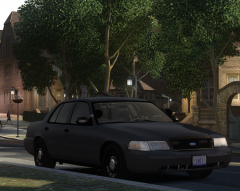
From the album: Next Releases
-
Hi guys, i have read the documentation for LCPDFR, i get pretty well with the functions in game, no problems. But i have just one question: How can i mark a civilian as wanted by police? I push the button stated in the .ini but nothing happens. i.e. Sometimes i got 2 guys fighting on the street but as soon as i come, both start running and i can just arrest one while the other stills on the run, not wanted by police, even if i call for backup. Thanks again.
-
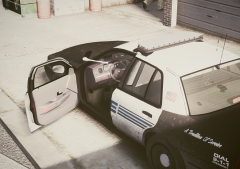
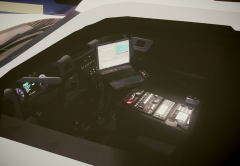
My first attempt to make a DEV part. The pack contains a Whelen Box, a Motorola MCS200 radio, a flashlight and a laptop. Every object has its own light, which will be turned on (automatically) when the vehicle engine is ON. (see the readme for further information) Laptop comes with a "chrome" base, but It is recommended to use something like the laptop stand from PFCBarefoot console for the laptop, so it wont be floating in the air. I use it on my own cars but as that single piece is not mine, i can't upload it within the package. The other parts were made from scratch. As i said, it is a DEV resource, so fair credits are expected. Enjoy it and please report any bugs @PM into LCPDFR(dot)COM, within my profile. Enjoy it.
- 4 comments
- 1 review
-
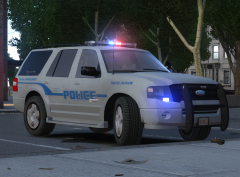 I have received a lot of opinions like this. I can't get to look the wheels the right way and i can't seem to find any kind of wheels (unlocked) to fit perfectly on this vehicle. I'm going to make the wheels smaller, this stills being beta.
 -
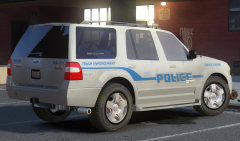
From the album: Next Releases
This is the second version for my Ford Expedition, coming on wednesday. -
From the album: Next Releases
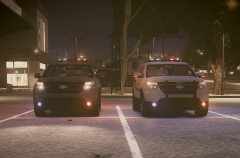
Special lighting on the front part. Best-use ELS Patterns will be described -
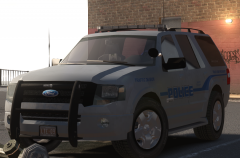
From the album: Next Releases
This is the second version for my Ford Expedition, coming on wednesday. -
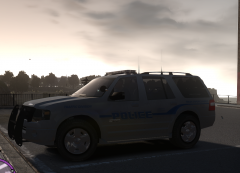
From the album: Next Releases
This is the second version for my Ford Expedition, coming on wednesday. -
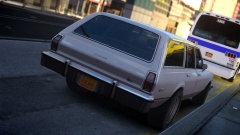 Is there a link to the model?
 -
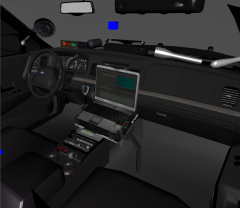
From the album: WIP
Just found it and did my best to convert it, will be on my next Crown Vics, as well as "new" taillights and other small fixes. Model stills being property of BxBugs, i just put some things on it. -
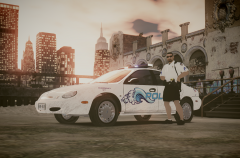 Maybe we can find out what's the issue inside Zmod.
 -
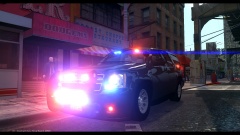 :O i think i've found Rudolph!!!
 -
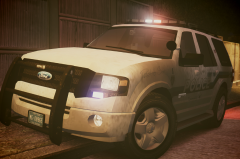 Yes, on saturday along with another cars. :)
 -
Come on bro! I don't have another pair of rims for this one!! xD
-
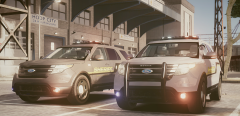 That is a good point, but for my own taste, if i delete those, i feel like something is missing there. I think it looks cool that way, you gonna like it :-P.
 -
alright sir! Thanks bro! I still can't find rims for this vehicle so tthis is what i have so far
-
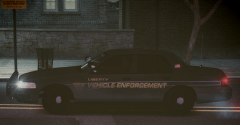
From the album: Next Releases
-
From the album: Next Releases
-
From the album: Next Releases
-
-
From the album: Next Releases
-
From the album: Next Releases
-
From the album: Next Releases
-
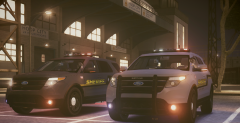
From the album: Next Releases
-
From the album: Next Releases