tpilios
Members
-
Joined
-
Last visited
Everything posted by tpilios
-
-
-
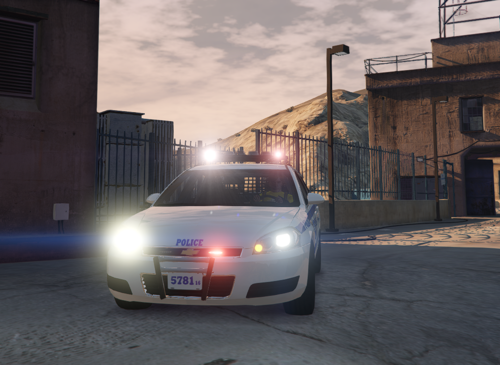 can you make this into A OIV because I put the CarCols and it doesn't work it throws me out of the game
 -
.png.02570ad8df381d82faa4df66e6b6473e.png) is there photos of the rav4 and Camry
is there photos of the rav4 and Camry -
-
-
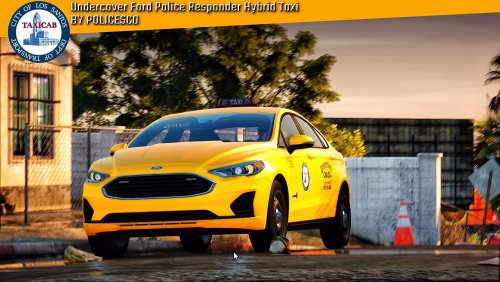
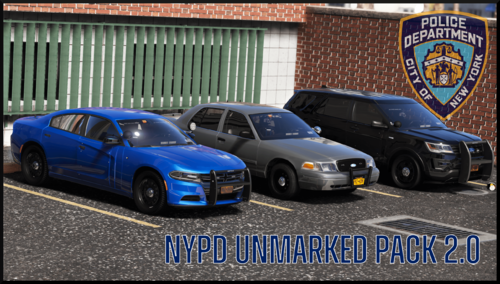 can you add more Unmarked vehicles to this pack like ford new fords like the new ones
- 78 comments
- 10 reviews
-
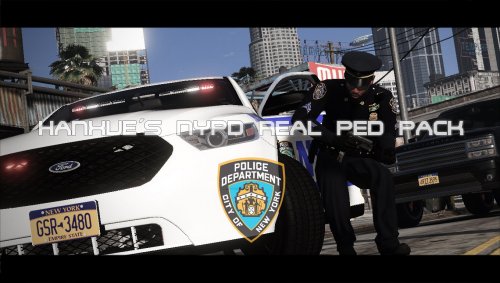 can you put bodycams can you also fix belt accessories make it like real life that would be cool and bulletproof vests and jackets like real life
- 57 comments
- 9 reviews
-
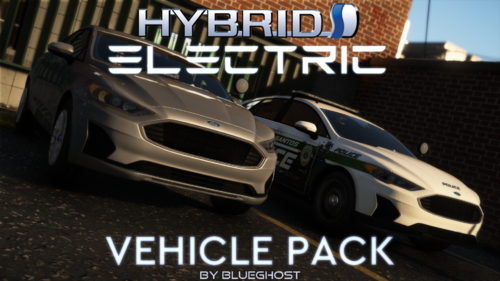
ok witch other cars are you going to put in this pack
-
-
are this going to be released on lspdfr
-
-
-
-
.thumb.png.d0df7c8f5dc779d7f485fc2ee3340927.png) ok
ok -
can you make this into a dlc
-
-
-
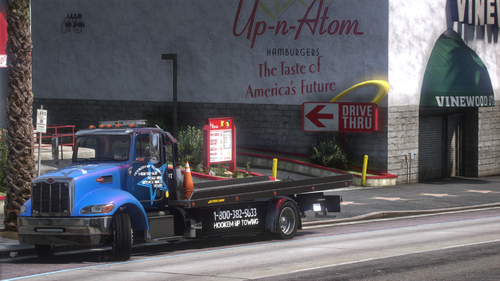
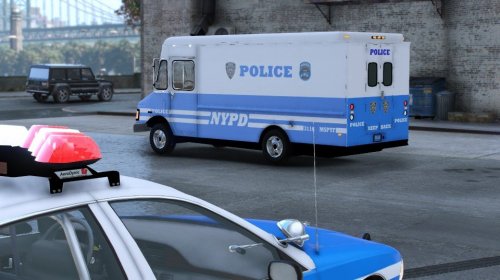
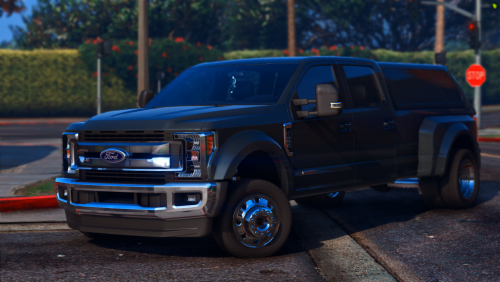 Nice truck can you make an els version
 -
 are they going to release it on here on lspdfr site will it show the medallion and the emergency light back and front like real life can you make the roof light work when you put the Trun signal and can you put different roof lights
- 15 comments
- 2 reviews
-
-
-
-
-
-
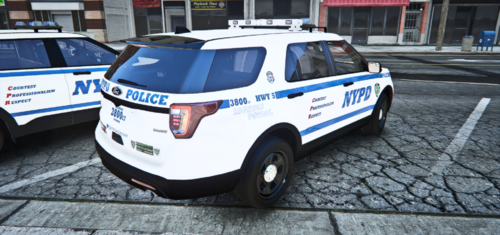 Is he going to release it on lspdfr
 -
where can I find the person that has this car pack
-
are you going to releses the cars


.png.02570ad8df381d82faa4df66e6b6473e.png)
.png.c8b95540170e046f763069750a37a773.png)
.png.7e1efdb6617fcd153e266e5cace50266.png)
.png.e70ac93b4f7712e766aa47d454d1a0d9.png)
.png.a96af2991bae077f2225a011fc05ee1e.png)
.png.6ee0720fa8e33458f4621e86627fbdce.png)
.png.46d4516f141890d8c5a351a8baa84cb5.png)
.png.623d80384abb11c886429ee411d1e4a5.png)
.png.aa58ac93aa58a5720536f74f8b5b733d.png)
.png.c6f8ed9d62343950499e5f7d1977a0c0.png)
.png.207bd1c2de51a3e5633e53e9b85e264b.png)
.png.1ed415993e373fe3b659b33f27257248.png)
.png.f4adf8fa7fa185cd4376b4f24664a907.png)
.png.5f3503547ec6acd227ec869378373589.png)
.png.0170e402a04adf56d7b57eb66eaa957b.png)
.png.3a3f3fd101009877bad2688c86df4fed.png)
.png.8709aef35fb79df933f4dd60673cf642.png)
.png.84a0c47da278159691cb4be5eb6daf19.png)
.png.dbddd4512416091a81fce412a9a643a9.png)
.png.dcfce362c75c07f27d301cdde480fa25.png)
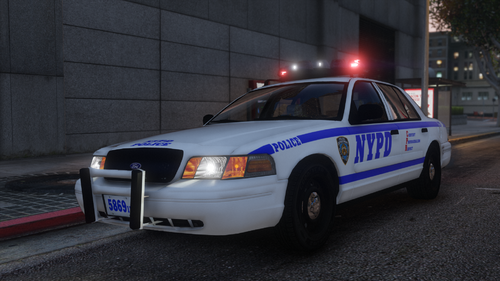

.thumb.png.d0df7c8f5dc779d7f485fc2ee3340927.png)
.thumb.png.da1f3f45ef423a14252437b7e9dd0815.png)


.thumb.png.10f7b520c20484fe0d5dc2b7538374e6.png)