Thehurk
Members
-
Joined
-
Last visited
Reputation Activity
-
 Thehurk got a reaction from Adam L for a gallery image, Something new
 -
Thehurk got a reaction from RoguePlus for a gallery image, Something new
-
Thehurk got a reaction from TheFrenchman40 for a gallery image, Something new
-
Thehurk got a reaction from Fmr MSPR for a gallery image, Something new
-
Thehurk got a reaction from rukrim for a gallery image, Something new
-
Thehurk got a reaction from Gump for a gallery image, Something new
-
Thehurk got a reaction from OfficerMajinDE for a gallery image, Something new
-
Thehurk got a reaction from OfficerVisvim for a gallery image, Something new
-
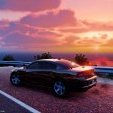
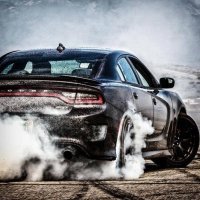
Thehurk got a reaction from Adam L for a gallery image, This will be in the pack tooJust without all the bugs and tire poke.
-
Thehurk got a reaction from Boz for a gallery image, This will be in the pack tooJust without all the bugs and tire poke.
-
Thehurk got a reaction from Richard Noggin for a gallery image, And another one.All the cars so far.
-
Thehurk got a reaction from BlueSteelShield for a gallery image, This will be in the pack tooJust without all the bugs and tire poke.
-
Thehurk got a reaction from Matthew26 for a gallery image, This will be in the pack tooJust without all the bugs and tire poke.
-
Thehurk got a reaction from wantedelf for a gallery image, This will be in the pack tooJust without all the bugs and tire poke.
-
Thehurk got a reaction from
Deactivated Memberfor a gallery image, This will be in the pack tooJust without all the bugs and tire poke.
-
Thehurk got a reaction from Carrythxd for a gallery image, This will be in the pack tooJust without all the bugs and tire poke.
-
Thehurk got a reaction from TheFrenchman40 for a gallery image, This will be in the pack tooJust without all the bugs and tire poke.
-
Thehurk got a reaction from OfficerMajinDE for a gallery image, This will be in the pack tooJust without all the bugs and tire poke.
-
Thehurk got a reaction from Deputy Brand for a gallery image, This will be in the pack tooJust without all the bugs and tire poke.
-
Thehurk got a reaction from RedBullGermany for a gallery image, This will be in the pack tooJust without all the bugs and tire poke.
-
Thehurk got a reaction from SoCal Thero for a gallery image, This will be in the pack tooJust without all the bugs and tire poke.
-
Thehurk got a reaction from Reddington for a gallery image, This will be in the pack tooJust without all the bugs and tire poke.
-
Thehurk got a reaction from Slendis for a gallery image, This will be in the pack tooJust without all the bugs and tire poke.
-
Thehurk got a reaction from Jmannnn for a gallery image, This will be in the pack tooJust without all the bugs and tire poke.
-
Thehurk got a reaction from xDZYx for a gallery image, This will be in the pack tooJust without all the bugs and tire poke.