jmoney1095
Members
-
Joined
-
Last visited
Files posted by jmoney1095
-
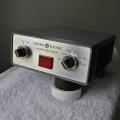
Here's my next siren, It's a powercall with a 6-adam. The Wail is a Federal Signal Smart siren. The Yelp is the Powercall, and the Hyper yelp is a 6-Adam. The priority tone is a whelen 295sl 100 hyper yelp.
Credits:
Sirens: Jmoney1095
Airhorn: WBPD Productions
Do Not Redistribute without Permission from all person(s) listed in the credits!
http://youtu.be/2I5QcKGV7qI
- 724 Downloads
- 10 Comments
Updated -
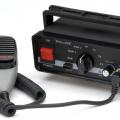
A whelen 295sl siren
The 295sl Siren has multiple wails, yelps, and priority tones. In this version of the siren the wail is the high looping wail, with a standard yelp, and priority tone.
Created by Jmoney1095 with assistance from WBRPDPRODUCTIONS
Do Not Redistribute without permission from all person(s) listed in the credits
http://youtu.be/_CxQ-rInEpE
- 186 Downloads
- 12 Comments
Submitted -
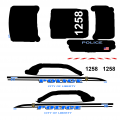
This skin is a generic version of a Rochester, MN CVPI meaning that it looks like a Rochester, MN police cruiser, but says Liberty City on the side of the car.
To install open the vehicle.img with sparkIV (or similar program) and import to your cvpi .wdt.
youtube;1kbopnQGZd8]http://www.youtube.com/watch?v=1kbopnQGZd8
- 23 Downloads
- 3 Comments
Updated