Josherry
Members
-
Joined
-
Last visited
Files posted by Josherry
-
This mod replaces "bm_amb_coffee.png" in the Weapons.img file. To get a fresh expensive cup of your selected coffee hit Alt+O when your on duty with LCPD:FR.
To install this mod open "weapons.img" with OpenIV or SparkIV located under "GTAIVpcmodelsweapons.img" and open "amb_coffee.wtd" and replace "bm_amb_coffee.png" with the one of your choice.
- 217 Downloads
- 12 Comments
Updated -
Please do not re-upload this mod!!
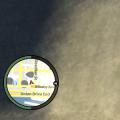
This simple mod deletes the weapon health and armor textures that are displayed on you radar in multiplayer games. It creates a better role play experience and looks clean.
For GTA 4 PC only! Will not work for EFLC!
Before:
After:
**Instalation**
Simply put the "pc" folder in your GTA 4 main directory.
Overwrite every file/folder.
Your done!
- 516 Downloads
- 1 Comments
Submitted -
This mod changes AMBULANCE_WARNING to have no audio. It is the last siren in ELS. Cars will still pull over to the "Sound" of the siren that you don't hear.
Making it seem like they are only pulling over to your lights.
Instalation:
Open "GTA4pcaudioSfxresident.rpf" with Spark IV.
Click on "RESIDENT" and then click "HORNS.ivaud", Then "Import", Navigate to the file you downloaded, click "open", and then click "Save".
Thats It!
License:
Feel free to include AMBULANCE_WARNING in you Audio Packs. Please give me, "CraftieGamer" credit. Thanks!
- 259 Downloads
- 4 Comments
Submitted