CodyDesigns
Members
-
Joined
-
Last visited
Files posted by CodyDesigns
-
California Highway Patrol Patch & Patch Logo
This includes the flat non embroidered logo and the embroidered arm patch. Both images are .png at the ease of use to you the developer/player.
I want to add more to this- 32 Downloads
Updated -
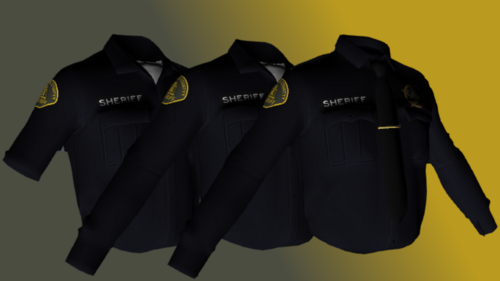
This is a retexture of CW Chino's San Mateo County Sheriff's Office EUP
Here is the eup files
https://www.lcpdfr.com/downloads/gta5mods/character/52332-san-mateo-county-sheriffs-office-eup/
STEPS ON HOW TO REPLACE
You will need OpenIV
When in OpenIV go to the top bar and click file then folder then open the downloaded eup folder
Then click stream > [male] > jbib
At the top click Edit mode (THIS IS IMPORTANT)
Then double click the first ytd file and when the window is open click replace
When the file manager opens click on the CodyDesignsLSSDEup folder and go to DDS Files
CodyDesignsLSSDEup > DDS Files
Then select the pds_shirt and click open at the bottom of the OpenIV window click SAVE
Follow the same process with the other ytd files
pds_shirt2 & jbib_diff_009_a_uni
- 38 Downloads
- 2 Comments
Updated