


Frakee
Members
-
Joined
-
Last visited
Everything posted by Frakee
-
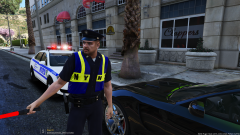
From the album: New York Police Department (GTA V)
-
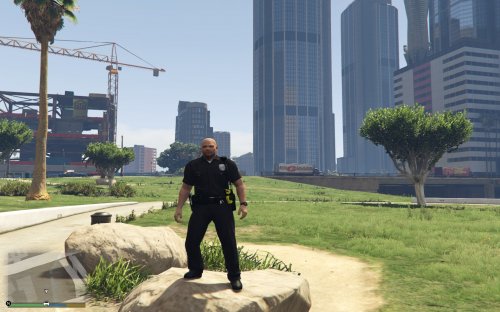 Amazing, i really like the belt but its low quality and i like that the fact the tactical vest was remove for the city cop, cause you really don't see city cops use belt that often, unless emergency.
- 16 comments
- 5 reviews
-
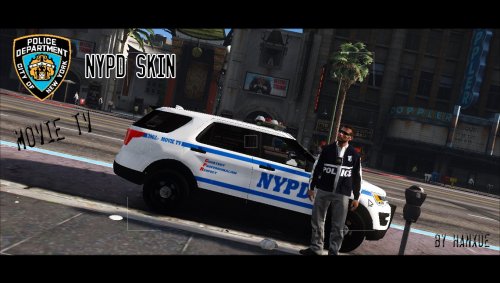 This site can’t be reached...
 -
-
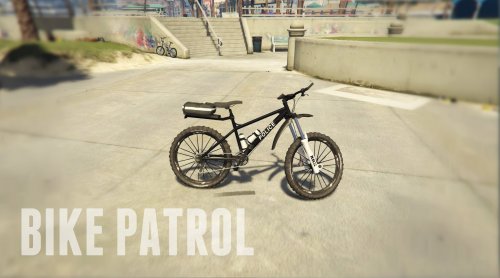 If anything try resize the YTD file. I suggest 512x512 for the textures should be work after that.
- 29 comments
- 11 reviews
-
-

- 1
-
-
Did you install any vehicle configure file? I suggest you to use the vanilla bike file first to determine if the bike is the reason that is crashing your game? If that doesn't work, I highly suggest to reinstall the game.
- 29 comments
- 11 reviews
-
Did you install it on your mods folder? Also change the texture size to 512x512 if it's taking up too much memory space, if that doesn't work , I suggest you to upgrade your graphic card to 4GB or higher.
- 29 comments
- 11 reviews
-
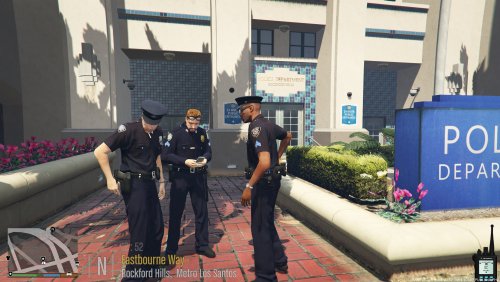 Why does this texture besides the patches and collar brass look alike like my nypd male cop? Even the hat texture too...
- 5 comments
- 1 review
-
-
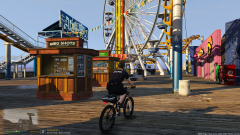
From the album: New York Police Department (GTA V)
-
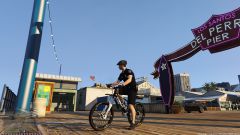
From the album: New York Police Department (GTA V)
-
-
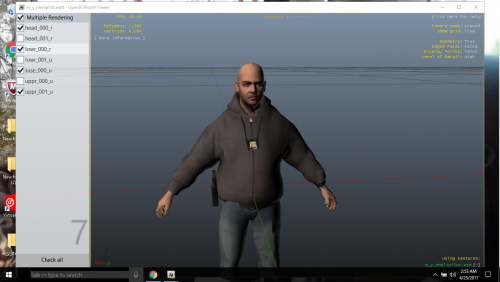 i love youuu
 -
sure as long give credit
-
@NYPDDetectiveODonnell is making a new scripts, waiting for it..
-
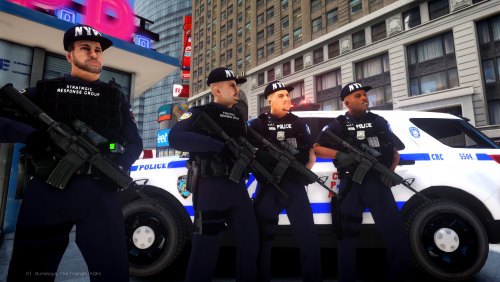 Working on Sergeant peds (high quality hats), and adding some new faces in gta iv soon
- 73 comments
- 4 reviews
-
-
-
NYPD ESU
-
-
-
From the album: NYPD ESU
-
From the album: NYPD ESU
-
From the album: NYPD ESU
-
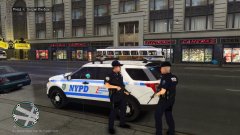
From the album: NYPD ESU


