



BunBoHue
-
Joined
-
Last visited
Everything posted by BunBoHue
-
From the album: Updated RSO Liveries
-
From the album: Updated RSO Liveries
-
From the album: Updated RSO Liveries
-
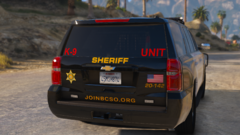
From the album: Updated RSO Liveries
-
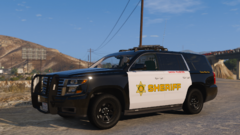
From the album: Updated RSO Liveries
-
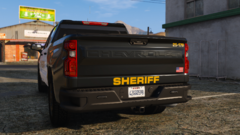
From the album: Updated RSO Liveries
-
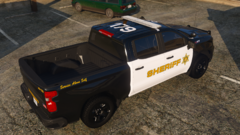
From the album: Updated RSO Liveries
-
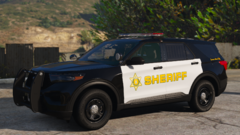
From the album: Updated RSO Liveries
-
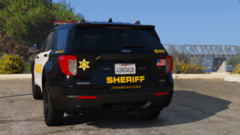
From the album: Updated RSO Liveries
-
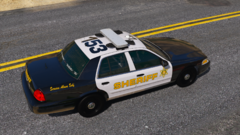
From the album: Updated RSO Liveries
-
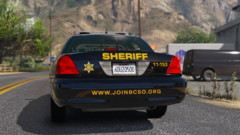
From the album: Updated RSO Liveries
-
From the album: Updated RSO Liveries
-
From the album: Updated RSO Liveries
-
From the album: Updated RSO Liveries
-
From the album: Updated RSO Liveries
-
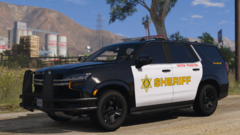
From the album: Updated RSO Liveries
-
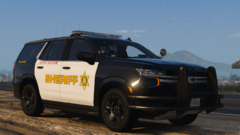
From the album: Updated RSO Liveries
-
-
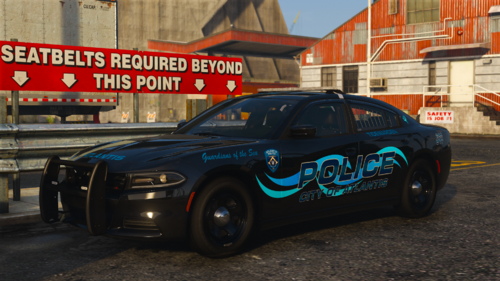 thank you! I really appreciate it.
 -
.thumb.png.7bdf0066d86afe565fac5e2684baa3e8.png) Hey man, great job on on the cars based on the pics I have seen. I will give it a download once you make it DLS :)). Would like to see more DLS releases in the future since people are only hesitant to use DLS since there isn't a lot of car options on here. Can't wait to see more of your work!
Hey man, great job on on the cars based on the pics I have seen. I will give it a download once you make it DLS :)). Would like to see more DLS releases in the future since people are only hesitant to use DLS since there isn't a lot of car options on here. Can't wait to see more of your work! -
 the fact that you can't even answer what you mean by "Keep Emergency Lights Active" shows you don't even know your own plugin 🤣
- 30 comments
- 1 review
-
-

- 2
-
-
idk what u mean about DLS crashing the game after 1-2 hours XD thats a straight up lie. I have DLS only in my game and plenty of other people do too. I can play for 3 hours+ without a single issue. ELS is trash for having premade patterns, uses extras to flashlights rather than the actual game lighting system, you also can't do break overrides (like a lot of real department has), corner door cuts, pattern changing depending on speed, can change traffic advisors on the fly, and so much more. Oh, and it is more stable and doesn't cost FPS loss like ELS. Either way that is beside the point, what do you mean by "Keep Emergency Lights Active?" You also state that that your plugin doesn't need dependencies but then in all caps "Needs SHVDN nightly." Why not just make it only be dependent on SHV only since SHVDN is unstable compared to SHV?
- 30 comments
- 1 review
-
-

-
- 3
-
-
So here's the thing about the plugin I do not really understand. Features: Instant Siren Cutoff Keeps Emergency Lights Active I can see why instant siren cutoff would be useful for ELS, but for DLS (which is a superior lighting system to ELS) it already has automatic siren cutoff. And for the "Keep Emergency Lights Active," ELS and DLS cars have their lights remain on until you turn it off. So I do not see a reason to have a feature to keep the lights active when both lighting plugin already keeps the lights active until turned off.
- 30 comments
- 1 review
-
-
- 1
-
-
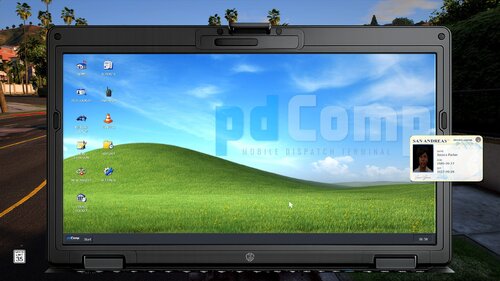 Hey, this looks very interesting, but I am very hesitant of using plugins that completely uses ai code. Was this made by using AI or did you only use Ai for help? I appreciate your time to respond. Thank you.
- 390 comments
- 38 reviews
-
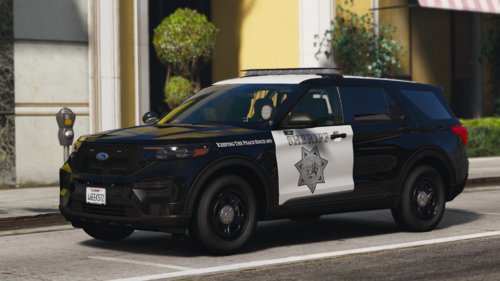 GM, Raz3r, and Kane only make the bases. You need to find car packs from car devs who use those models in their packs. I will provide some examples here. They themselves don't actually make the cars that you see, they only make the models. As a matter of fact, you may probably have them in your game. Here are examples: https://www.lcpdfr.com/downloads/gta5mods/vehiclemodels/53731-dlsaddon-redmond-police-department-pack/ (Has Kane104's FPIU) https://www.lcpdfr.com/downloads/gta5mods/vehiclemodels/53847-mini-2022-fpiu-rfr-package-elsnonels-hybrid-addon-ver10/ (Has Kane104's FPIU, GM 18-19 FPIU) https://www.lcpdfr.com/downloads/gta5mods/vehiclemodels/50512-paleto-bay-pd-tahoe-pack-els-hybrid-addon/ (Raz3r's 23 Tahoe) This is how GTA V vehicle modding works. These car devs who make these emergency cars, buy from the modelers (Raz3r, Kane, and GM), and then they put together what you see and upload them. So, you just need to learn how to identify which model is from one of these guys.
.thumb.png.7bdf0066d86afe565fac5e2684baa3e8.png)
