
Zooniq
Members
-
Joined
Files posted by Zooniq
-
Hello again! I'm giving you my little work on the basic model of the flashlight.
I recently saw a video and a couple of photos where cops carry flashlights in a similar way, and it seemed like a good idea to develop.
For a little understanding, these lights are mainly used by officers to make it easier to read documents at night, for example. Also, flashlights are worn not only by CHP officers, but also by other departments, such as Ventura County Sheriff.
Some information about the work I have done:
1. I made 3 positions for flashlights: On the right shoulder, on the left shoulder, on the chest. Each position has two models where one flashlight is on and the other is off. There are 6 models in total.
2 out of 6 models are in our QuadLabs Modifications discord server, and are also free.
2. Flashlights have a special material that allows them to glow. This glow is mostly visible in the dark. However, due to the different texture, the glow can also be seen during the daytime.
3. The flashlights are already ready for use in FiveM and Singleplayer. The installation instructions will be below.
If you like the work I have done, I will be glad to see your feedback and comments under this modification. You can find more works from me on our QuadLabs discord server.
Have a good game!
How to install:
FiveM
1. Go to the "FiveM" folder
2. Drag the "police_flashlights" folder to the resource folder on your FiveM server;
3. Add this line to your server.cfg: start police_flashlights
4. It's done!
Singleplayer
1. Start OpenIV.
2. Navigate to the 'mods' folder
3. Move the provided "police_flashlights" folder inside: mods\update\x64\dlcpacks
4. Locate 'dlclist.xml': mods/update/update.rpf/common/data
5. Add the following line to the bottom: dlcpacks:/police_flashlights/
6. It's done!
Credits:
Model - Rockstar Games
Textures - Rockstar Games
Female Screenshots - Kirik(QuadLabs Modifications)
Working with the model - Zooniq(QuadLabs Modifications)
Creating FiveM & SP Resources - grzyClothTool
Terms of use:
- Do not rip parts from this pack;
- Do not claim the content from this pack;
- Do not reupload this file to other websites;
- Do not exploit content of this pack for commercial, financial or personal gain.
- 604 Downloads
- 10 Comments
Updated -
Hi! I'm finally giving you my assets!
In the file "SafeFleet.z3d" you will be able to find a dashcam and a display from Safe Fleet [FOCUS H2], which you can hang on the desired transport.
The display model was made a long time ago and based on videos and photos from CHP cars, I will most likely redo it a little in the future.
A few features of my assets:
- pretty high quality
- as realistic as possible
- have high-quality textures
You can also change the textures to suit your taste. All the textures used in the models are in the "textures" folder.
If you like the work I have done, I will be glad to see your feedback and comments under this modification. You can find more works from me on our QuadLabs discord server.
Have a good game!
Credits:
Models - Zooniq(QuadLabs Modifications)
Textures - Zooniq(QuadLabs Modifications)
Exporting a file for Zmodeler 3 - Kirik(QuadLabs Modifications)
Terms of use:
- You may use and modify this modification and redistribute your work under the condition that complete and correct credits are given, listing all authors and their contributions. Unlocked versions of this modification may only be redistributed if you include these terms of use and a link to the original download.
- Using this modification commercially is only allowed if credits as described above and a link to the original download are displayed before purchasing and are included with the download.
- You may not convert or port this modification to other games or platforms without permission.
- 161 Downloads
- 4 Comments
Updated -
Hello! It's time to show and give you the CHP badges.
I made 3 badge models.
1 - the model of the badge on the chest;
2 - the model of the badge on the chest with a mourning ribbon;
3 - the model of the badge on the belt.
Each model contains textures for the following ranks: officer, sergeant, lieutenant and captain. For the badge, pens were made in the pocket and seniority on the nameplate.
In our discord server you will be able to find more textures for chest badges, thanks to them you will be able to change the model. For example: remove the handles from the badge, remove seniority, and so on. Also in our discord you can download the model of the CHP badge on the belt, which also contains 4 textures with ranks (the files in our discord are also free).
A little more information about the models: The shape, size and texture are taken from real CHP badges. The mourning ribbon is made by a model, NOT a texture. The model is well optimized. The belt model is suitable for different types of pants.
If you like the work I have done, I will be glad to see your feedback and comments under this modification. You can find more works from me on our QuadLabs discord server. I recommend using my CHP badges with these mics.
Have a good game!
How to install:
FiveM
1. Go to the "FiveM" folder
2. Drag the "chpbadges" folder to the resource folder on your FiveM server;
3. Add this line to your server.cfg: start chpbadges
4. It's done!
Singleplayer
1. Start OpenIV.
2. Navigate to the 'mods' folder
3. Move the provided "chpbadges" folder inside: mods\update\x64\dlcpacks
4. Locate 'dlclist.xml': mods/update/update.rpf/common/data
5. Add the following line to the bottom: dlcpacks:/chpbadges/
6. It's done!
Look at which gender you are adding badges for! The folder names are different: chpbadges / chpbadges_f.
Credits:
Model - Zooniq(QuadLabs Modifications)
Textures - Zooniq(QuadLabs Modifications)
Creating FiveM & SP Resources - grzyClothTool
Terms of use:
- Do not rip parts from this pack;
- Do not claim the content from this pack;
- Do not reupload this file to other websites;
- Do not exploit content of this pack for commercial, financial or personal gain.
- 793 Downloads
- 5 Comments
Updated -
Hello again!
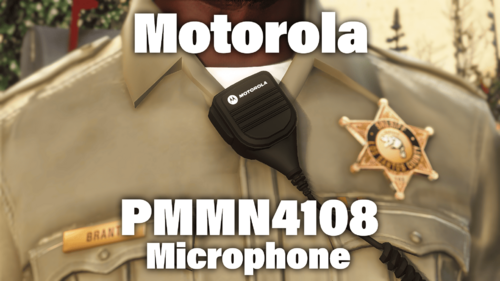
I present to you the Motorola PMMN4108 radio microphones. In total, I made 6 variations of attaching a radio microphone to a shirt. There are mounting options on the shoulders, chest and collar.
You can download 4 of them here, the other 2 you can find on our discord server. They are also free.
(In the 3rd image, you can see what the LCPDFR file contains and what is on our discord server).
The visual appearance is taken entirely from real photos of the Motorola PMMN4108 radio microphone. The model is well designed from all sides (even the attachment to the walkie-talkie). By the way, these belts are great for all kinds of my radio microphones. I recommend downloading it.
The radio microphones are made for FiveM and Singleplayer.
If you like the work I have done, I will be glad to see your feedback and comments under this modification. You can find more works from me on our QuadLabs discord server.
Have a good game!
How to install:
FiveM
1. Go to the "FiveM" folder
2. Drag the "motorolamic" folder to the resource folder on your FiveM server;
3. Add this line to your server.cfg: start motorolamic
4. It's done!
Singleplayer
1. Start OpenIV.
2. Navigate to the 'mods' folder
3. Move the provided "motorolamic" folder inside: mods\update\x64\dlcpacks
4. Locate 'dlclist.xml': mods/update/update.rpf/common/data
5. Add the following line to the bottom: dlcpacks:/motorolamic/
6. It's done!
Credits:
Model - Zooniq(QuadLabs Modifications)
Textures - Zooniq(QuadLabs Modifications)
Creating FiveM & SP Resources - grzyClothTool
Terms of use:
- Do not rip parts from this pack;
- Do not claim the content from this pack;
- Do not reupload this file to other websites;
- Do not exploit content of this pack for commercial, financial or personal gain.
- 2,117 Downloads
- 19 Comments
Updated -
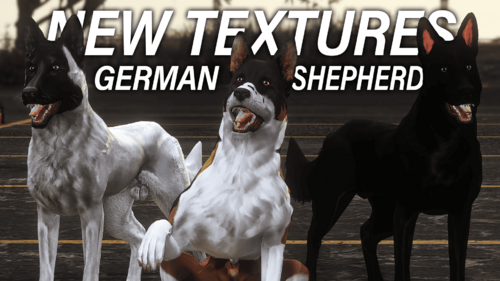
Are you interested in new colors for your German Shepherd? Well, I'm glad! Because these textures are for you!
All new dog colors are taken from real photos of German Shepherds and malinois. Everything is fair! Below you will find a tutorial on how to install everything. If you like the work I've done, please leave a review.
If you want to see more work from me or our QuadLabs team, here is our Discord server
How to install:
First you need to download and install this mod.
As soon as you're done, go to the "YTD" folder. Transfer the ytd files to the mod folder. [Make sure that you have moved them to the same place where the other four ytd files from the mod author are found].
Next, go to the "YMT" folder and replace the original ymt file with my ymt file. Done! Your dog is ready to use!
Credits:
Model - Turbosquid 3D
Convert - Rarefacer & MartinCT(Mouby)
Textures - MartinCT(Mouby)
Custom Textures - Zooniq(QuadLabs Modifications)
- 563 Downloads
- 2 Comments
Updated