Raven Studios
Members
-
Joined
-
Last visited
Files posted by Raven Studios
-
Sit in Chair by Raven Studios
Have you ever wanted to create RP scenarios where sometimes your player just can't figure out how to sit on a chair? Well, that's where we come in!
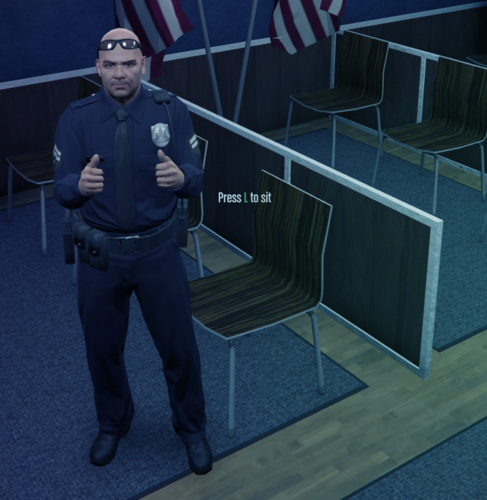
The Sit In Chair Script by Raven Studios for FiveM allows players to interact with various chair models in the game world and sit down with ease. Featuring a configurable keybind and customizable chair models, this script enhances immersion and roleplay opportunities for servers of all kinds. Sounds simple enough, right? That's because it is!
Check out our Discord for support!
https://discord.gg/xKUtNff8DN
Features:
🪑 Sit Anywhere:
Allows players to sit in any predefined chair models, making roleplay scenarios more engaging and interactive.
🎮 Configurable Keybind:
Easily customize the keybind to suit your server’s needs. Set the key to **L, E, F**, or any other key that fits your preference.
🔧 Customizable Chair List:
Define which chair models can be used for sitting. Add or remove chair props to match your server's environment.
💬 Dynamic 3D Prompts:
Displays a 3D prompt above chairs, dynamically showing the correct keybind for sitting or standing up.
🎥 Smooth Animations:
Includes animations for both sitting down and standing up, providing a seamless experience.
🌐 Immersive Roleplay:
Perfect for enhancing roleplay in restaurants, offices, waiting rooms, and more.
- 1,509 Downloads
- 2 Comments
Updated