RedPhoenixKatherine
Members
-
Joined
-
Last visited
Everything posted by RedPhoenixKatherine
-
From the album: Fleur on Patrol
-
From the album: Fleur on Patrol
-
From the album: Fleur on Patrol
-
From the album: Fleur on Patrol
-
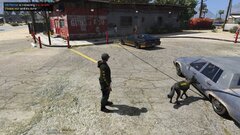
From the album: Fleur on Patrol
-
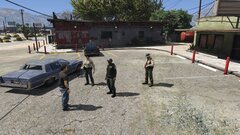
From the album: Fleur on Patrol
-
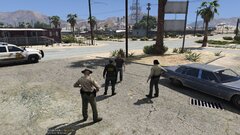
From the album: Fleur on Patrol
-
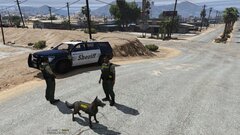
From the album: Fleur on Patrol
-

From the album: Fleur on Patrol
-
It works with Rockstar launcher. I have the steam version and works fine for me. Just remember when RagePluginHook updates delete the four exe's and validate files to get back to the latest version
-
You're welcome sweetheartScriptHook have released a new version To get this update do this: Type cmd in the windows search box and open the cmd app Type in the cmd window: cd Downloads Press Enter Copy this: curl http://dev-c.com/files/ScriptHookV_1.0.3337.0.zip --referer http://dev-c.com/ -o ScriptHookV_1.0.3337.0.zip Paste it into cmd window, the file will now download and will be in your downloads folder, install as normal into your main folder. Make sure youve updated RagePluginHook (Included in new LSPDFR download) and you're good to go!
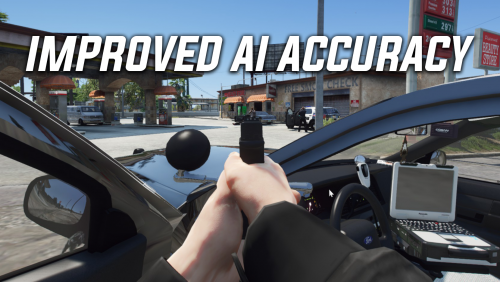 You need to create a mods folder in your main GTA 5 directory. Then copy the update folder into your mods folder. Create the Mods folder and copy the update folder highlighted above Then you need OpenIV to access and edit the files
- 25 comments
- 5 reviews

From the album: Victoria Hernandez

From the album: Victoria Hernandez

From the album: Victoria Hernandez
From the album: Fleur on Patrol

From the album: Fleur on Patrol

From the album: Fleur on Patrol
From the album: Fleur on Patrol
From the album: Fleur on Patrol
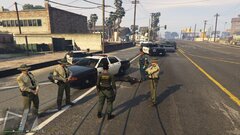
From the album: Fleur on Patrol
She’s a big beautiful lady!Check to see if you have the latest versions of open interiors and the callout pack. If you have both I’d see if there’s a discord for the call author. I’m still learning my way through modding myself. Sorry you are still having issues