
kganders
Members
-
Joined
-
Last visited
Files posted by kganders
-
Make every LSPDFR patrol feel like your agency
Agency Callout Filter puts you in charge of the calls that shape your shift. Choose the department, specialty unit, profile, and variety you want to play, then let the plugin build a callout pool that fits the role. It takes the lead on selecting and starting eligible incidents at a natural pace. LSPDFR still creates and runs every callout; Agency Callout Filter simply helps make the next one feel appropriate for the officer you are playing.
It works alongside the callout packs already in your game. There is no need to edit, replace, or seek special support from those packs. It also leaves presentation-focused mods, such as GrammarPolice, free to handle their own audio and immersion, and remains compatible with Callout Interface.
Key features
Dispatch built around your agency
Select City Police, Sheriff, Highway Patrol, Federal, or Emergency Services—or detect your agency automatically from LSPDFR or compatible EUP uniforms. Custom agency aliases, such as SASP, are supported too.
Choose the unit you are playing
Add a specialty unit such as Patrol, Traffic, K9, SWAT, CSI, Gang, Homicide, Narcotics, SRO, or Air Support. Leave Unit on Automatic or None for an agency-wide pool, or select a unit to focus dispatch on callouts explicitly suited to that role.
A dispatch rhythm that feels like a shift
Agency Callout Filter owns only the selection cadence when you enable Dispatch Ownership. Each successful callout is followed by a fresh random interval, keeping the day from feeling like a timer instead of a patrol.
Dispatch Control in game
Open the Decimal-key menu to change your agency, unit, profile, territory, context awareness, and variety without leaving GTA V. Browse the catalogue, manage personal callout choices, check diagnostics, and reload settings from the same place.
Profiles, variety, and personal control
Start with included profiles for LSPD Patrol, Blaine County Sheriff, Highway Patrol, Federal Task Force, Fire/EMS, and K9—or make the setup your own. Automatic, Light, Strong, and Off variety modes help keep familiar calls from becoming predictable, while per-callout rules let you allow, block, or reclassify what you discover.
Safe configuration that explains itself
Everyday settings live in a compact player INI, while the readable stock catalogue documents the supplied classifications. Personal discovered-callout overrides stay separate from shipped files, so updates do not wipe out your choices. Atomic saves, backups, fail-open behavior, and diagnostics help keep a bad edit from spoiling a shift.
Made for the callout library you already have
The included catalogue supports a broad range of popular packs, including 686Callouts, Adam69Callouts, chillLScallouts, DeryllCallouts, InteriorCallouts, JMCalloutsRemastered, KucheraCallouts, LPCallouts, MCCallouts, pdComp, RadioRealismFR, RicysCallouts, RiotResponse, SandyCallouts, SuperCallouts, TAGsCallouts, Traffic Policer, and more.
Other packs can still fit into your patrol through discovered-callout overrides, assembly defaults, and keyword rules. For example, an Officer Down rule can be available to city, county, highway, and federal response no matter which installed pack provides it.- 915 Downloads
- 24 Comments
Updated -
Foot Pursuit Intelligence turns ordinary LSPDFR foot chases into tense, memorable stories.
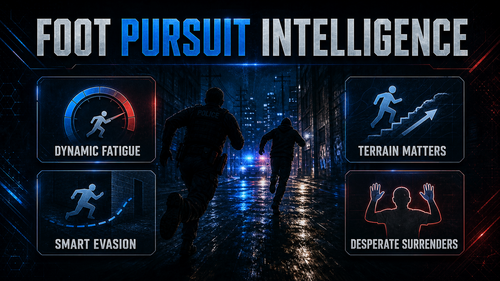
Every suspect feels different. Some burn through their stamina in a frantic sprint. Some fight to keep moving over hills and stairs. Some stumble when exhaustion catches up with them, find one last burst of adrenaline, or finally decide they have nothing left to give.
Instead of endless, identical chases, pursuits gain momentum, pressure, and personality. Closing the distance feels earned. A suspect slowing down after a long run creates a real opening. A desperate change of direction can keep a chase unpredictable without turning it into a superhuman race.
What players will notice
Suspects tire naturally over the course of a pursuit
Hills, stairs, injuries, stress, and sprinting all make a difference
Exhaustion can lead to believable slowdowns and brief stumbles
Different suspect personalities create more varied chase behavior
Desperate suspects may find a short burst of energy when capture is close
Exhausted, unarmed suspects may surrender rather than run forever
Pursuits feel more dramatic without changing player movement, traffic, dispatch, or arrest outcomes
End-of-pursuit summaries make every successful chase feel like it had a story
Built for better chases
Whether you are chasing someone through downtown streets, up a steep hillside, or across a quiet neighborhood, Foot Pursuit Intelligence makes the pursuit feel more alive from the first sprint to the final stop.
It is not about making suspects faster. It is about making every chase feel like it matters.
As a chase cools down, suspects can also become more cautious—trying to blend into a visible crowd only when they believe they have created real separation. A fresh sign of danger can send them running again, keeping the pursuit human, tense, and unpredictable.
The world matters, too. Vehicles can become useful cover, while hills and stairs turn the terrain itself into part of the chase. Foot Pursuit Intelligence keeps those moments grounded and believable instead of relying on impossible shortcuts through buildings or obstacles.- 1,917 Downloads
- 3 Comments
Updated