Skip to content
View in the app

A better way to browse. Learn more.

LCPDFR.com

A full-screen app on your home screen with push notifications, badges and more.

To install this app on iOS and iPadOS
  1. Tap the Share icon in Safari
  2. Scroll the menu and tap Add to Home Screen.
  3. Tap Add in the top-right corner.
To install this app on Android
  1. Tap the 3-dot menu (⋮) in the top-right corner of the browser.
  2. Tap Add to Home screen or Install app.
  3. Confirm by tapping Install.

Bigsmokas

Members
  • Joined

  • Last visited

  1. Bigsmokas changed their profile photo
  2. Omg its fire.
  3.    Bigsmokas reacted to a comment on a file: [EUP] Simple Lithuanian Police Uniforms
  4.    Bigsmokas reacted to a comment on a file: [EUP] Simple Lithuanian Police Uniforms
    • 217 downloads
    • Version 1.0.0
    INSTALLATION: Extract the contents of this package to a convenient location of your choice such as the desktop. Using OpenIV in Edit Mode (File > Edit Mode), navigate to GTA V\x64e.rpf\levels\gta5\vehicles.rpf, locate vehshare.ytd and right-click it. Select "Replace", direct OpenIV to the location of the extracted folder,select the vehshare.ytd file located there and click "Open". Close OpenIV. AND YOU ARE DONE!!
    • 527 downloads
    • Version 2.0.0
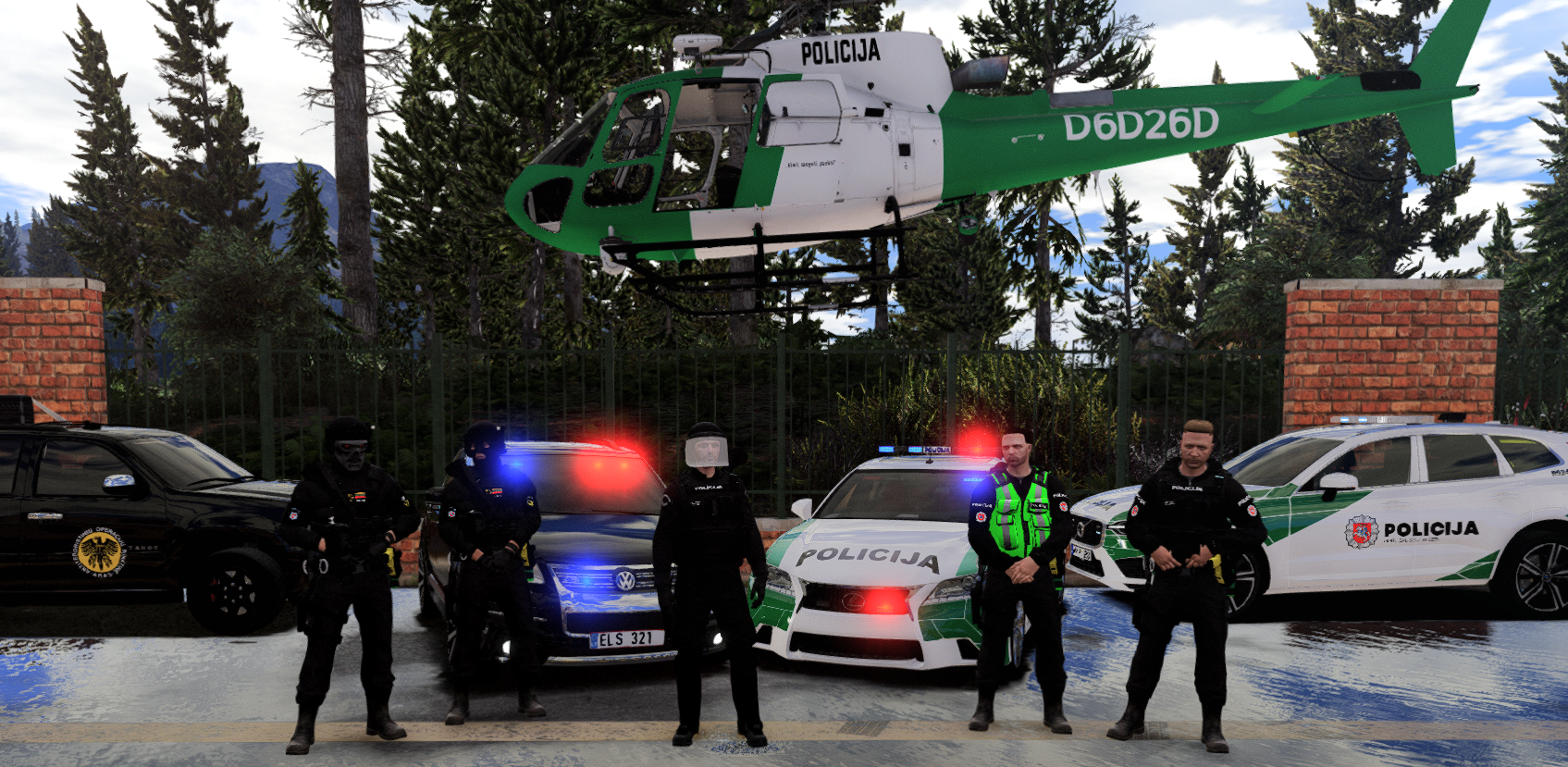
    Here is my mini Lithuanian police uniforms texture pack. THIS IS JUST A TEXTURE! YOU MUST INSTALL THE ORIGINAL BEFORE APPLYING THIS TEXTURE Installation: for vest/top - Using OpenIV go to "Grand Theft Auto V/mods/update/x64/dlcpacks/eup/dlc.rpf/x64/eup componentpeds.rpf" - Open the folder you downloaded drag and drop my YTD into that directory, and you are done. for hat - Using OpenIV go to "Grand Theft Auto V/mods/update/x64/dlcpacks/eup/dlc.rpf/x64/eup_componentpeds_p.rpf" - Open the folder you downloaded drag and drop my YTD into that directory, and you are done.

Account

Navigation

Search

Search

Configure browser push notifications

Chrome (Android)
  1. Tap the lock icon next to the address bar.
  2. Tap Permissions → Notifications.
  3. Adjust your preference.
Chrome (Desktop)
  1. Click the padlock icon in the address bar.
  2. Select Site settings.
  3. Find Notifications and adjust your preference.