ItsMistaDrifta
Members
-
Joined
-
Last visited
Files posted by ItsMistaDrifta
-
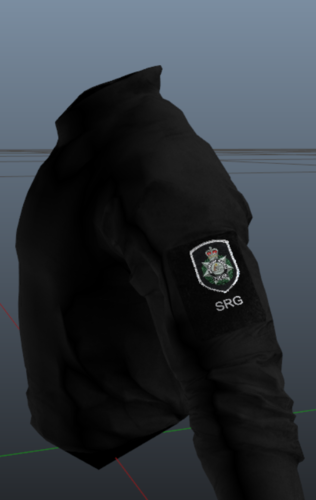
Another terrible and useless model. Made in 5 minutes. Has AFP Special Response Group and QPS Special Emergency Response Team Short Sleeve's and Long Sleeve's.
Model used below. All credits to him.
- 176 Downloads
- 2 Comments
Updated -
Hello, Another terrible skin by me. Hit me up on discord if you need anything. ItsMistaDrifta#6503
QPS Bearcat literally has no markings on it so I tried to make it realistic as possible.
With the AFP Bearcat the logo should not be on the door but really close. If you want you can edit the skin and move the logo.
If you are to move the logo to where it is supposed to be you will have to make it terribly small.
Model used:
https://gtapolicemods.com/files/file/1884-lenco-bearcat-swat-unit/
- 350 Downloads
- 3 Comments
Updated -
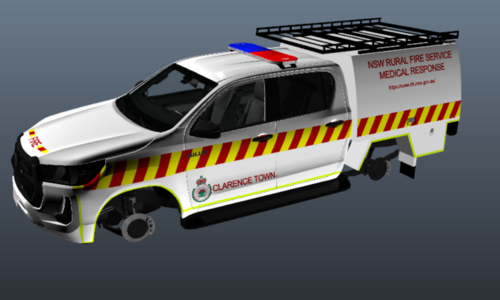
Hello. I have made these shit skins because I want to. Want more shit skins? Dm ItsMistaDrifta#6503 on Discord. Happy to help. Don't judge I guess as I only spent 15 minutes making these.
DISCLAIMER: I used Just Scots FRNSW Humanitarian Skin for the Aviation one. Of course all credits to him, Ask him to use the model in your server as it is a locked model.
AMAZING MODEL FROM JUST SCOTT!!!!
- 33 Downloads
- 1 Comments
Updated -
- 13 Downloads
Updated -
- 25 Downloads
Updated