
xz1le
Members
-
Joined
-
Last visited
Files posted by xz1le
-
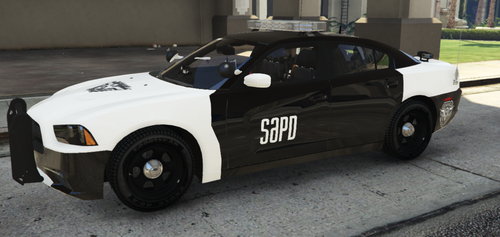
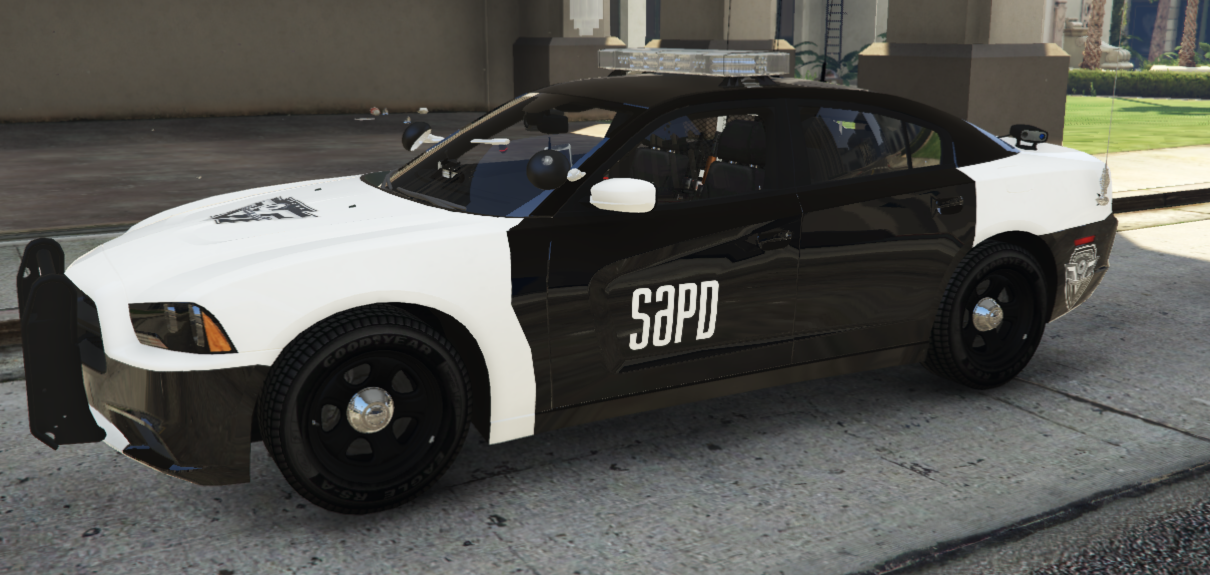
A small collection of textures that I made for the 2014 Dodge Charger by Maurice97
The livery on these cars is meant to be faithful to the actual patrol cars.
Included:
FLORIDA HIGHWAY PATROL NORTH CAROLINA STATE TROOPER TEXAS HIGHWAY PATROL SAN ANGELES POLICE DEPARTMENT [From the movie Demolition Man]
You must download and install the 2014 Dodge Charger model by Maurice97
This model can be found in the Small SHP Pack 1.0.0 at:
Installation:
o Using OpenIV
1) Navigate to \mods\update\x64\dlcpacks\patchdayXXng\dlc.rpf\x64\levels\gta5\vehicles.rpf
*** patchdayXXng is whichever folder you installed Maurice97's vehicle pack
2) Open for editing police2.ytd
3) Import chr2_sign_1.dds, chr2_sign_2.dds, chr2_sign_3.dds, chr2_sign_4.dds
4) Save police2.ytd
5) Run GTAV
6) You can either select the livery in the police garage, or open console with F4 and type Spawn police2
*** if you use the console to spawn the vic, the livery will be random. Keep running the spawn
*** command until you get the livery you want.
Optional - you can choose to install only one livery (.dds). When you import the file to police.ytd make sure you
rename your chosen livery file to chr2_sign_1.dds.
- 16 Downloads
Submitted