
Charlotte.
Members
-
Joined
-
Last visited
Everything posted by Charlotte.
-
 Good plugin but for some reason the juggernaut dosnt die unless i melee them
 -
Verify your game data
-
Start your game (without rage) then load fully into story mode then try to open rage.
-
Have you tried running the game normally ? (without rage)
-
 join what?
 -
-
looking to make something like this - but cant find any newer kia models
-
-
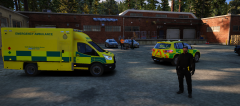
From the album: Armed Response
-
-
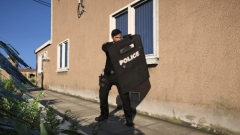
From the album: Armed Response
-
-
Try starting your game and then starting rage plugin hook so just before you go into the loading screens start rph.
-
-
-
From the album: UK LSPDFR
-
when i press y to accept some certain calls it rather crashes lspdfr or just says code 4 - disregard RagePluginHook.log
-
-
how do i fix this (what files do i need to delete to revert the peds to normal state)
-
r* launcher opens but after that the game dosnt open i have already tried to disable my mods folder
-
fixed. was dinput8.dll issue
-
"i have already tried disabling the mods folder"
-
Some cops duplicate (peds and backup) also some cops drive around (casually code 4) with the siren on and no lights?
-
not responding on load up. RagePluginHook.log
-
i did this and then got this