
belicfr
-
Joined
-
Last visited
Everything posted by belicfr
-
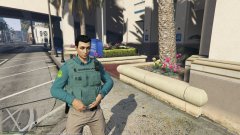
From the album: EUP España project
-
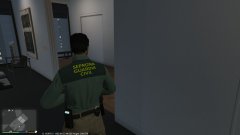
From the album: EUP España project
-
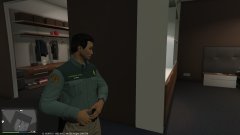
From the album: EUP España project
-
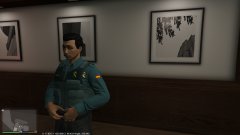
From the album: EUP España project
-
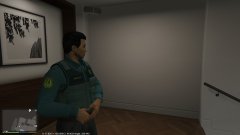
From the album: EUP España project
-
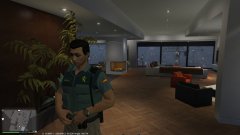
From the album: EUP España project
Guardia Civil: Polo + vest.© Pictures & EUP spanish textures by belicfr.
-
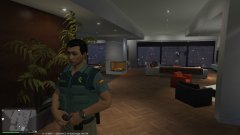
From the album: EUP España project
© Pictures & EUP spanish textures by belicfr.
-
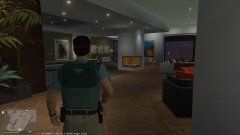
From the album: EUP España project
© Pictures & EUP spanish textures by belicfr.
-
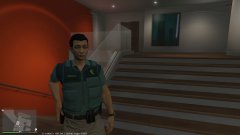
From the album: EUP España project
© Pictures & EUP spanish textures by belicfr.
-
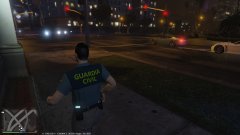
From the album: EUP España project
© Pictures & EUP spanish textures by belicfr.
-
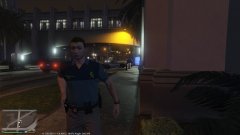
From the album: EUP España project
© Pictures & EUP spanish textures by belicfr.
-
-
 Say hello to belicCallouts County Edition! The page on my website will be updated simultaneously with the development.
- 24 comments
- 1 review
-
Bonjour, Ces véhicules sont-ils ELS?
-
Nice. If your issue is completed, you can switch your topic as solved.
-
Maybe your proxy forbid access to the website?
-
Clear your browser cache. check your connection. and ELS keys does not work?
-
Hi everyone! You can also follow the news about my projects like this pack on my new website (still in development). 🔗 https://belicfr.github.io/beliccallouts/
- 24 comments
- 1 review
-
Rename your mods folder as _mods.
-
Hello, thank for your comment. Other interventions will appear in future versions.
- 24 comments
- 1 review
-
-

- 1
-
-
Do you have any mod "Menu" in Plugins/LSPDFR?
-
Where this error is displayed?
-
Close other apps for increase FPS. Change your graphic settings also.
-
ELS uses their own keys: J K & L for lights ; G and D1, D2, D3, D4, D5 for sounds.
-
Please be specific in your request for assistance. What do you need help with?