bgrant902
Members
-
Joined
-
Last visited
Files posted by bgrant902
-
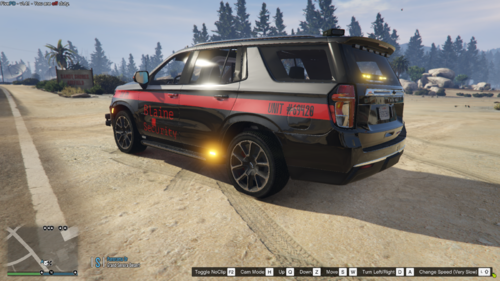
Thanks to TKPhantom/Phantom Designs for making this AWESOME vehicle!
--Tahoe Pack Needed--
[NON ELS][ADD-ON] Mini 2021 Tahoe Pack!! - Vehicle Models - LCPDFR.com
--How do I Install?--
Run OpenIV on your Desktop (See Video At Bottom of Description)
Select the folder where you store your Phantom Designs Tahoe
Enter Edit Mode
Open the Texture Dictionary
Replace 21tahoe_sign_1 or add the file as 21tahoe_sign_2
Save and Close!
-----Blaine Security Tahoe Credits-----
-This is NOT my vehicle, I make the skin ONLY.-
--Credits--
2021 Tahoe Pack by TKPhantom
Phantom Designs Discord - https://discord.gg/n8haCtR
Blaine Security Skin by bgrant902
--Info--
By no fault of my own, the dirt textures are a little "iffy."
I would recommend enabling "Keep Vehicle Clean" or washing it frequently.
You need this Tahoe pack --> https://www.lcpdfr.com/downloads/gta5mods/vehiclemodels/29866-non-elsadd-on-mini-2021-tahoe-pack/
--Possible Update-
I may adjust the main logo's position. I'd like some feedback.
OpenIV Video:
(17) How to add Extra Liveries or edit liveries for GTA V and five m using OpenIV - YouTube
- 47 Downloads
Submitted