


Forbeq
Members
-
Joined
-
Last visited
Everything posted by Forbeq
-
.thumb.png.ee021cc39dc82fc385406993861c7a9b.png) Yup me too, get game corrupt. Hopefully it can be fixed.
Yup me too, get game corrupt. Hopefully it can be fixed. -
It turns out Mud was correct... they worked before in patchday22ng.... and now don't.... but do work when i put them in patchday19ng. Go Figure,lol
-
That's a good question, i know it is with these 2 replacement vehicles...which i got both from here. Which replaces Sheriff2 ... and worked perfectly before the GTA update. The other Which replaces fbi2 ... but again doesn't work in the new update. Now after i get back from personal business I will try what Mud said.
-
Sure thing
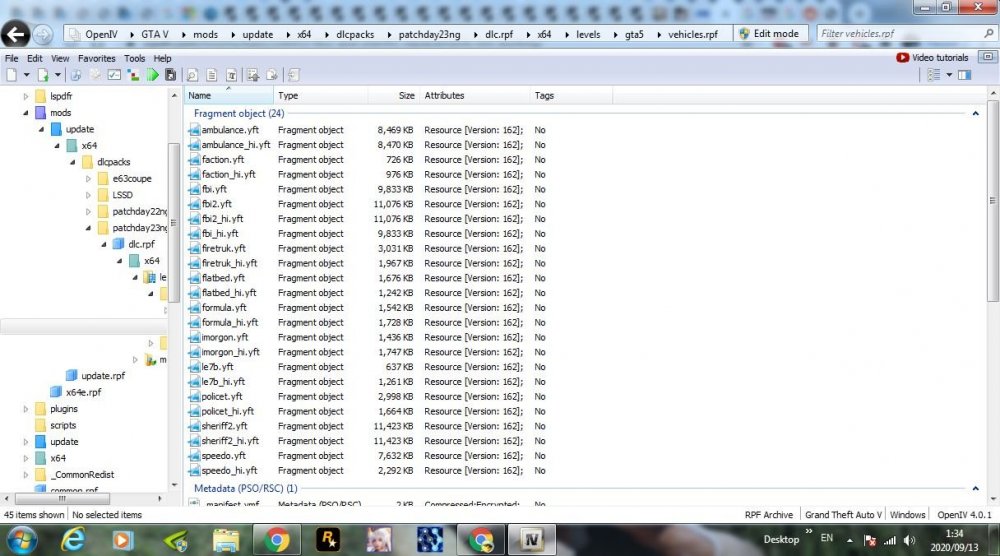
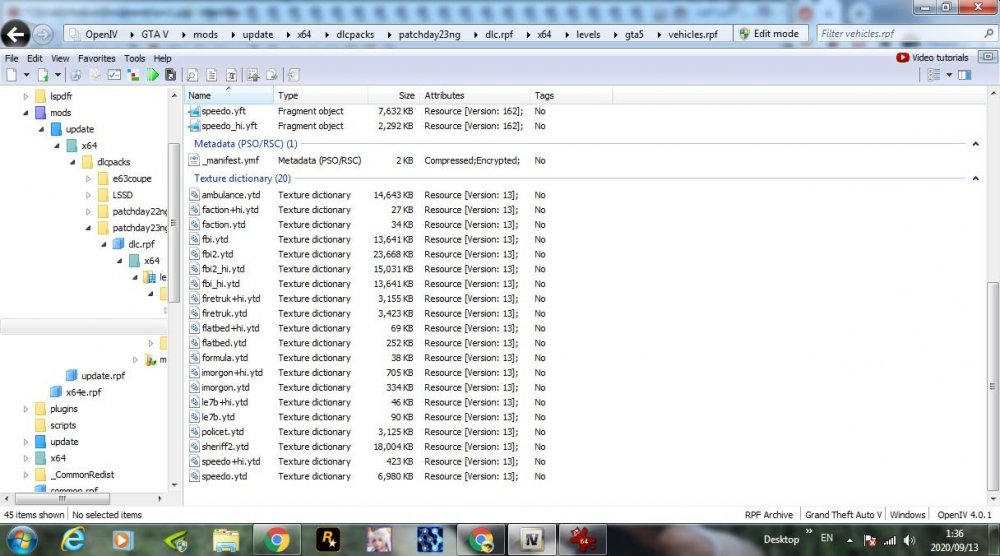
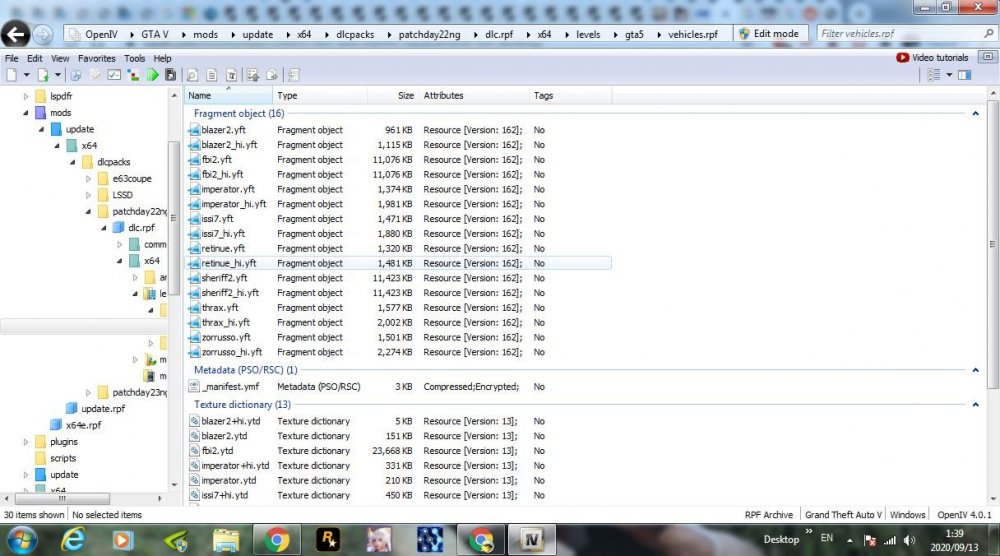
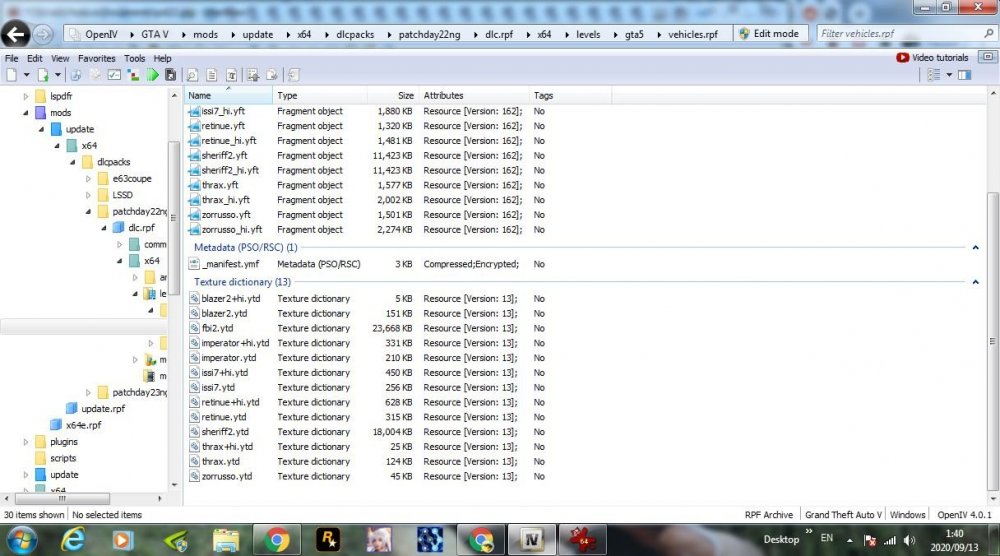
-
Well i tried patchday22ng and still doesn't work sadly.
-
I have replacement mods that worked before and had them installed in patchday22ng and worked fine, now that Rockstar updated i noticed there is a new patchday23ng, so i moved all my mods from 22 to 23, everything works fine like my ambulance and firetruck replacements,etc.... except for fbi2 and sheriff2.... am I missing something were they renamed. I have no idea.
-
Thanks guys but AVLIFE had it correct, it was Bejo's plugin's,lol
-
well the title pretty much says it all... This should be the RPH log file. Was working fine last night. RagePluginHook.log
.thumb.png.ee021cc39dc82fc385406993861c7a9b.png)


