
WIFIOG
Members
-
Joined
-
Last visited
Everything posted by WIFIOG
-
Ill have something posted up here today 👍
-
-
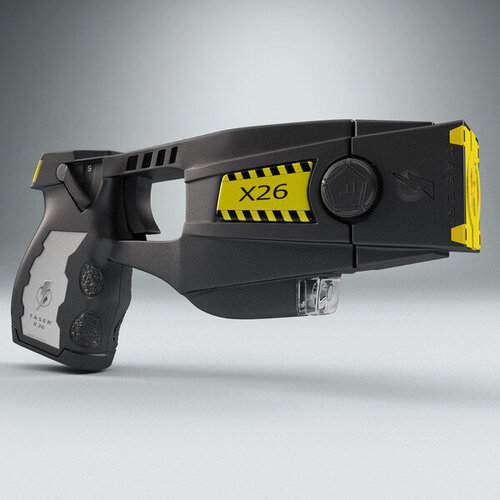 I had the same problem, weapon audio was muted after I installed it using this method. Weird thing is I installed a different audio file using this method and it worked just fine right after. It might just be an issue with this file.
- 19 comments
- 3 reviews
-
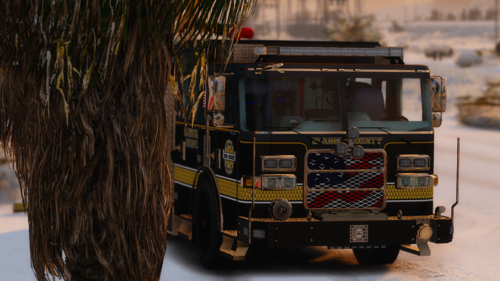 These skins looks so good! But the vehicles in the link were removed.. =/ Any ideas of other vehicles this would would on?
- 17 comments
- 2 reviews
-
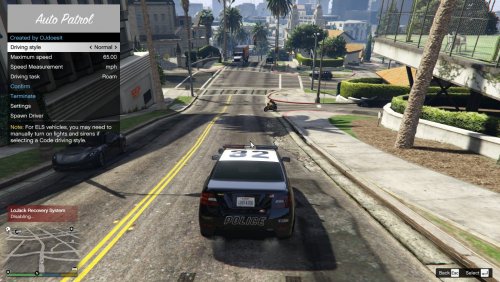 This is pretty awesome.
 -
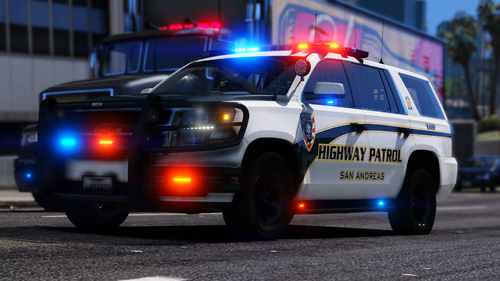
.thumb.png.df723c9e1a33f4d5dd245ba4a8e630ea.png) This should be the first car you replace for anyone using RadianceV! Thank you for this!
This should be the first car you replace for anyone using RadianceV! Thank you for this!- 1 comment
- 5 reviews
-
-

- 1
-
-
-
-
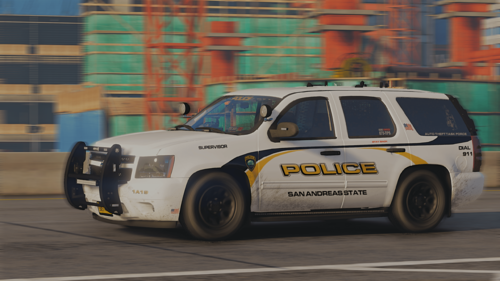 After testing out all the vehicles in this pack I can honestly say this is my favorite pack out there! I did notice a few bugs with the Silverado if you ever get a chance to come back to this pack. Takedowns turn on at the front but only illuminate the rear, dirt does not appear on the rear doors or gas cap, and im not sure if intentional but stage 1 lights have no effect when triggered. Either way this is a great pack, thank you for this! I am going to try making my first livery using this Silverado.
- 260 comments
- 37 reviews
-
-
- 1
-
-
-
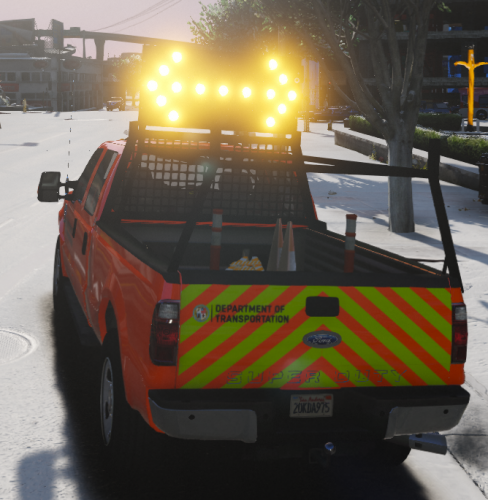
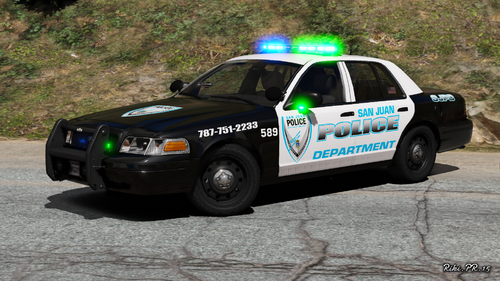 Very nice looking pack, but it seems like the green lights for the F350 is missing from the green/blue lights folder. I would love to use this truck with the green light setup you made. Is it possible to upload the green lights for the F350?
- 13 comments
- 1 review
-
-
- 1
-

.thumb.png.df723c9e1a33f4d5dd245ba4a8e630ea.png)