


iFutur
-
Joined
-
Last visited
Everything posted by iFutur
-
.png.b344e6c90b016ff55bb6def01a7f2d9d.png)
From the album: California Highway Patrol Pictures
© FuTuR_FrEaKzZz
-
.png.a4148c1eae848b3fbb39d8df67098f8f.png)
From the album: California Highway Patrol Pictures
© FuTuR_FrEaKzZz
-
.png.95d21450ca2b0391929a0db72b63e65a.png)
From the album: California Highway Patrol Pictures
© FuTuR_FrEaKzZz
-
.png.6d16391c4d5a3736fd3e55683db738ba.png)
From the album: California Highway Patrol Pictures
© FuTuR_FrEaKzZz
-
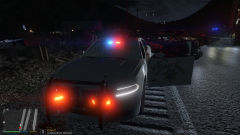
From the album: California Highway Patrol Pictures
© FuTuR_FrEaKzZz
-
.png.390020244e3dee338aebc9a255e0cff3.png)
From the album: California Highway Patrol Pictures
© FuTuR_FrEaKzZz
-
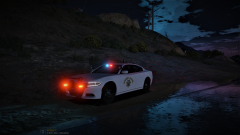
From the album: California Highway Patrol Pictures
© FuTuR_FrEaKzZz
-
.png.f0a76d95c3230083b0d95b970f53b5a1.png)
From the album: California Highway Patrol Pictures
© FuTuR_FrEaKzZz
-
.png.96e9c7a0b2719b6157f0cabfa65a4dd2.png)
From the album: California Highway Patrol Pictures
© FuTuR_FrEaKzZz
-
.png.35ec1c6ee95284410bf960c783e527fb.png)
From the album: California Highway Patrol Pictures
© FuTuR_FrEaKzZz
-
.png.767ad40fcd486ed3129ddf1f2874337d.png)
From the album: California Highway Patrol Pictures
© FuTuR_FrEaKzZz
-
.png.f7d419aadc0d8353acd17c63fc8504fb.png)
From the album: California Highway Patrol Pictures
© FuTuR_FrEaKzZz
-
.png.b34583d6966e4233c8da522cec19501c.png)
From the album: California Highway Patrol Pictures
© FuTuR_FrEaKzZz
-
I figured out what I was doing wrong.... I couldn't sleep and the thought popped in my head that I had forgotten to update it in OpenIV and only did it in my main directory so it works now lol 😛 Appreciate the help!!
-
Hiya ! I just took the plugin's file from the downloaded stop the ped folder and dragged it into my main GTA V directory as instructed by a YT vid I saw ( Yes I still need to look up yt vids on how to do stuff with lspdfr 😛 )
-
I've installed the lastest version of stop the ped ( stop the ped 4.9.2.5 ), however when I go in game it tells me the plugin is disabled and I need to update it. However I've updated it multiple times now and it still doesn't work... Any advice?

.png.b344e6c90b016ff55bb6def01a7f2d9d.png)
.png.a4148c1eae848b3fbb39d8df67098f8f.png)
.png.95d21450ca2b0391929a0db72b63e65a.png)
.png.6d16391c4d5a3736fd3e55683db738ba.png)
.png.390020244e3dee338aebc9a255e0cff3.png)
.png.f0a76d95c3230083b0d95b970f53b5a1.png)
.png.96e9c7a0b2719b6157f0cabfa65a4dd2.png)
.png.35ec1c6ee95284410bf960c783e527fb.png)
.png.767ad40fcd486ed3129ddf1f2874337d.png)
.png.f7d419aadc0d8353acd17c63fc8504fb.png)
.png.b34583d6966e4233c8da522cec19501c.png)