
Quicky
Members
-
Joined
-
Last visited
Everything posted by Quicky
-
 All good. Just making sure I looked everywhere before giving up. Have a good one.
 -
Know anywhere that has the files? I've been searching and only the place I can find with a few of his NZ vehicles is at ausgamer.net.
-
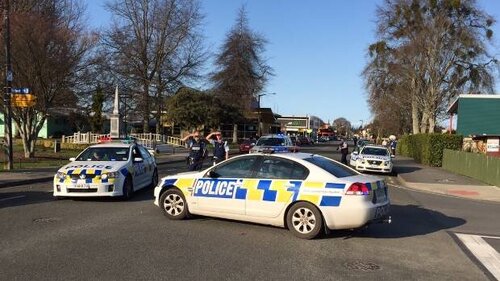
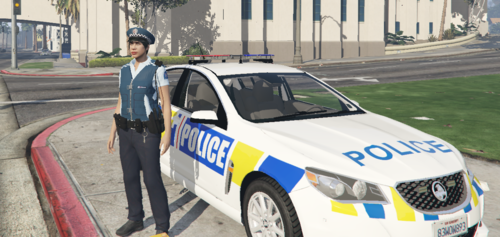 I recommend going onto ausgamer.net for NZ Police vehicles. Most of the popular NZ Police vehicles are no longer available on the official LSPDFR website.
 -
 Hey, are you looking towards making the sheriff peds also use the EUP?
 -
-
That's the problem, it wont launch. Thanks for trying to help.
-
Done that, still nothing.
-
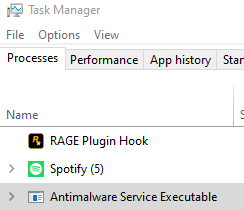
It hasn't made any logs since the last time it launched. I tried that, but it still doesn't work. Yes, they were both extracted. I've also just found something out. Whenever I try to launch the application, task manager sees it for about two seconds, after that 'Windows Problem Reporting' and 'Antimalware Service Executable' programs.

-
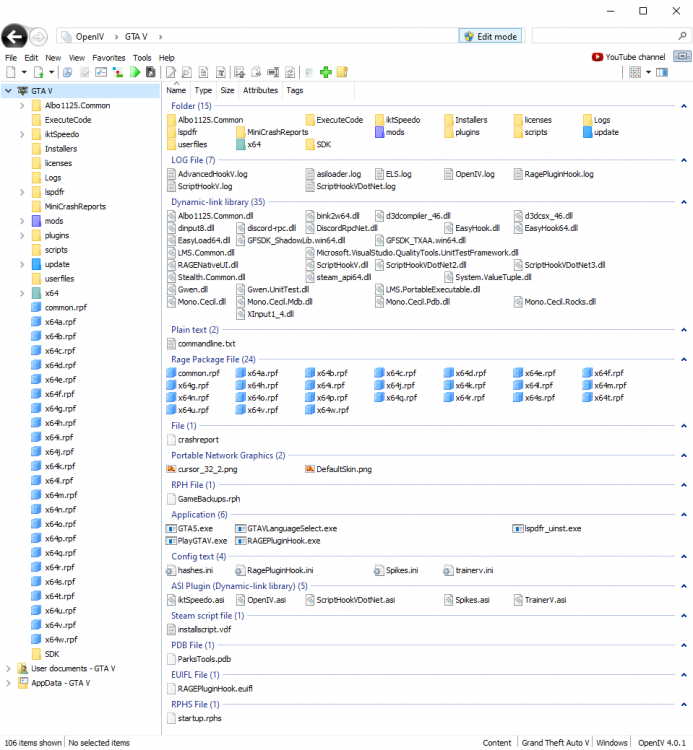
Recently I have come back to LSPDFR. It's been about a week and I've come to my first issue with Rage Plugin Hook. The issue is that whenever I go to launch it ( Double tapping it inside the GTA5 main directory ), it doesn't launch any window. I made sure to check task manager to see if it was running in the background, nope. After checking that, I made sure I could start GTA 5 without Rage, and yes I could. I even tried restarting my PC. I went through threads about this topic, but none of the solutions seemed to fix the issue. I've attached a screenshot of my GTA 5 main directory. Sorry if it's all messy, I couldn't find a way to get it all in one image without that setting. Any help will appreciated. Thank you, Quicky