
Peaty127
Members
-
Joined
-
Last visited
Files posted by Peaty127
-
-----------------------------Peat's Designs------------------------------
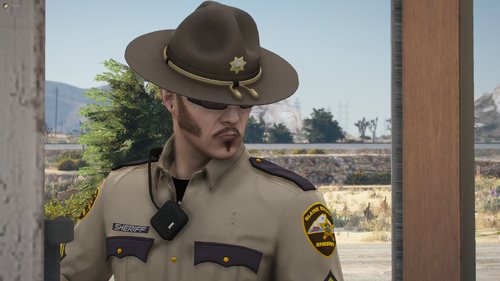
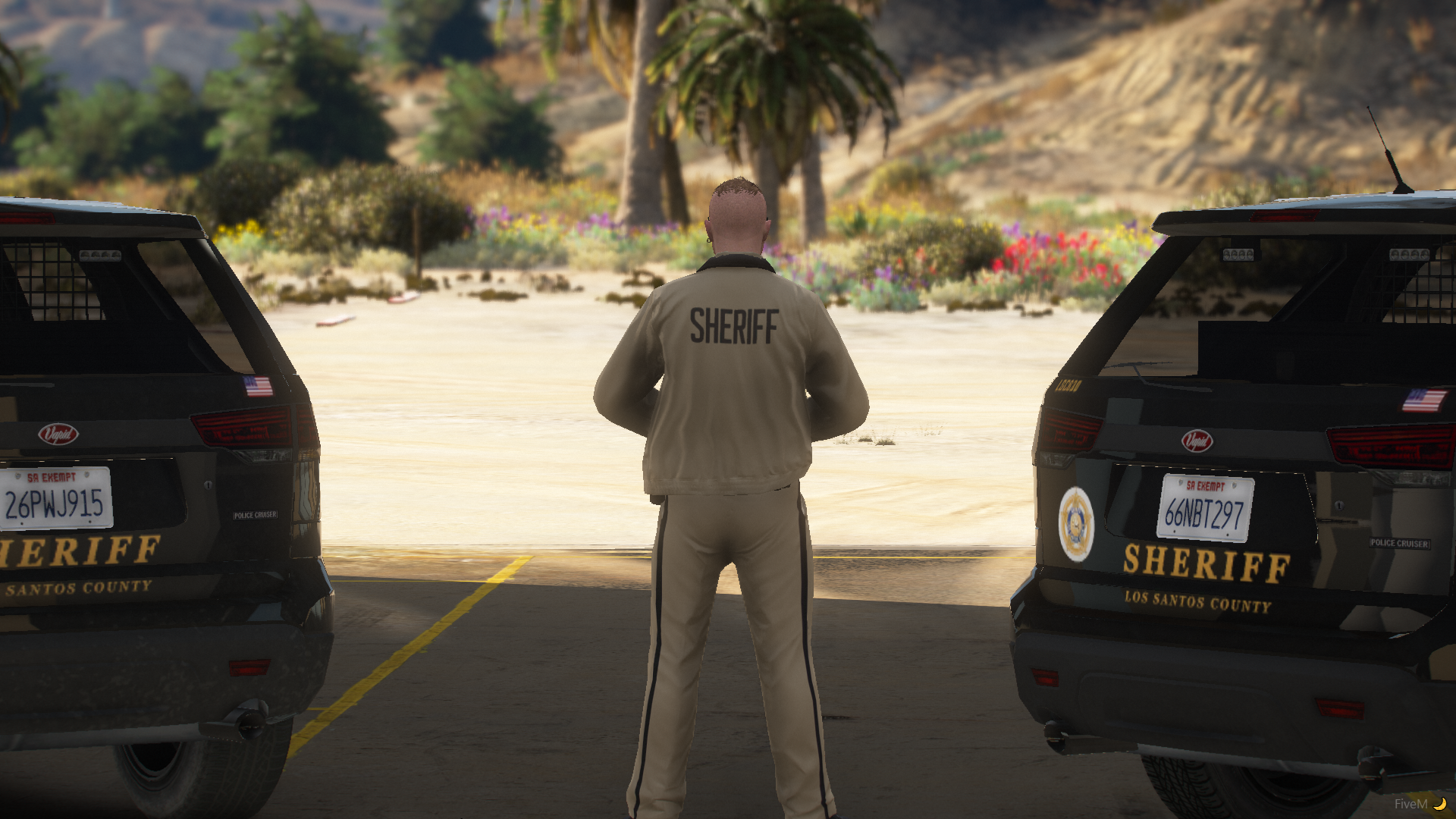
This is a fully custom EUP for Blaine County Sheriffs Office.
There are both Single Player and FiveM ready versions in this pack, and they are just a simple drag and drop.
-------------------------------------------------------------------------------------
Please find the following included in this file:
Class A Shirt
Class B Shirt
Class C Shirt
Undershirts (for jacket)
Pants
Jacket
Campaign Hat (Not Pictured)
-------------------- Installation Instructions ----------------------
Singleplayer
Navigate to: Grand Theft Auto V\mods\update\x64\dlcpacks\eup\dlc.rpf\x64\eup_componentpeds.rpf\
And locate the folder according to the piece of clothing, and drag and drop the files inside.
Hats:
Navigate to: Grand Theft Auto V\mods\update\x64\dlcpacks\eup\dlc.rpf\x64\eup_componentpeds_p.rpf\
and drag and drop the files inside.
-----------------------------------------------------------------
FiveM:
This is intended for server sided EUP 8.2 +
drag and drop and replace all the files in each folder
Done!
If you have any questions or concerns, please contact me!
-------------------------------------------------------------------
DO NOT REUPLOAD MY PACK AND CLAIM IT AS YOUR OWN.
- 3,416 Downloads
- 18 Comments
Updated