
phixe
Members
-
Joined
-
Last visited
Files posted by phixe
-
Bringing you today an old program, it has since been updated past the version that stayed up on LCPDFR. Only thing different is an easier to use interface.
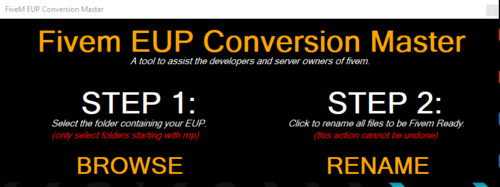
This program assists developers and server owners by simply renaming bulk files to follow a "FiveM Ready" naming format. The program will only work if you have the folders set up correctly. Written instructions below:
Instructions:
1: Open the .exe file
2: Click "Browse" and go to the directory with your eup to be renamed.
3: Select a folder that is named starting "eup_components" and make sure inside that folder, there are ONLY folders with names starting with "mp_m" or "mp_f".
4: Once done, click the "Rename" button, and after that is complete, go into the folders starting with "mp_m" or "mp_f" and voila, they are renamed.
5: Drag and drop all the newly renamed files into your EUP stream folder.
Terms of Use:
- No editing the source code of the program.
- No redistributing this program and/or code of any kind.
- No claiming this program and/or code as your own.
The program's intended use is for server owners and developers to quickly rename their files to be compliant for FiveM's EUP naming guidelines. Make sure to follow any original EUP developer's terms of services.