
Edmar
Members
-
Joined
-
Last visited
Reputation Activity
-
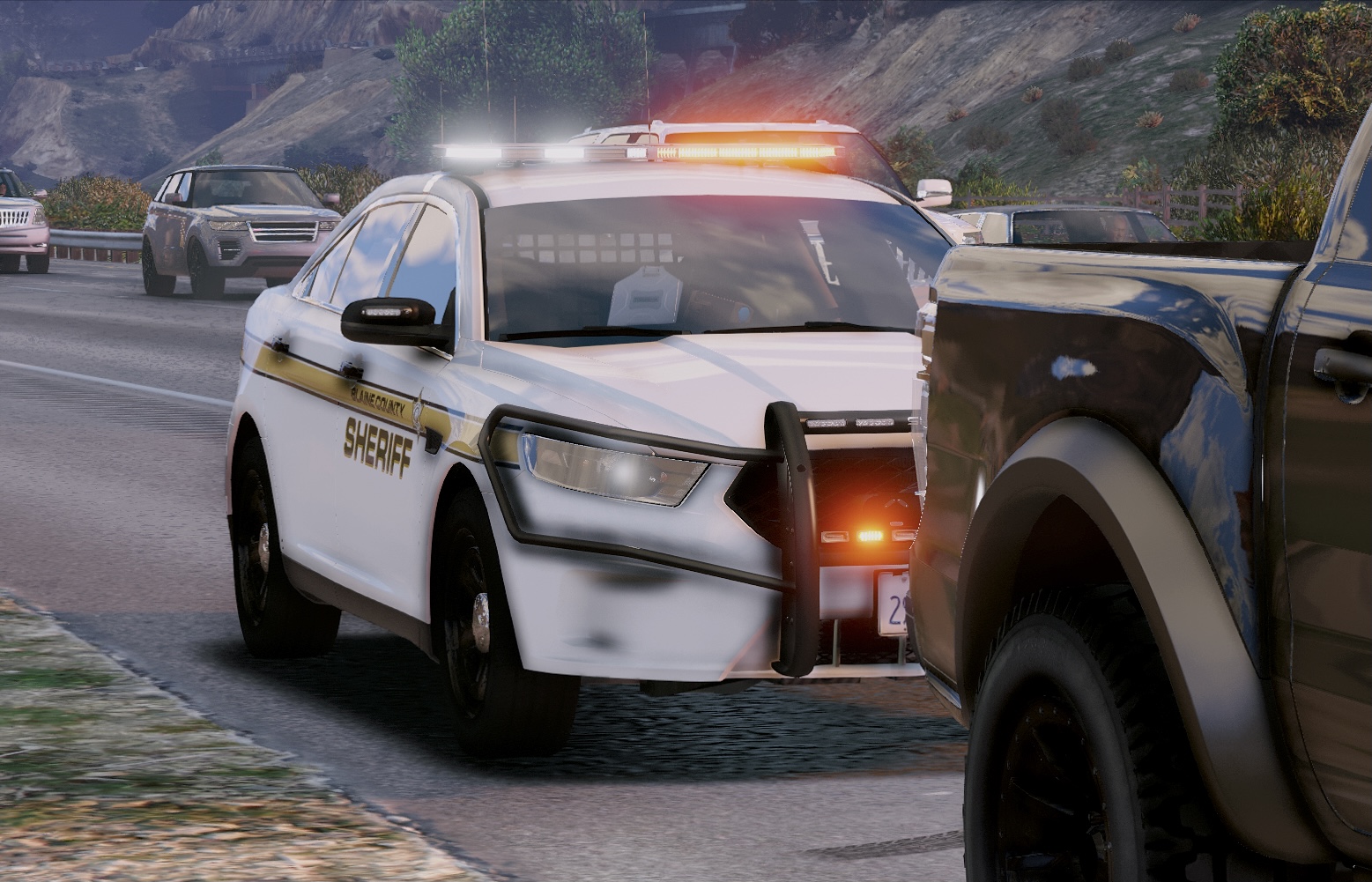
 Edmar reacted to OfficerFive0 for a file, [ELS] Blaine County 2015 K9 Tahoe (Twiggs County GA)Blaine County 2015 K9 Tahoe (Twiggs County GA)
This is designed as a k9 vehicle, therefore there is a cage in back for the k9. Dont put people back there as they wont sit right.
The k9 dog prop and seat organizer are both extras, respectively.
Since this is based off of a GA car, the lights are all blue. However there is a Red/Blue option available is thats what you want.
Template is included in the download.
If you find any bugs or problems don't leave it in a review, instead let me know in the comments.
Screenshots by @Problematic and @Slendis.
Known bugs:
To make the takedowns work i had to move the dummy to the middle of the car, therefore when at a distance looking into the car you may see a white corona floating in middle of the car.
Installation instructions:
This model was designed for RDE, however if you dont use it, just rename the model to whatever slot you want to replace, ie: sheriff2, and drop it into the latest vehicles patchday.
If using RDE drop it here mods\update\update.rpf\x64\rde\rdevehicles.rpf\
move the xml files into Grand Theft Auto V\ELS\pack_default
Credits