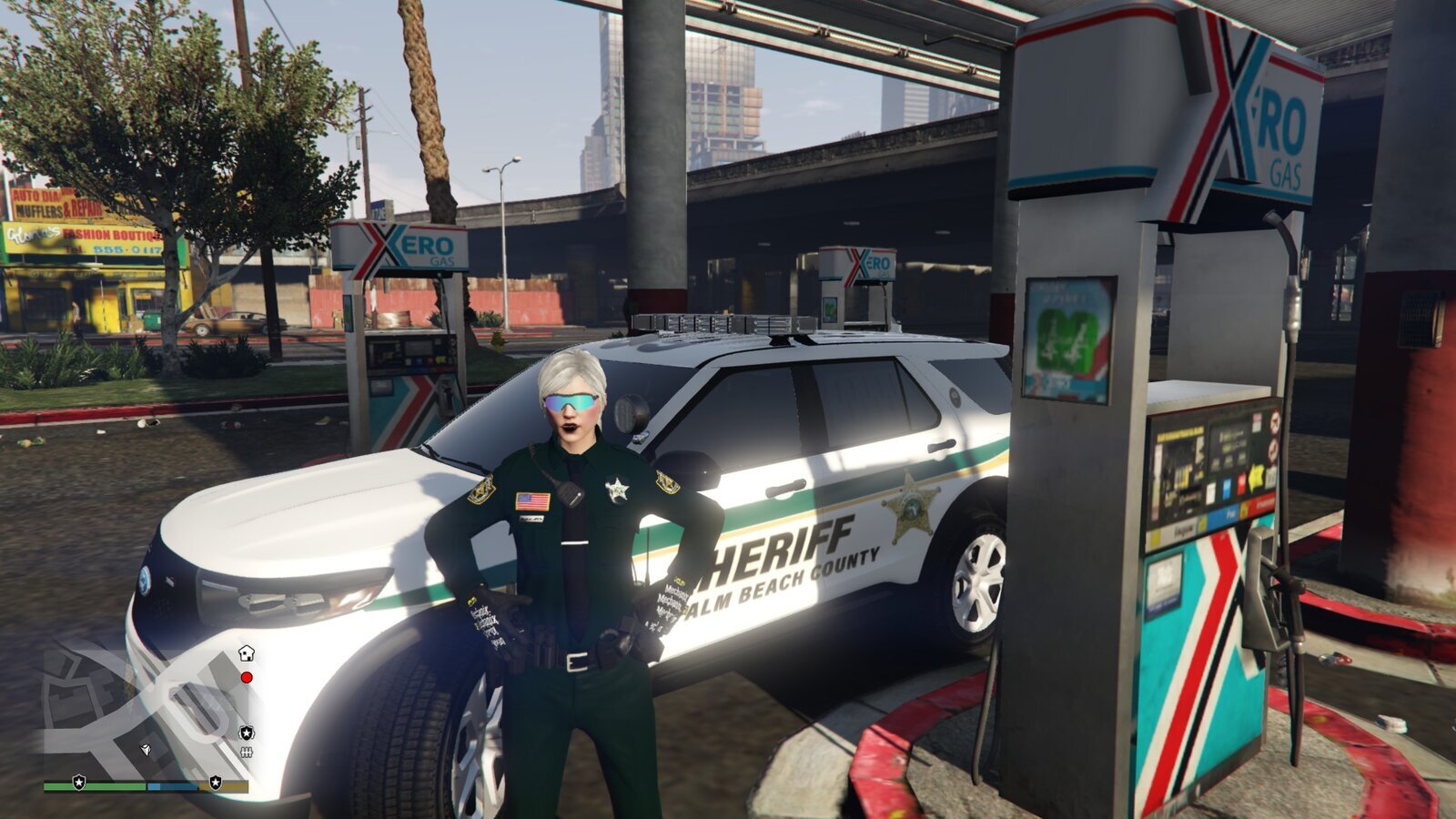

Deputy Konosuke
Members
-
Joined
-
Last visited
Reputation Activity
-
 Deputy Konosuke got a reaction from Ragnrok for a gallery image, Grand Theft Auto V 26-Oct-21 11_13_50.png
 -
Deputy Konosuke got a reaction from Ragnrok for a gallery image,
-
Deputy Konosuke got a reaction from Sentinel55 for a gallery image, Grand Theft Auto V 12_4_2019 8_51_23 PM.png
-
Deputy Konosuke got a reaction from Reddington for a gallery image, Grand Theft Auto V 12_5_2019 4_46_01 PMpatrolling palm beach county
-
Deputy Konosuke got a reaction from Reddington for a gallery image, Grand Theft Auto V 12_4_2019 8_51_23 PM.png
-
Deputy Konosuke got a reaction from Kristovision for a gallery image, Grand Theft Auto V 12_8_2019 8_45_18 PM.png