



Hellcat007
Members
-
Joined
-
Last visited
Reputation Activity
-
 Hellcat007 got a reaction from Cyan in Gta V & LSPDFR Crash 0xc0000005 (EXCEPTION_ACCESS_VIOLATION)That won't be the fix.
The fix is that the corrupt/missing file was replaced or installed.
I see you verified your files 3 times, which only verifies files outside the mods folder. Did you ever recreate your mods folder after I started helping you? If you didn't, and that file was still missing/corrupt, that'd be the reason your game was still crashing.
-
Hellcat007 got a reaction from munchy32123 in LSPDFR crashingYou can keep the profile picture 🙂
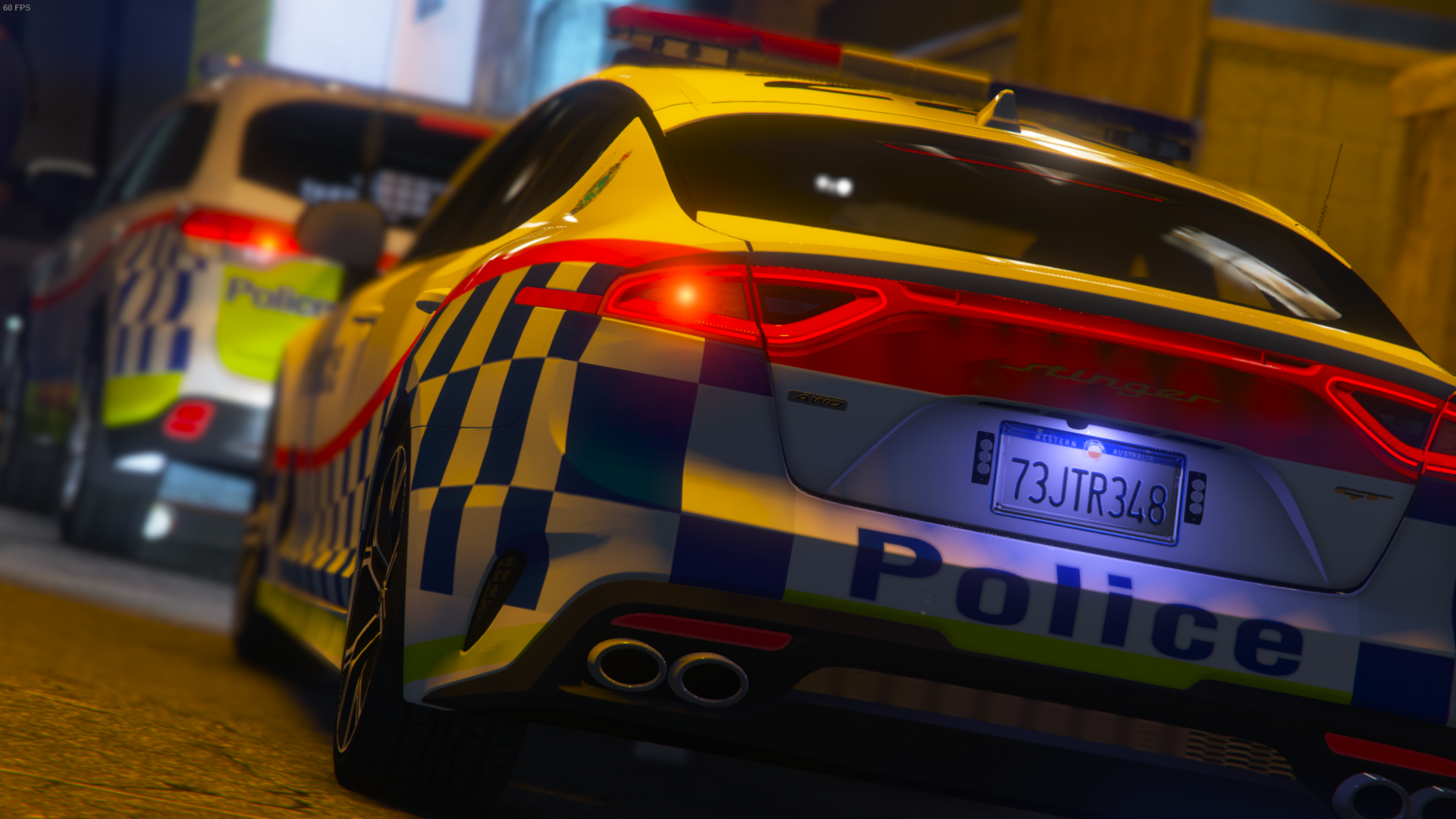
Was just curious as to why you had my photo (Personally, I'd have used the low down from behind the stinger)
If you can load into GTA fine without RAGE, then your problem is not associated with the gameconfig.
Your crash shows that LSPDFR is trying to access protected memory. I had this crash happening last week and I found the issue was that my RageNativeUI is protected. The fix is to just swap it out with this one https://github.com/alexguirre/RAGENativeUI/releases
-
Hellcat007 got a reaction from sssneaky in CrimesManager CrashYes, it's working as expected now 🙂


