


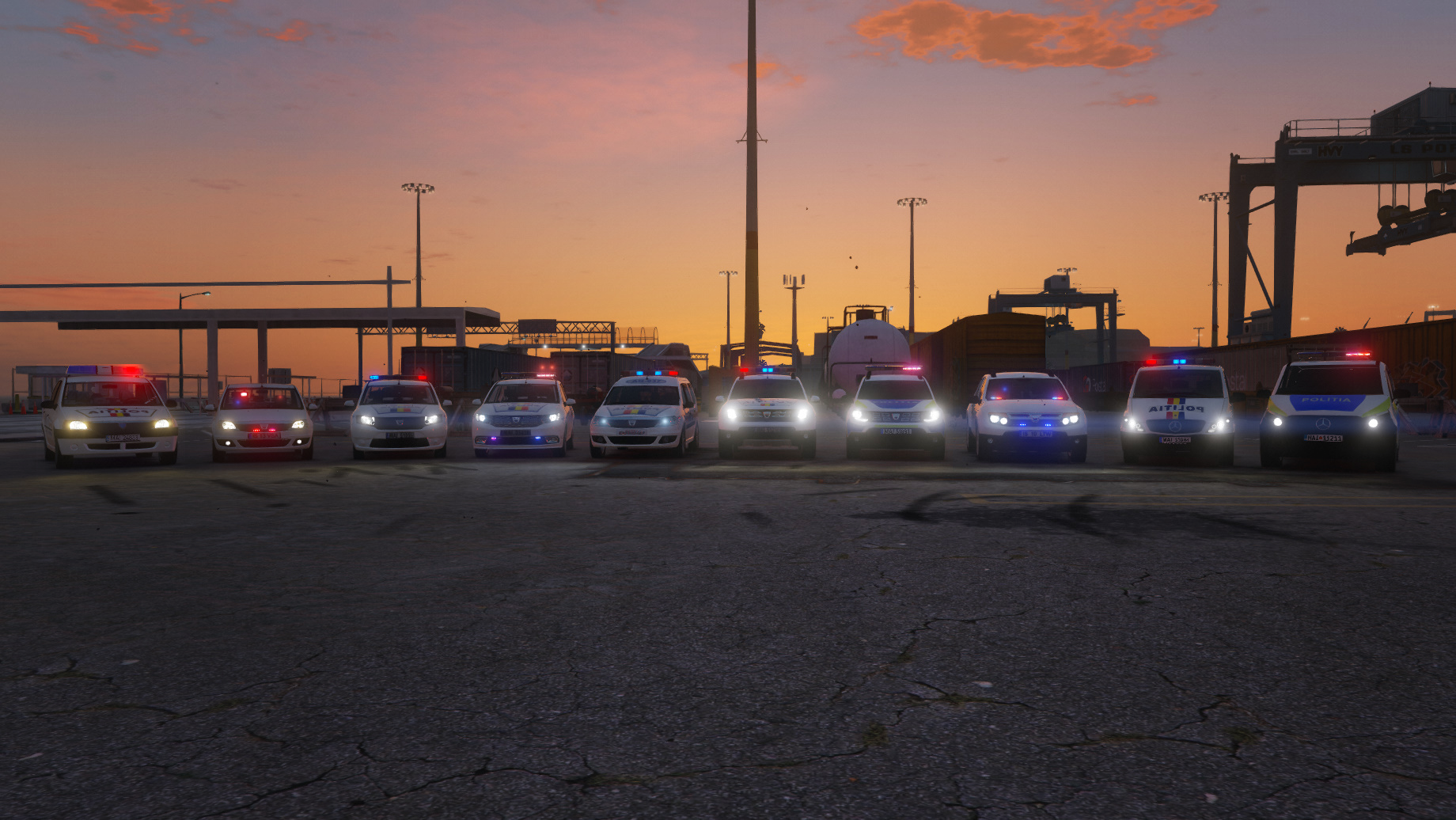

ScaWeedania
-
Joined
-
Last visited
Everything posted by ScaWeedania
-
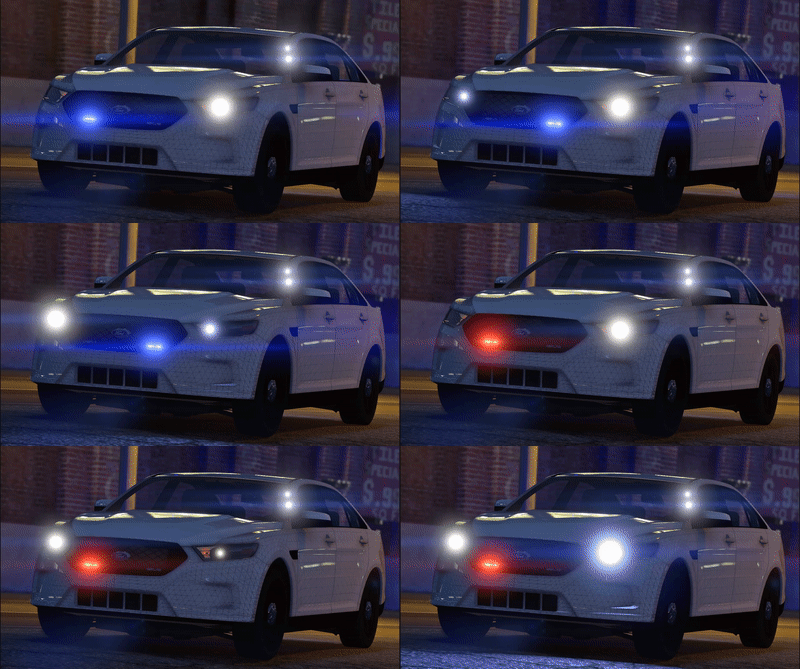
The rear blue section of the lightbar should turn on the same as the red one. A few glows on the left, a few glows on the right. Individually as they are shown in the video after the take downs are activated.
-
I have noticed something a bit weird and I made a video to explain it. It happens with most of the lightbars that I use. Basically when the take-downs are activated, all the lights are turning on as they should. When they are off, the lights are flickering, almost like glitching and it happens on every pattern. That blue part of the lightbar can be turned off individually from the rest of the lightbar. Does anyone know if this can be fixed?
-
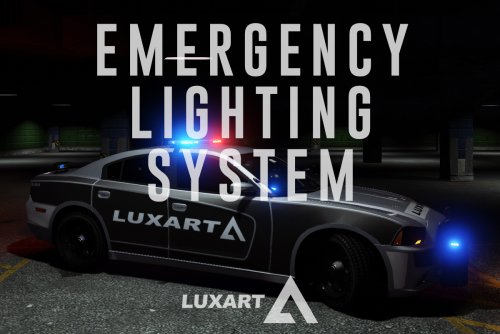 I have noticed something a bit weird and I made a video to explain it. It happens with most of the lightbars that I use. Basically when the take-downs are activated, all the lights are turning on as they should. When they are off, the lights are flickering, almost like glitching and it happens on every pattern. That blue part of the lightbar can be turned off individually from the rest of the lightbar. Does anyone know if this can be fixed?
- 2,680 comments
- 235 reviews
-
 Hello! Do you have any updates regarding the VCF file?
 -
 Salut. Este un bug referitor la dimensiunea fisierului unde sunt sunetele. Cauta pe Google o solutie "GTAV sound folder too big, no sound error. " Salut! Nu joc FiveM, nu am experienta cu asa ceva. Majoritatea sunt luate de pe urgencemods.fr si de pe Gumroad @Edddy
- 8 comments
- 1 review
-
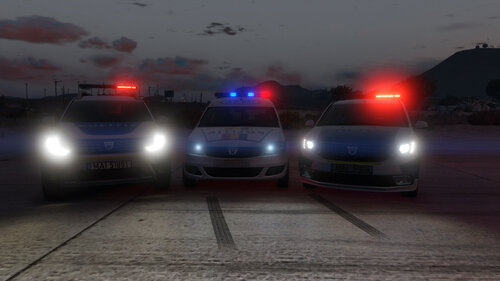 Salut, RadianceV.
 -
From the album: ScaWeedania's Fleet
-
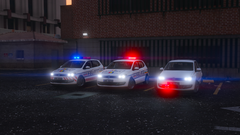
From the album: ScaWeedania's Fleet
-
-
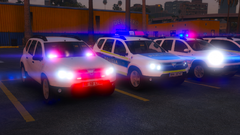
From the album: ScaWeedania's Fleet
-
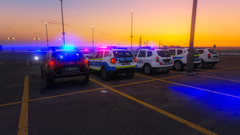
From the album: ScaWeedania's Fleet
-
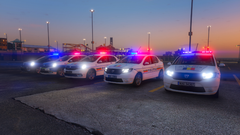
From the album: ScaWeedania's Fleet
-
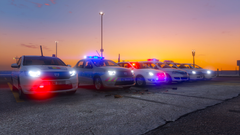
From the album: ScaWeedania's Fleet
-
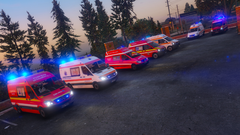
From the album: ScaWeedania's Fleet
-
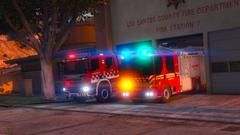
From the album: ScaWeedania's Fleet
-
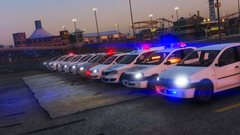
From the album: ScaWeedania's Fleet
-
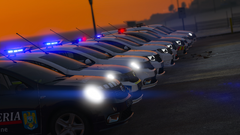
From the album: ScaWeedania's Fleet
-
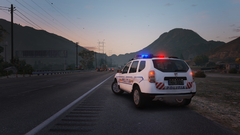 Salut. Este un mod privat.
 -
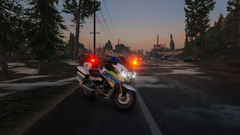
From the album: ScaWeedania's Fleet
-
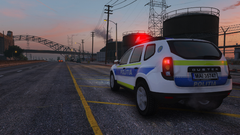
From the album: ScaWeedania's Fleet
-
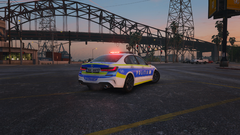
From the album: ScaWeedania's Fleet
-
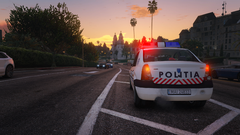
From the album: ScaWeedania's Fleet
-
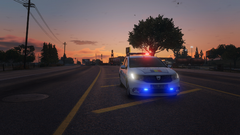
From the album: ScaWeedania's Fleet
-
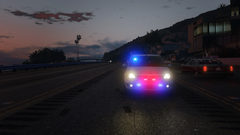
From the album: ScaWeedania's Fleet
-
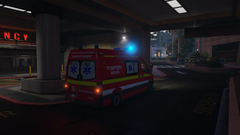
From the album: ScaWeedania's Fleet


