
Cirillo
Members
-
Joined
-
Last visited
Files posted by Cirillo
-
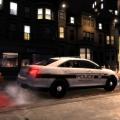
ACTUAL VEHICLE
INSTALLATION
Use SparkIV to select the car in which you installed the 2013 Ford Police Interceptor by cj24(V1.3) and import the images that correspond to the texures provided.
Proceed to your ELS folder and copy and paste the blue-blue_config.ini file and then proceed to your ELS.ini and enter under the car you installed it to (noose for myself) and input
"[ NOOSE ]
Status = on
File = blue-blue_config".
CREDITS
- Model created by EA Games, converted to GTA IV by NIK161RUS, further modified to 2013 model by EVI.
- Rims created by UBISOFT and centercap by EVI.
- Hood, front bumper and headlights created by EVI. Rear bumper edited by EVI. Trunk, tailights, indicators and reverse lights by Humster3d, edited by EVI.
- Whelen Liberty made by KevinDV.
- Toughbook, Antennas, Cameras and Radars modeled by Ridgerunner, textured by Cj24.
- Spotlight by Cj24.
- Livery and emergency lighting textured by Cirillo.
NOTES
To make the emergency lights work properly, you need ELS V7 (Emergency Lighting System).
FILES INCLUDED
- noose.wft
- noose.wtd
- Readme
- Template.png
- ELS Config(blue-blue_config.ini)
- Pictures
Special Thanks to cj24 for his work in getting the model and everything together for release!
Re-uploaded with consent of cj24, its greatly appreciated because i put a solid couple hours into it, making it as realistic as possible.
- 326 Downloads
- 19 Comments
Updated