
Deputy538
Members
-
Joined
-
Last visited
Files posted by Deputy538
-
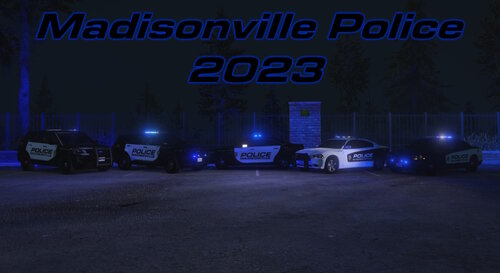
This pack is based on the Madisonville Police Department located inside Monroe County, Tennessee. The pack is based on the City's fleet in 2023.
Disclaimer
You DO NOT have permission to re-upload this pack anywhere!
You CAN use this pack on Five M servers (As long as credit is given)
- 97 Downloads
- 1 Comments
Updated -
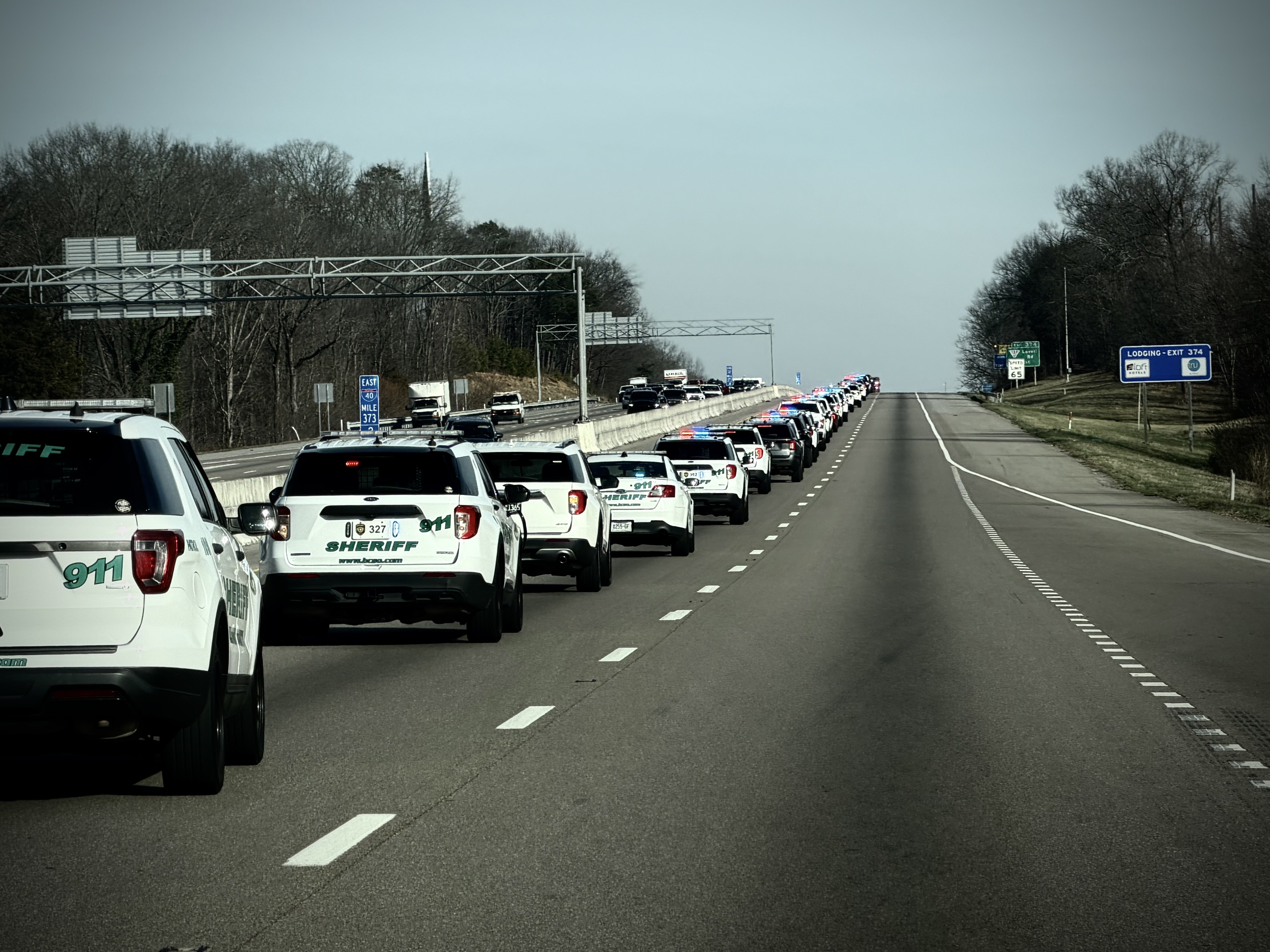
This pack includes all of the agency's located inside of Blount County Tennessee, which includes...
~ Blount County Sheriffs Office
~ Alcoa Police Department
~ Maryville Police Department
~ Townsend Police Department - Coming Soon
- 237 Downloads
- 1 Comments
Updated -
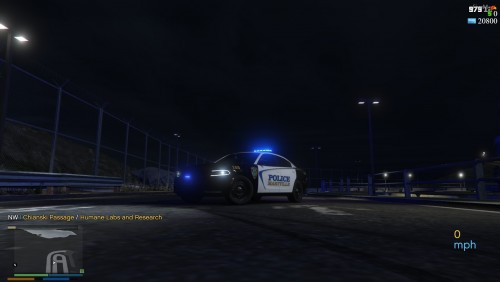
This texture pack is based out of Blount County Tennessee.
~Vehicle Models~
CVPI/Tahoe
~Future Updates~
~K9 Skins
~Real Life Pictures~
- 114 Downloads
Updated -
- 182 Downloads
Submitted -
*NOT COMPLETED*
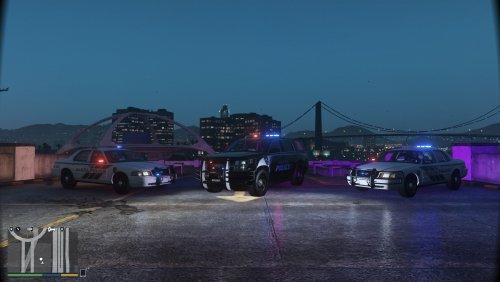
This texture pack is made based off of the Blount County sheriffs Office located in Blount County Tennessee.
Current vehicles used by BCSO Patrol
-2005+ Ford Crown Victoria
-2014 Ford Explorer
-2016 Ford Explorer
-2014 Ford Taurus
-2014 Chevrolet Tahoe
COMING SOON
-Links to vehicle models.
-Easy install/models with textures already applied.
-Better updated textures
-All other Blount County vehicles
-More in game pictures
- 108 Downloads
- 5 Comments
Updated