Arttuuu
Members
-
Joined
-
Last visited
Everything posted by Arttuuu
-
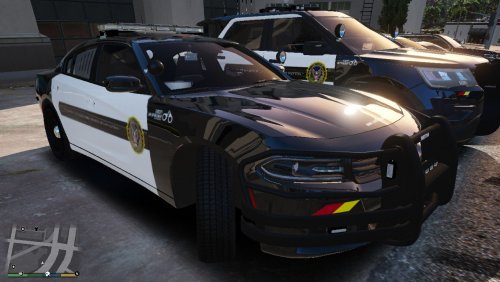 I did, and learned how to replace some car textures. I just don't know where to put these textures in Open IV .... :/
- 9 comments
- 1 review
-
Wish I knew how to use textures and how to put them on cars :s Looks really good, nice work
- 9 comments
- 1 review
-
Not sure if it has anything to do with it, but try to rename the xml file to "FBI" all caps, instead of "fbi"
-
Have you put all the xml files into ELS "pack_default"folder , if there came any with the cars?
-
Ohhhh Ok, thank you. It was kinda a easy solution, feels dumb xD
-
Don't know if this is the right place to ask for help in this case but ill go ahead and post this I have this problem, my cars' lights look so weird in game. they look washed up, almost completely white. What can I do to make them look red and blue again? I have 2 screenshots. First one is taken while in game normally where the lights look white and the other one in the menu, where the lights look normal...?
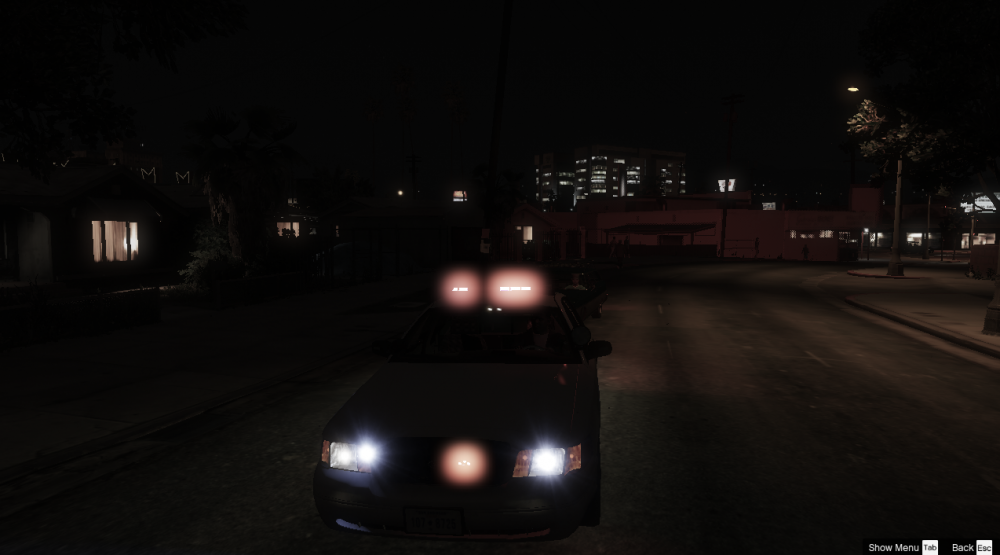
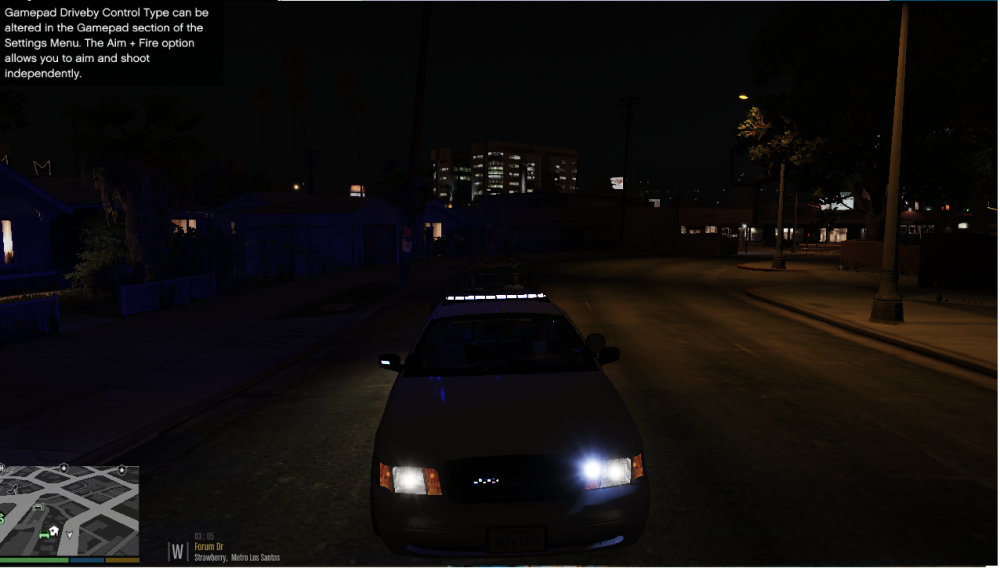
-
-
-
-
-
 Hey albo, I have downloaded lspdfr and ragepluginhook, and the game starts fine. but when im in-game, it doesnt show the notification of lspdfr being launched. the police station markers are shown in the map, but when I go to them, nothin happens or appears on the screen. Can you please help me :S
- 379 comments
- 113 reviews