
RJ20151
Members
-
Joined
-
Last visited
Files posted by RJ20151
-
Note: This is preferred to be used with a Glock 17 texture for the Pistol & Beretta M9 texture for the Combat Pistol.
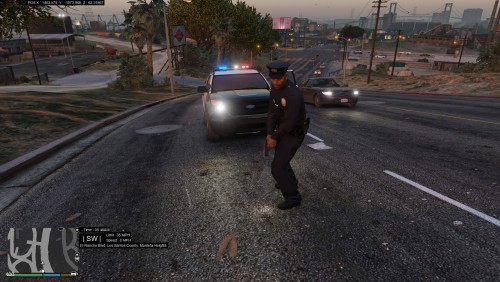
This is a simple XML file that makes police units respond with Flashlights on their Shotguns and Pistols. Patrol units which use the "patrol" inventory, will have a chance to spawn with a shotgun or pistol with a flashlight. Since G17 and M9 textures were in mind with editing this file, the combat pistol will spawn with no flash light and has a lesser chance of spawning since this replicates the M9 being almost fazed out and that M9 are almost never seen with flashlight attachments.
Another edit is that bike units will now spawn with a pistol rather than Combat pistol.
- 509 Downloads
- 3 Comments
Updated -
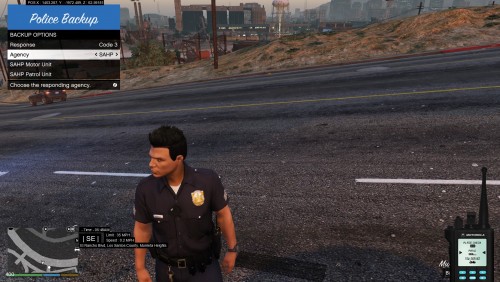
This is a simple agency modification that is edited to have the original LSPD peds as opposed to the freemode ped.
This also allows you to call an SAHP patrol unit as back up in addition to the default bike backup. Do note that the vehicle the SAHP unit responds with uses the FBI slot, so make sure you install a police car in that slot if you want them to respond with a police car as opposed to the Buffalo.
LSSD units will also respond with the Sheriff SUV.
- 230 Downloads
Submitted