
WizzOfficial
Members
-
Joined
-
Last visited
Files posted by WizzOfficial
-
- 12 Downloads
Updated -
********YOU WILL NEED TO DOWNLOAD THE MODEL BEFORE INSTALLING!********
http://www.lcpdfr.com/files/file/15300-2016-chevy-express-3500-transport-unit-els/
- 532 Downloads
- 11 Comments
Submitted -
YOU WILL NEED THE MODEL IN ORDER TO INSTALL;
http://www.lcpdfr.com/files/file/15786-els-2013-slicktop-chevrolet-tahoe/
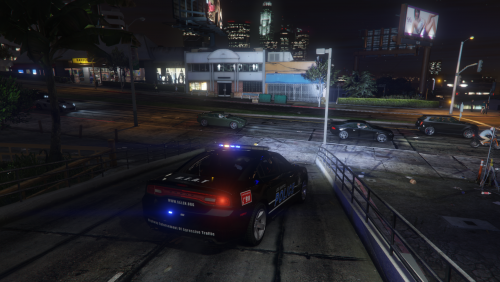
I Made this texture purely because i couldn't find a decent S.W.A.T tahoe/suv, i found Gump's Tahoe and converted it into a S.W.A.T tahoe myself, i take NO CREDIT for the model.
I Will Be Making More Versions In The Future.
How To Install:
1) Locate Your Vehicle File (Should already be installed)
2) Open Up the texture dictionary
3) Delete tahoe_sign_2 (If you only want the SWAT livery)
4) Replace tahoe_sign_1 with my Texture file
5) Make sure it is install by opening the fragment object.
If the texture doesn't appear with the S.W.A.T livery, chances are you haven't installed it right, just check over the steps above.
- 92 Downloads
Submitted