




GameandChill
Members
-
Joined
Everything posted by GameandChill
-
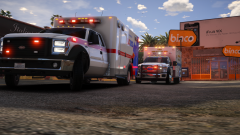
From the album: Screenshots of GTA V
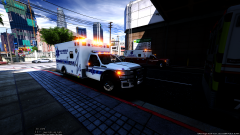 so is this, actually soonsoonsoon, or is it like my mothers soon, meaning actually next week? haha.This radar works just fine for me and I'm on the latest GTA. I believe the Scripthookvdotnet2 files need to be in your directory and not the SDK folder you have them in for some reason.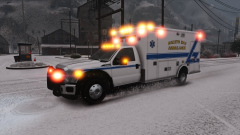
From the album: Screenshots of GTA V
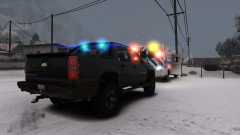
From the album: Screenshots of GTA V
I use this, https://www.gta5-mods.com/vehicles/realistic-driving-v , and I've never really noticed the front end rasing, or the rear.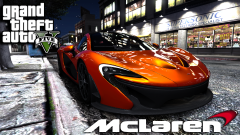 Is that StreetSpeed717's new car? haha
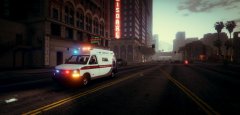 Will there be an option for all red lighting?
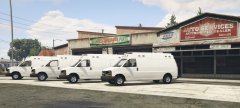 I'll one up you and say, I want this in my game like yesterday lol.You can just change the date on your PC and it'll set it back to normal.
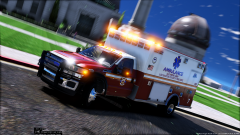 My goodness that looks so good... Even has a T/A!
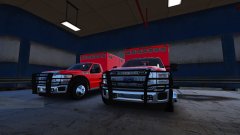 YESSSSS! Haha
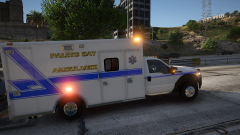 Well lucky for you, it's uploaded lol.
From the album: Screenshots of GTA V
So I'm working on a new skin... Crappy part... My gold leaf textures that I made, are gone since I've just reinstalled windows not to long ago, and forgot to back that up... Will be out once I can get the Gold Leaf Lettering look like Gold Leaf.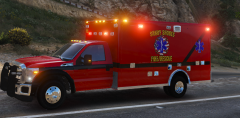 Oh I know ;) I have your trello bookmarked haha.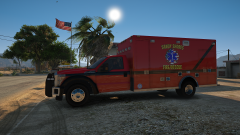
From the album: Screenshots of GTA V
Skin: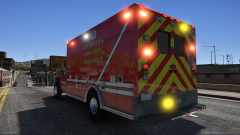
From the album: Screenshots of GTA V
Skin:
I need more Ambo's in my life! lol. Welcome back!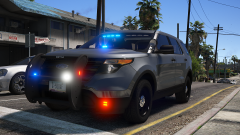
From the album: Screenshots of GTA V
Thank you, but I ended up finally getting my GTA to work, by just formatting all of my drives and installing windows for the 2nd time, and got els to work.. Guess I had something in my system somewhere.I've been asking for someone to make one for months myself, it's a weird request, but.I don't and the only log I have that has any errors in it is the Launcher.logThat's what dinput8.dll is I think. but I do have OpenIV.asi as well.. It's AdvancedhookV, and Dinput8.dll causing the issue nothing else.I do have all of that, and posting your images, isn't necessary.



