Redneck21
Members
-
Joined
-
Last visited
Everything posted by Redneck21
-
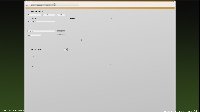
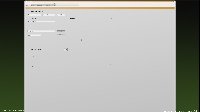
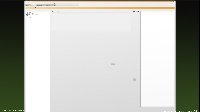
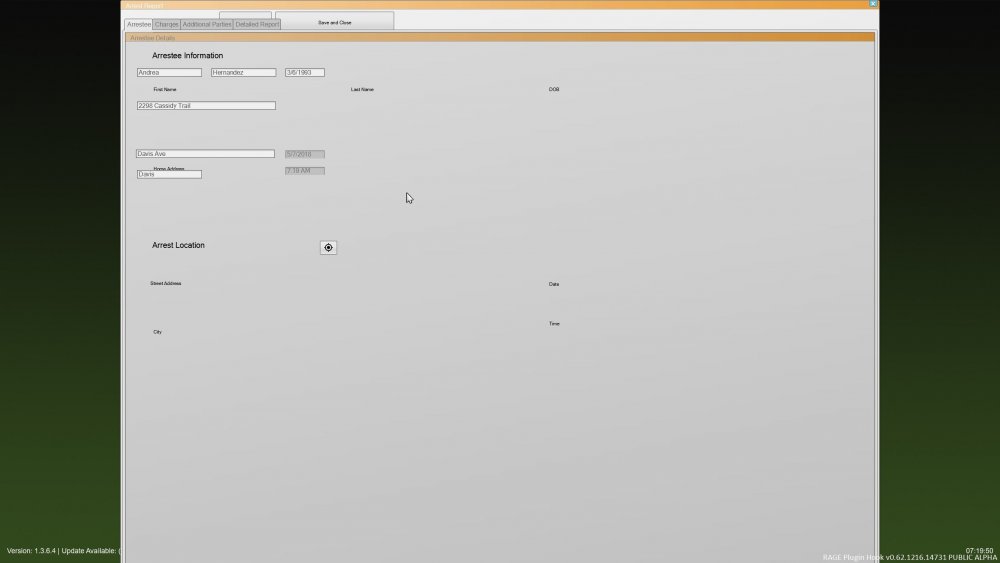
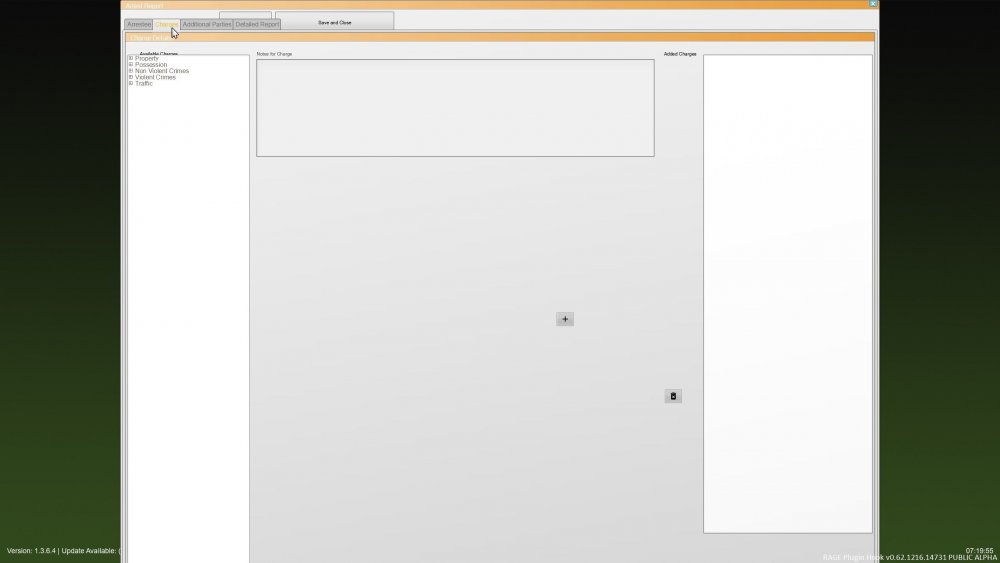
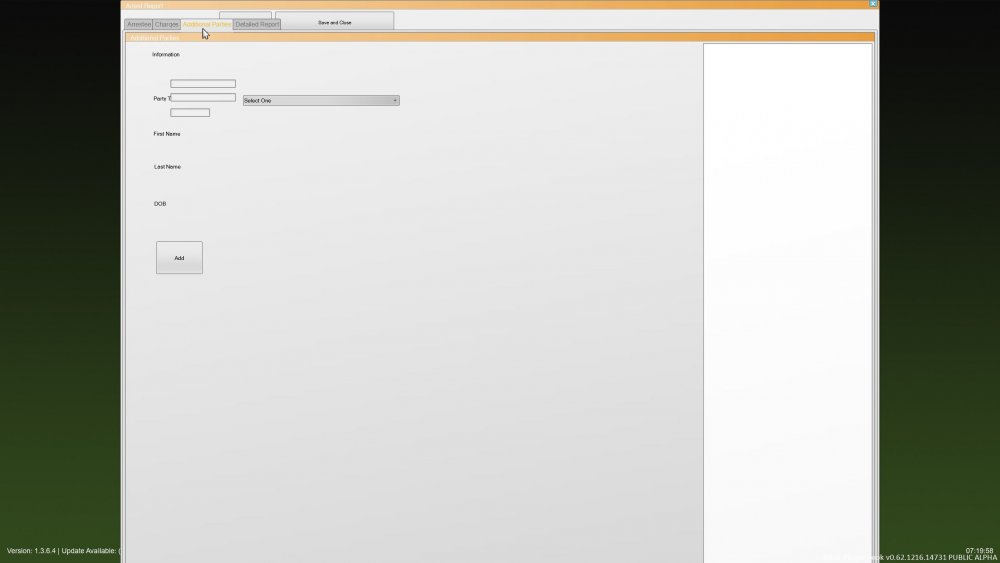
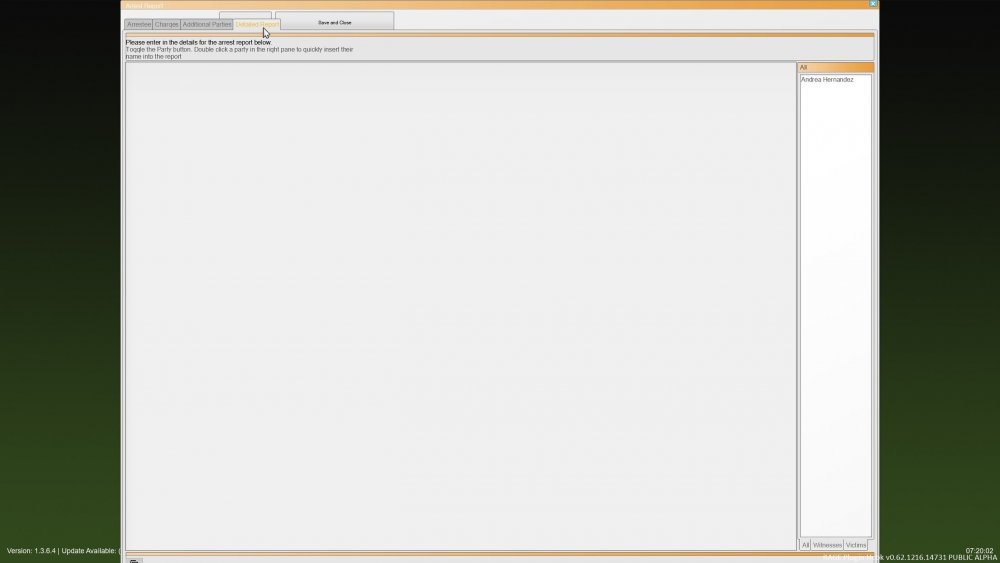
I have a problem I've been experiencing for some time now. My arrest report shows up kind of weird. I don't know what is causing it. It is only the arrest report. everything else works fine. the only other problem is that when arresting the ped and completing the report or sometimes viewing their history and info and exit the computer they step out of the vehicle. Please help
-
-
-
-
Does anyone know why my LSPDFR+ Computer is showing up like this on the arrest report? I do not see much of a problem on anything else on the computer. just the arrest report. also after I create the report the suspect automatically gets out of the back of the car so if anyone knows what may be causing this please help. I have posted a review on the lspdfr site about this concerning issue and no one has answered.
-
-
 Great mod, any Idea when updates will be out for this and the others that will support GTA version 1.0.1011? They finally got Rage back up after a like 4 days but I get a black message box saying that the traffic policer, arrest manager, LSPDFR+, and assorted callouts are not compatible with the new GTA version. Not rushing, I would just like to get back to playing LSPDFR and get the most out of it. Thanks
- 1,915 comments
- 242 reviews
-
-

- 2
-